Deutsch
  Español
  Français
  العربية
  Indonesia
  Italiano
  한국어
한국어  Nederlands
  Polski
  Português
  Türkçe
  简体中文
简体中文  ไทย
ไทย  Tiếng Việt
  Čeština
  فارسی
فارسی  Română
  Filipino
  日本語
日本語 


How To Use VPN: A Guide for All Devices and Needs
VPNs have become mainstream and so there are dozens of ways to configure and use them. Everything is tied to your personal needs, and the devices and platforms that you would feel comfortable with. Fortunately, the current service providers strive to provide the most convenient, easily usable, and effective solution to any possible situation. Continue reading to see how a VPN can be used on any device and to any end.
When a virtual private network (VPN) was first introduced in the 1990s, it was a solution to some of the infrequent privacy-sensitive companies and computer enthusiasts. However, that is no longer so. It is all the growing range of cybersecurity concerns and Internet restrictions that prompt us to seek efficient means of securing our data and online identities – and this is where a VPN is going to come to our own. A VPN is a type of encrypted tunnel that is a secure and private channel that prevents surveillance and eavesdropping of your internet traffic. By using a VPN, you are anonymized in the sense that your actual IP address is obscured and get a new IP address, increasing your privacy, as well as giving you access to content that is restricted to particular regions. Nowadays, about a third of active Internet users have joined this tool so that the online activity could be safer and the necessary content could be accessed. It is also advisable to use a VPN when you are on open Wi Fires and this will secure your information against potential security breaches and cybercrime.
 VeePN Research Lab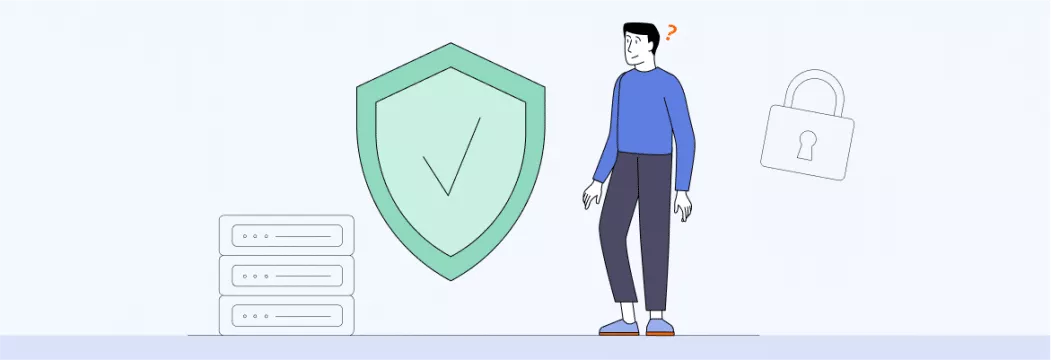


 Quick Navigation
Introduction to VPNs
Your entry to a secure, more personal, and more open web experience. A VPN supports your online privacy by building a safe shield around your network communications with a remote server thus preventing your information to fall into wrong hands and covering your identity on the internet. With VPN, you are not seen as you are using the real IP address, and your online behavior is coded, and it is almost impossible that a hacker, advertisers or even your internet provider can trace your surfing patterns.
Among the largest benefits of a virtual private network VPN, one can cite access to geo-blocked content. You may wish to watch the shows of another country or visit sites that cannot be accessed in your area, a VPN will help you overcome these online restrictions. The vast majority of VPN companies provide easy-to-use VPN applications that allow one to install a VPN and create a secure connection within a few clicks. The only thing that you have to do is pick a decent VPN company, download their VPN software, and have it connected to a faraway server of your preference. Having a connection to the VPN, one can experience the feeling of a private network and browse the web, being sure that your sensitive information is secured.
Why you should use a VPN
The use of VPNs according to the most recent surveys has many reasons. The most prevalent reasons are to obtain more entertaining material (50%), reach social networks and sources of news (34%), enhance Internet privacy and security (31%), and free workplace (30%). A VPN codes your online data, and the third party cannot read it and thus you will have privacy. Also, VPN protects your actual address and location as it is sent through encrypted servers so that it is not tracked and your privacy is improved on the Internet as well.
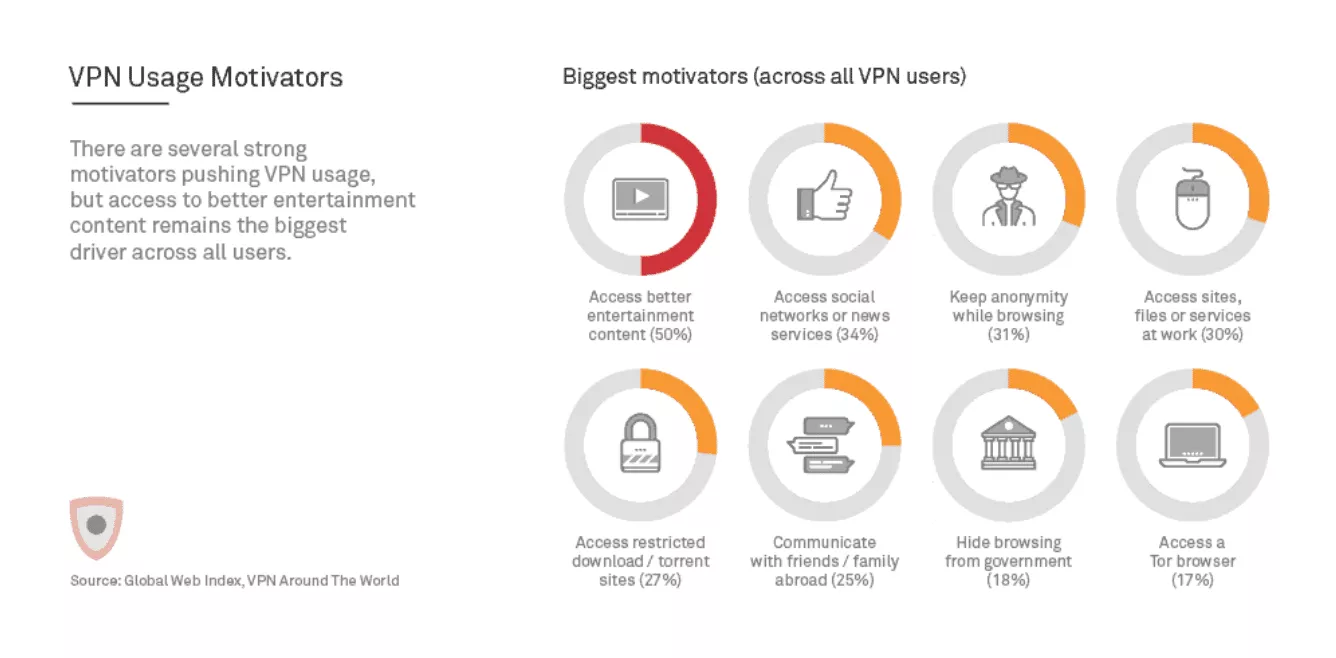
Source: The Best VPN
And that is just the tip of the iceberg, as there are even more potential use cases of virtual private networks. For example, VPNs can help you access streaming services that may be restricted in your region by connecting to servers in different countries. So let’s explore some of the best ways to use a VPN and the purposes this solution will cover.
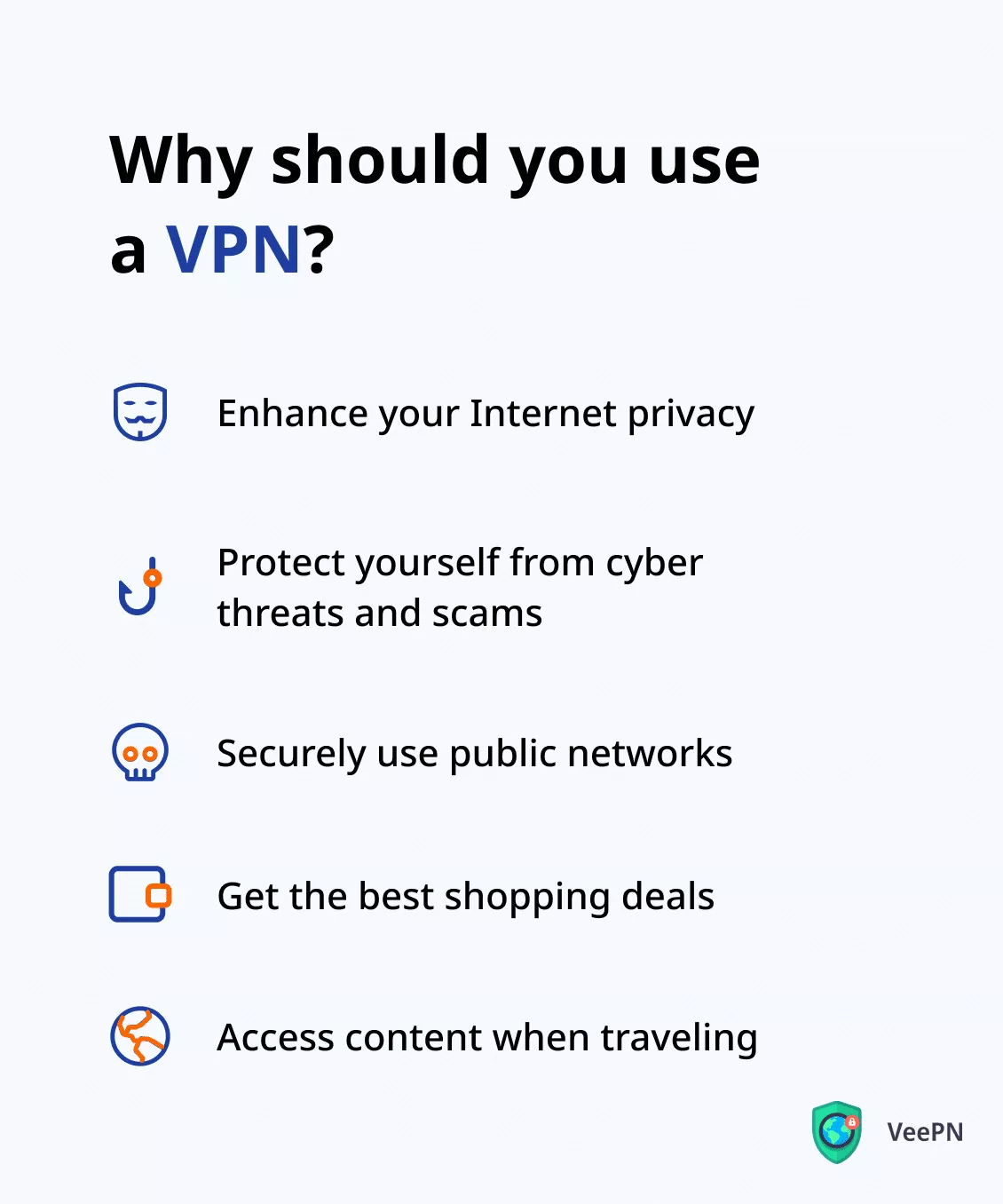
Enhance your Internet privacy
The online privacy is one of the most significant issues nowadays. According to a Pew Research Center survey, 79 percent of the users are concerned either very or somewhat by the fact that companies and services are gathering their personal information. Luckily, there is a dependable VPN which can resolve this problem. This tool encrypts your data (your IP, browsing history, Google search requests, downloaded files, etc.), so that it is not seen by the third parties. Your online activity can also be easily tracked because a VPN also hides your public IP address which prevents websites and services to be able to follow you. You can also control which apps or websites to use the VPN to access a private connection and the rest of the apps or websites use the internet directly with such features as split tunneling. There is also an option of blocking unwanted ads, cookies, and trackers in order to render your online trail undecipherable.
Protect yourself from cyber threats and scams
The list of cyber threats is increasing tremendously and the hackers continuously invent newer and more sophisticated forms of viruses, scams and social engineering tricks. A VPN is able to guard against most of those dangers. With the built-in powerful security, it has helped you to avoid doddy websites, spoofed links, virus-carrying pop-ups and phishing emails. Several VPNs also have an auto-connect option to make sure that you have a secure connection at all times when you use the public Wi-Fi CBs which are usually not secure. In addition, VPN also prevents various types of malware and is an excellent tool against distributed denial-of-service (DDoS) attacks.
Securely use public networks
As soon as you join a Wi-Fi network when staying at a hotel, airport, gym, or a cafe close to your location, your data security is in huge danger. You should always remember to utilize a VPN before you enter a public network in order to secure your data. Unsecured hotspots are commonly used by hackers to compromise the connection of users and steal their information. As an example, a computer hacker could intervene with your traffic and steal your credentials in a man-in-the-middle (MITM) attack. Once connected, seek a VPN icon on your device to verify that the VPN connection is alive and you have the right to be sure that your data is safe. However, when your information is encrypted with the assistance of VPN, attackers cannot place themselves between your computer and the network that you are connected to.
Get the best shopping deals
That’s right, a VPN is not only just a powerful cybersecurity solution, but it also allows you to save costs and get better deals online. How is that possible? Well, the price of many services, including hotel booking and airline tickets, vary depending on your location. And that is not always due to fair reasons. But you can switch to another VPN server to avoid price spikes and save your money.
Access content when traveling
When going on a vacation or work trip, you may find it challenging to access the content you need. For instance, your favorite Netflix shows may appear to be unavailable in your current location. A VPN helps overcome geographical limitations and access the desired streaming platform or library, as well as any other websites and platforms, wherever you are. Besides, a VPN is a powerful anti-censorship solution that can help you get around firewalls, deep packet inspection (DPI), and other techniques ISPs impose in countries with limited Internet freedom.
Now that you know the most compelling reasons to set up a VPN on your device, let’s get straight to the point and reveal how to use it with the most popular devices and operating systems.
Choosing a VPN
It should be noted that when selecting the right VPN you should ensure that you are safer on the Internet and that you are savoring your online privacy. When comparing the different vendors of VPN one could first consider their reputation as well as the security features offered by them. Ensure that providers have high-quality VPN protocols i.e. OpenVPN, WireGuard, or the IPsec protocol to make sure that there is a strong encrypted connection. There is also an array of other features in most VPN services like split tunneling that will enable you to choose which applications will get through the VPN tunnel and which will not use the services.
The number of available servers, location of servers worldwide and the speed of VPN connection are other crucial factors. An impressive variety of server locations enables you to find the content available in other regions and the fastest VPN server depending on your needs. It should also be easy to use: the vast majority of VPN market participants have user-friendly applications on various devices, and it is not complicated to secure your Internet connection in case you are using a personal computer, a smartphone, or a tablet.
Also do not forget to look at any additional features such as kill switches, ad blocking, and unlimited simultaneous connections, which could be useful to add to your VPN usage. Independent reviews, feature comparisons and web browsing of the VPN provider site to review all the features before committing oneself. Numerous VPN services come with free trial or money-back guarantees, which means that you can try their service without a risk and identify the one that best suits your needs on the internet.
How to use a VPN service on different devices and platforms
Most users according to the statistics given by a Global Web Index study installed VPNs on their desktops (17%), smartphones (15%), and tablet computers (7%). The installation of VPN can be different according to the operating system, i.e. Windows, macOS, iOS, and Android, thus, it is necessary to adhere to the instructions that are specific to each operating system. The majority of VPN services have easy-to-use applications on various operating systems and are therefore easy to install and set up. In addition, a good virtual private network must offer platform, browser, and operating systems solutions. Fortunately, there is a multi-platform VPN service such as VeePN that will come into the rescue. This is the process of configuring and using VeePN on MacOS, Windows, iOS, and Android.
How to use a VPN on a PC
First, let’s explore how to use VeePN on your desktop device, whether macOS or a Windows computer. If you have devices like gaming consoles, smart TVs, or streaming devices that don’t support native VPN apps, you can use a Windows computer to set up a VPN connection for them.
In the Windows subsection, to use a VPN on Windows, you need to download the VPN app, sign in, and connect to a server.
macOS
- Sign up for VeePN and pick the preferable pricing plan for your needs.
- Download and install the VeePN app on your macOS device from the App Store or the official VeePN website.
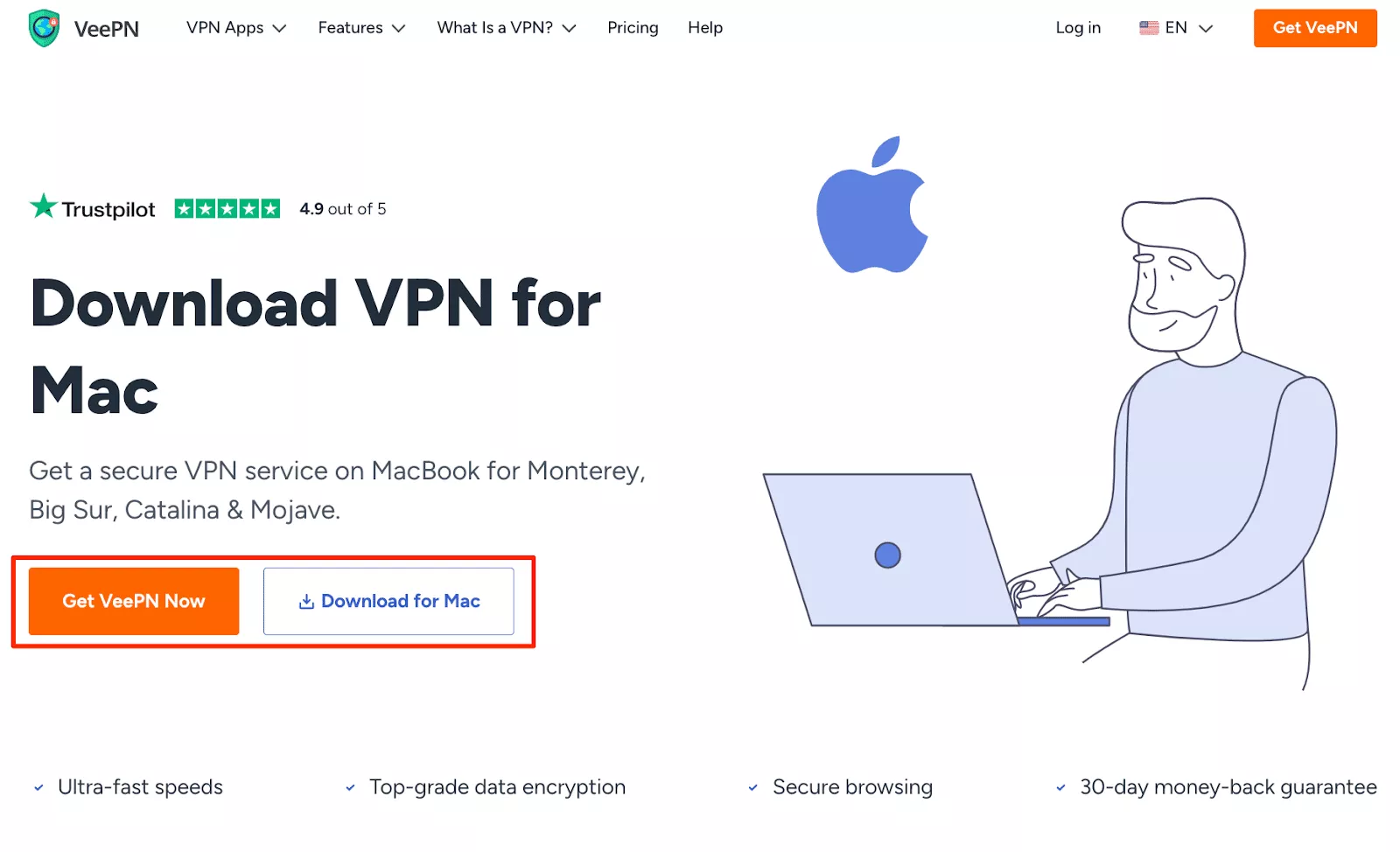
- Open the VeePN app.
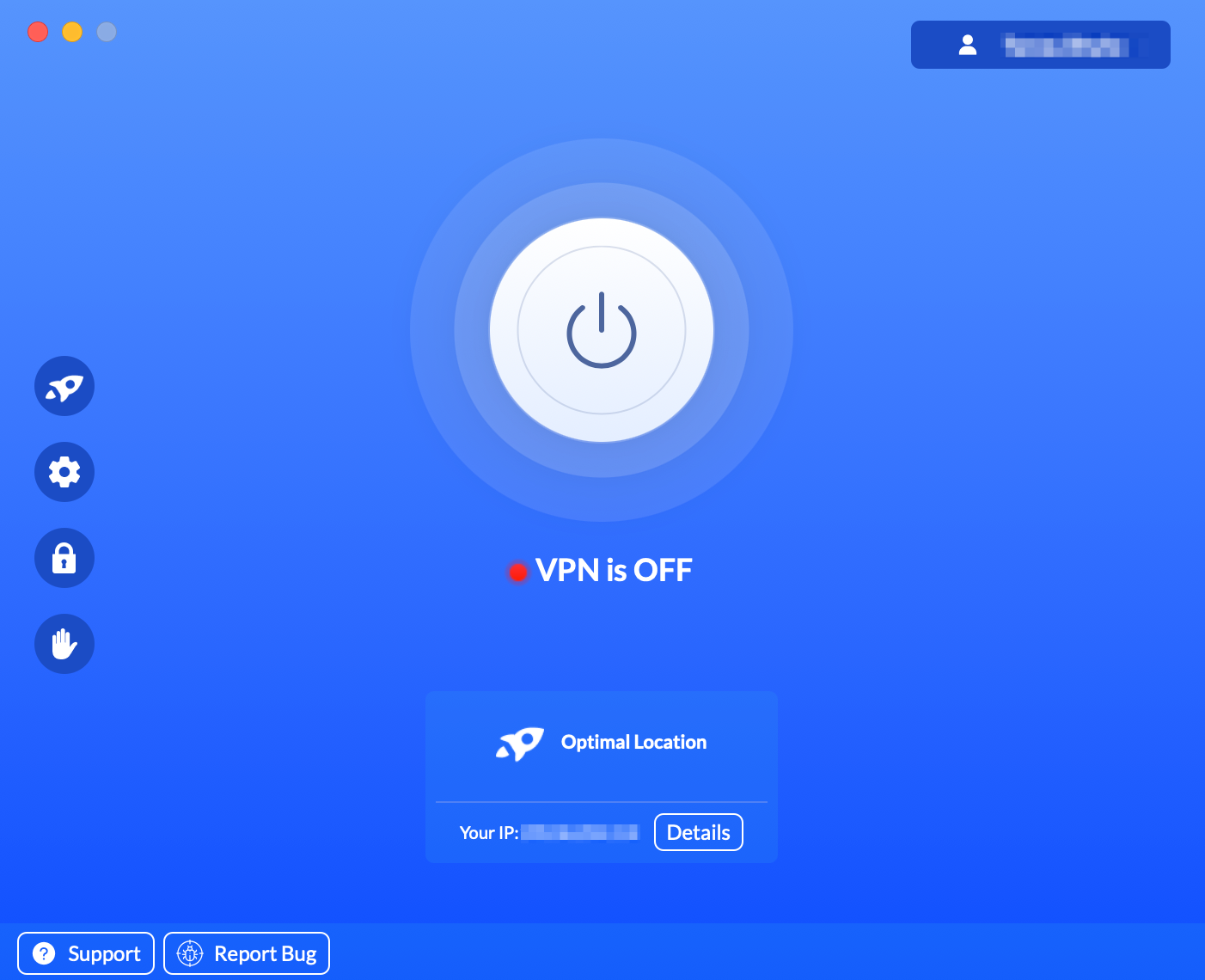
- Select a VPN server in the desired location. You can also use the Optimal Location option. It will automatically connect you to the fastest VPN server.
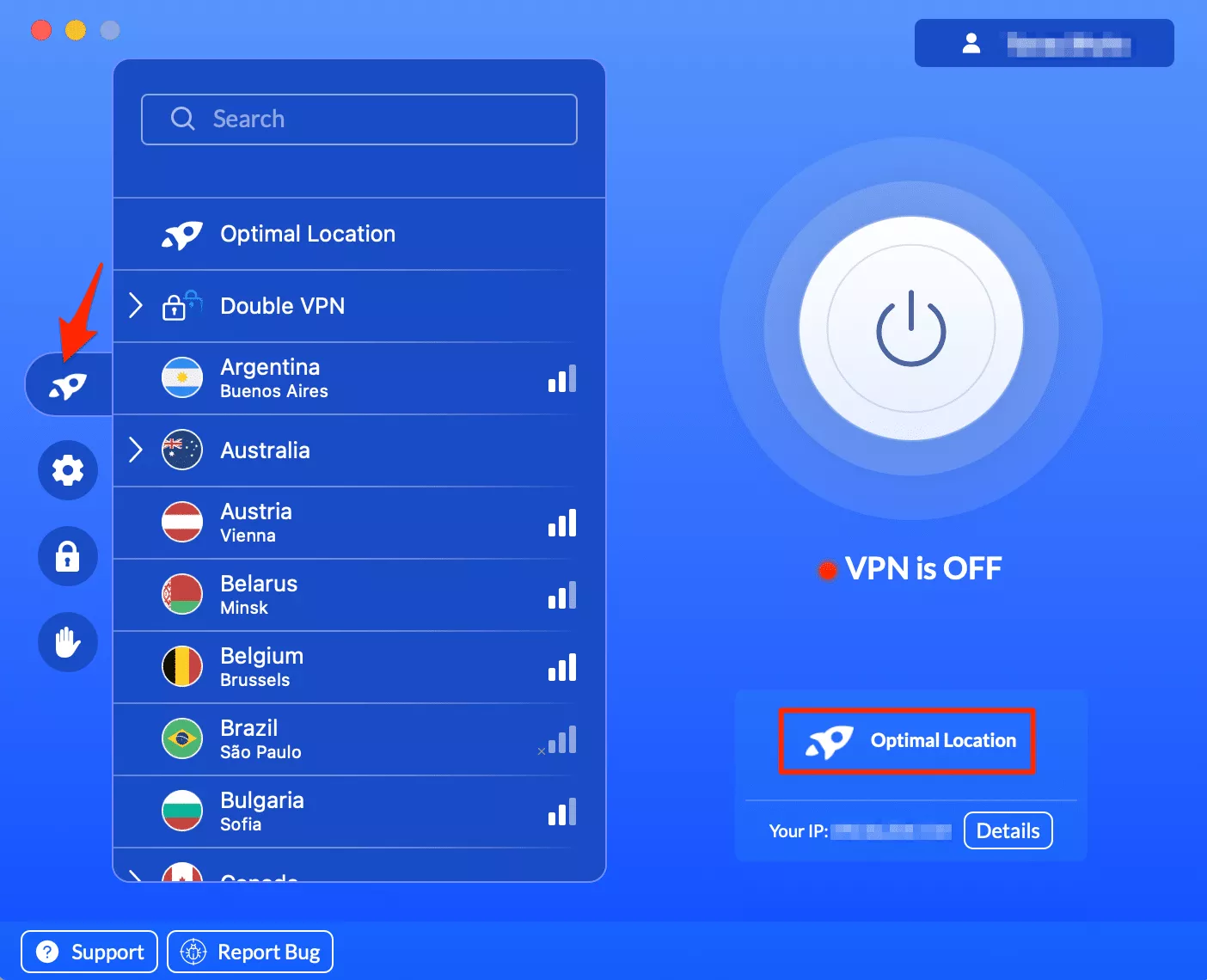
- Turn your VPN on.

Windows
- Create a VeePN account and choose the most appropriate pricing plan.
- Download the app from the official website and install it on your PC.
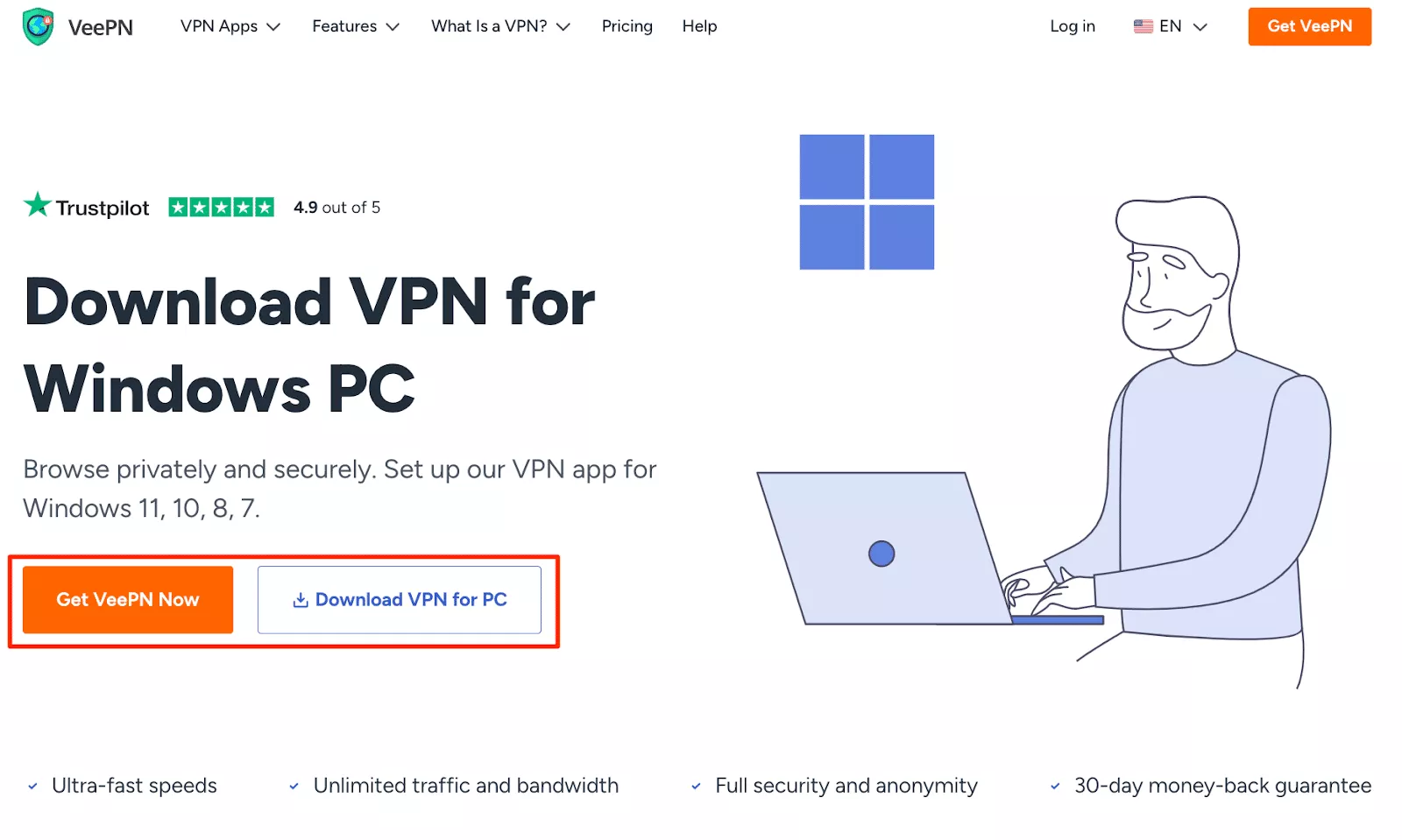
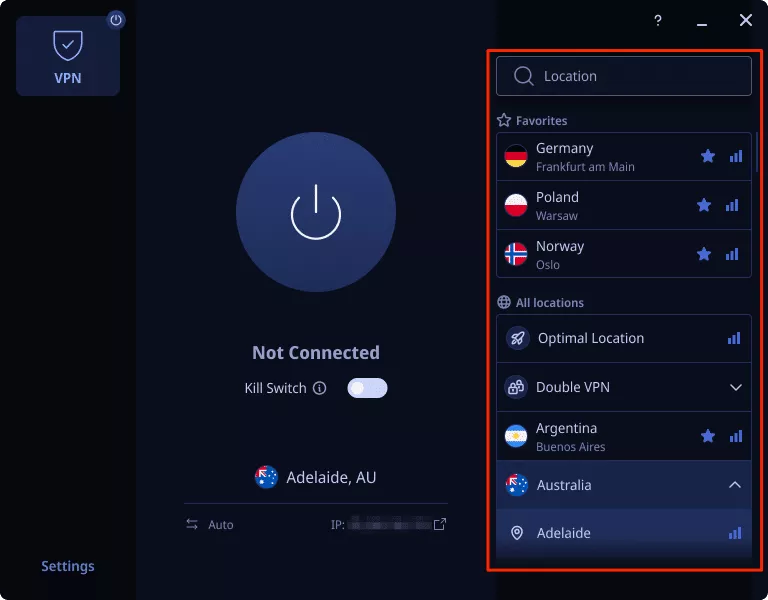
- Enter the VeePN application and pick the desired server location or use the Optimal Location option.
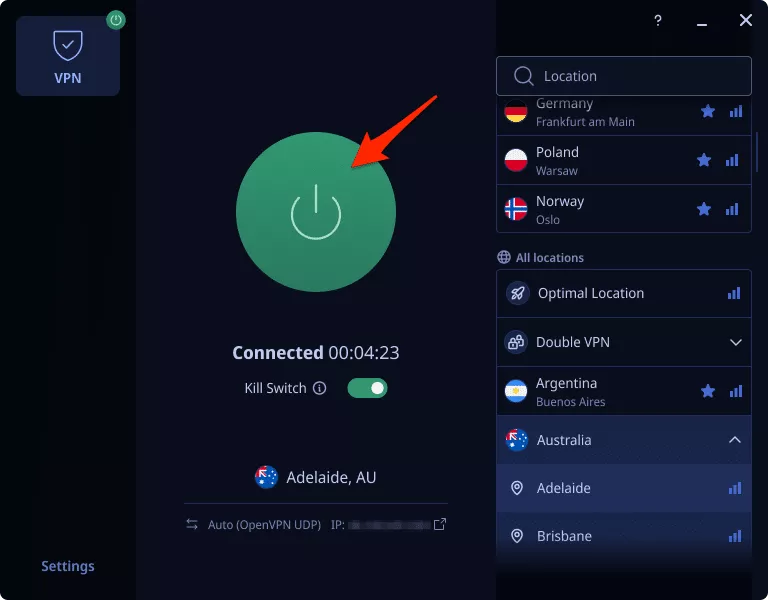
- Turn your VPN on.
How to use a VPN on a smartphone or tablet
Now, let’s see how to set up and run VeePN on your mobile phone or tablet (iOS or Android).
iOS
Note that you can use VeePN on iOS 10 or higher.
- Open Safari or another preferred browser and enter the VeePN website.
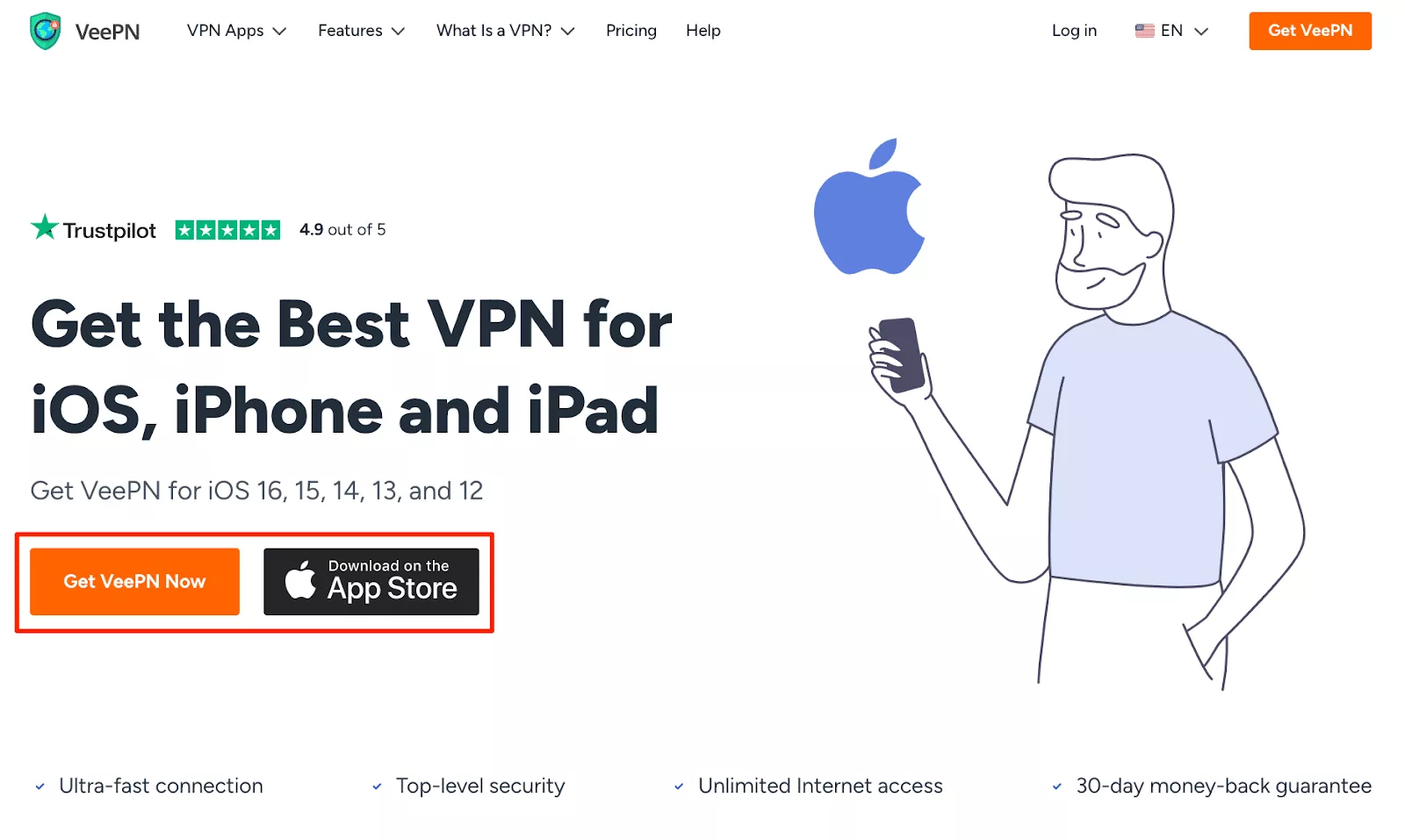
- Sign up for VeePN.
- Install the VeePN app from the App Store.
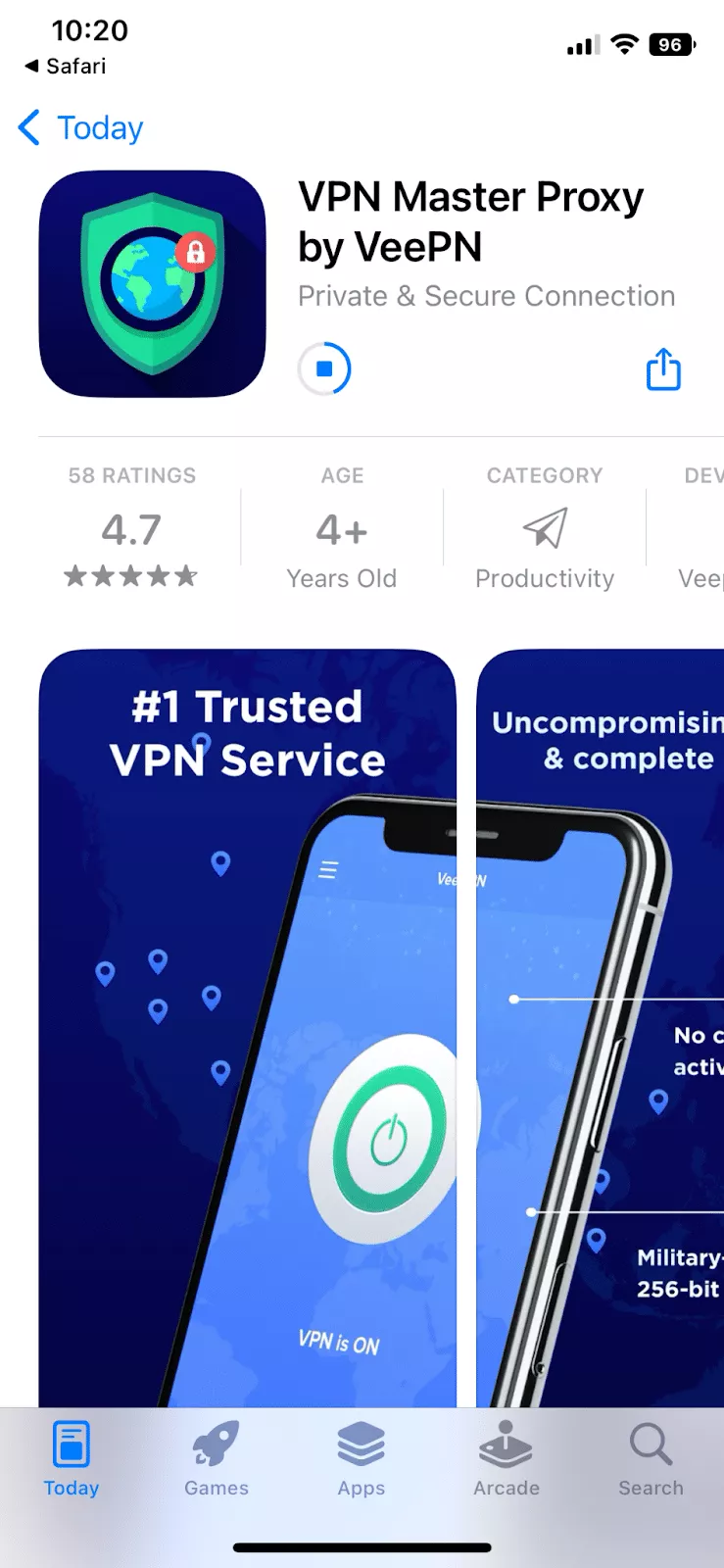
- Open your VeePN app.
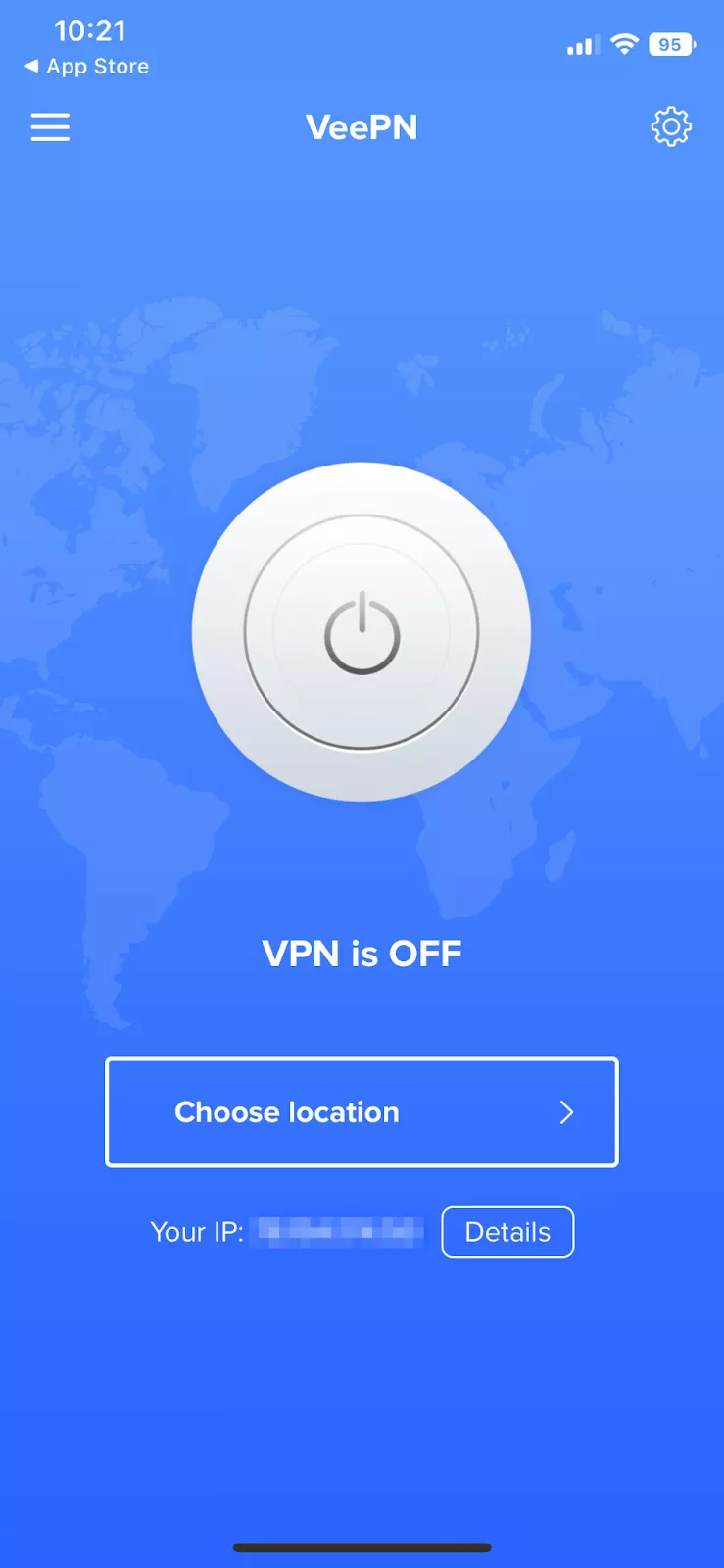
- Select the most suitable server location.
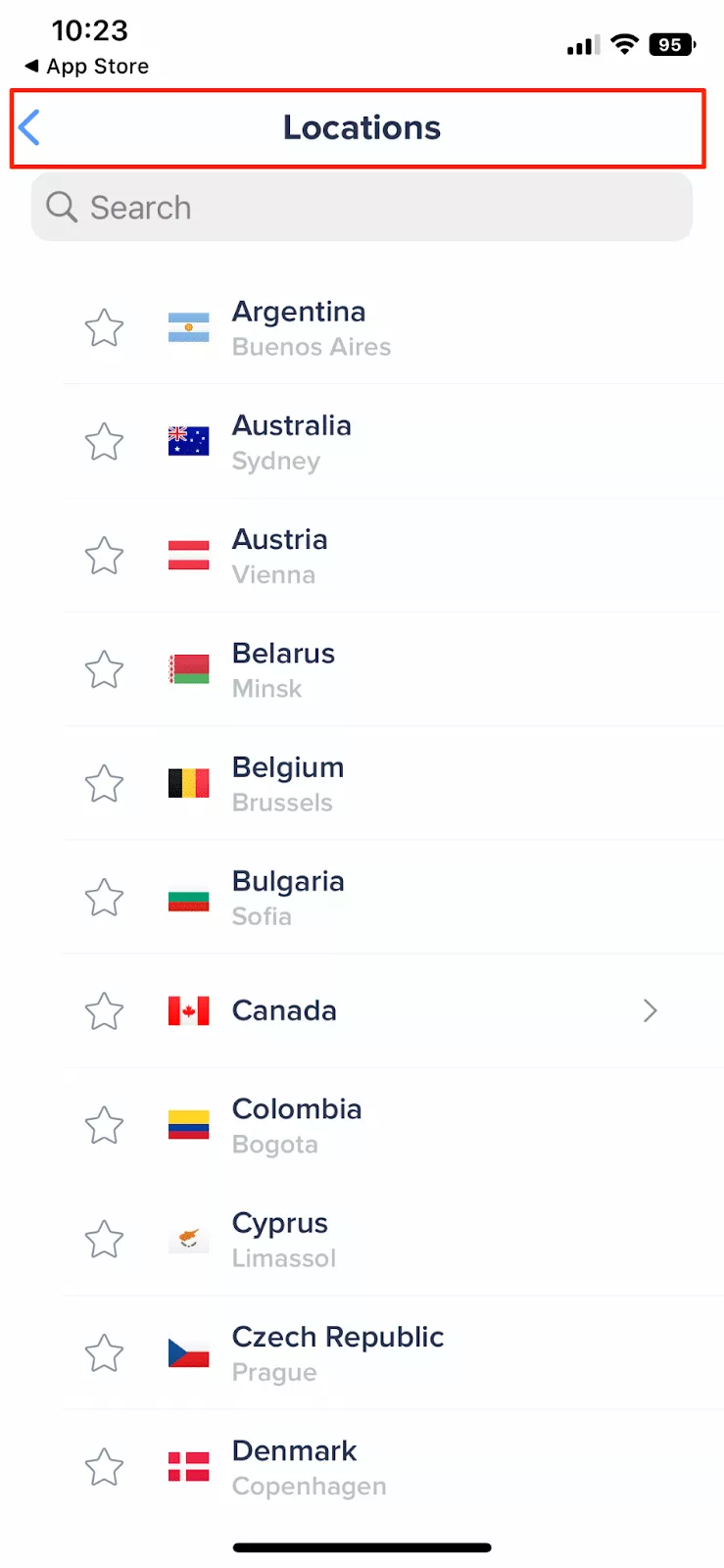
- Allow the VeePN app to add VPN configurations to your iPhone or iPad.
- Turn your VPN on.
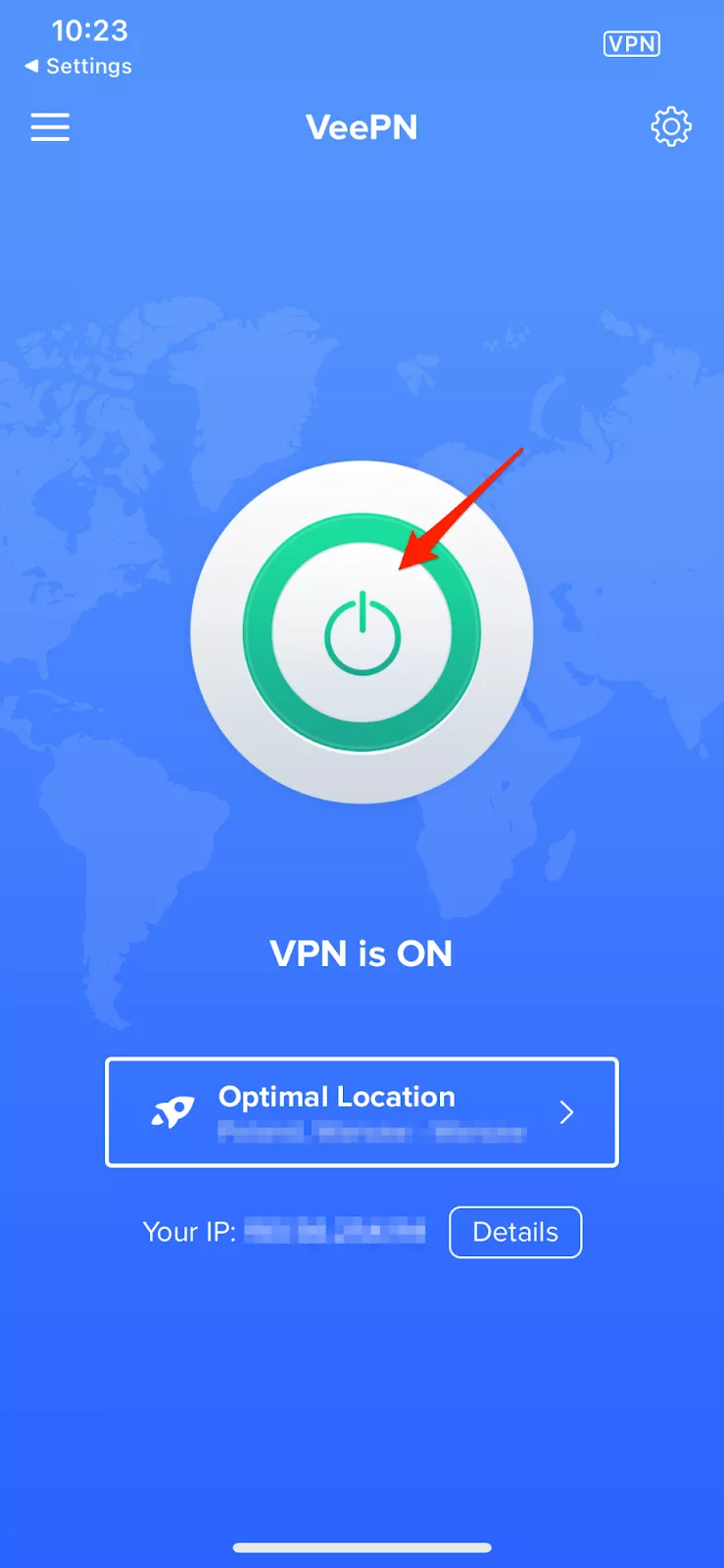
For more information, read our detailed guide on how to set up a VPN on your iPhone.
Android
Note that you can use VeePN on Android 13, 12, 11, 10, Pie, Oreo & Nougat.
- Open your preferred browser and visit the official VeePN website.
- Create a new account and select an appropriate subscription plan.
- You can download the installation file from the Play Store or get an .apk file directly from the website.
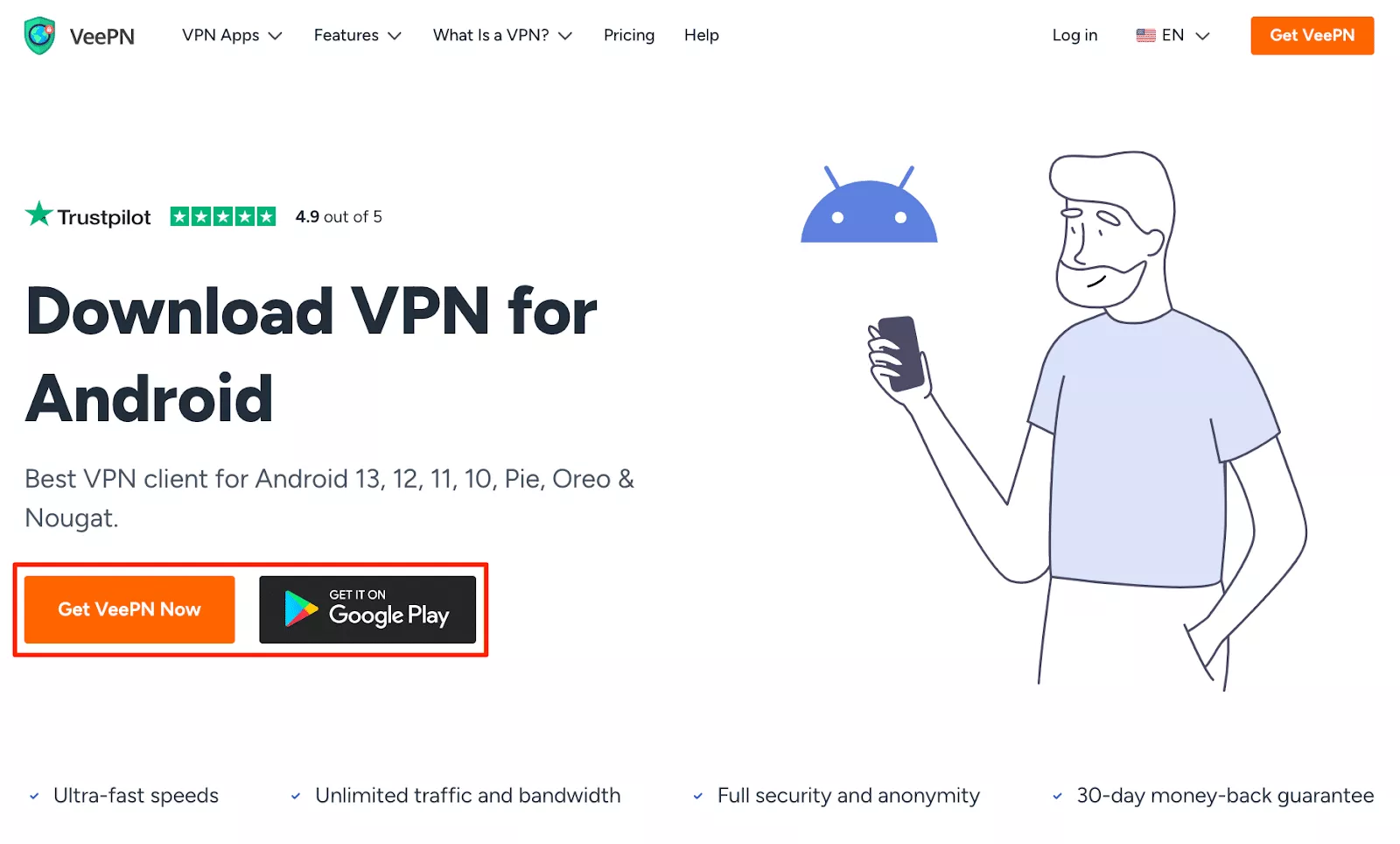
- Install and open the app. Next, log in to your account.
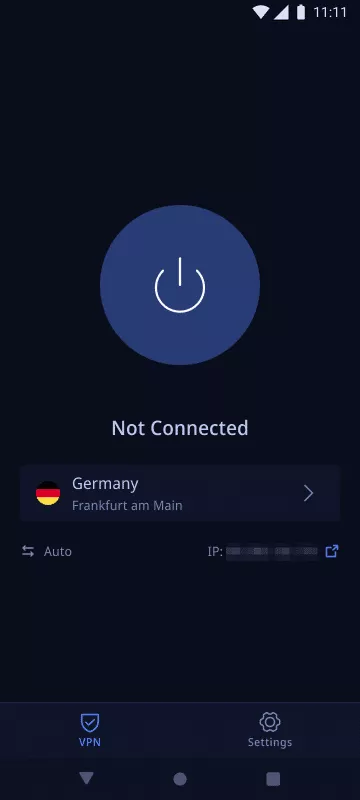
- Select the optimal serval location.
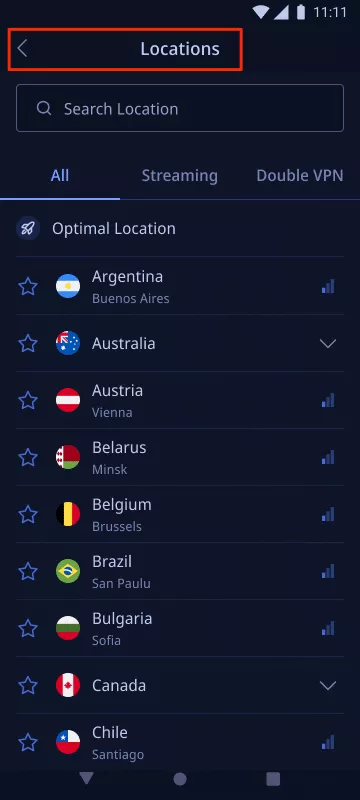
- Allow the VeePN app to add VPN configurations to your device.
- Turn your VPN on.
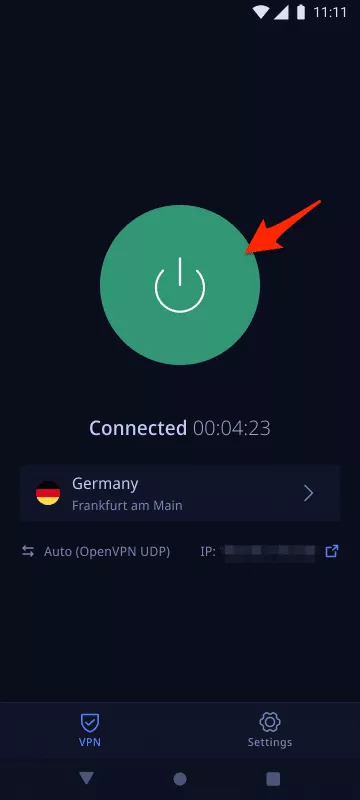
For more details, check out our guide on how to set up a VPN on your Android.
How to set up a VPN browser extension
Note that the VeePN browser extension is available for Google Chrome, Mozilla Firefox, and Microsoft Edge web browsers. It’s a lightweight version of the client app that works only within a single browser and provides access to a limited number of servers. For more information, read our article about the difference between a full VPN app and an extension.
- Open the preferred web browser. Here, we will show you how to set up the VeePN extension on Chrome. You can take similar steps to set it up on Firefox or Edge.
- On the top right corner of your screen, find the VeePN extension for Chrome in the Extensions settings or use this link to add it to your browser.
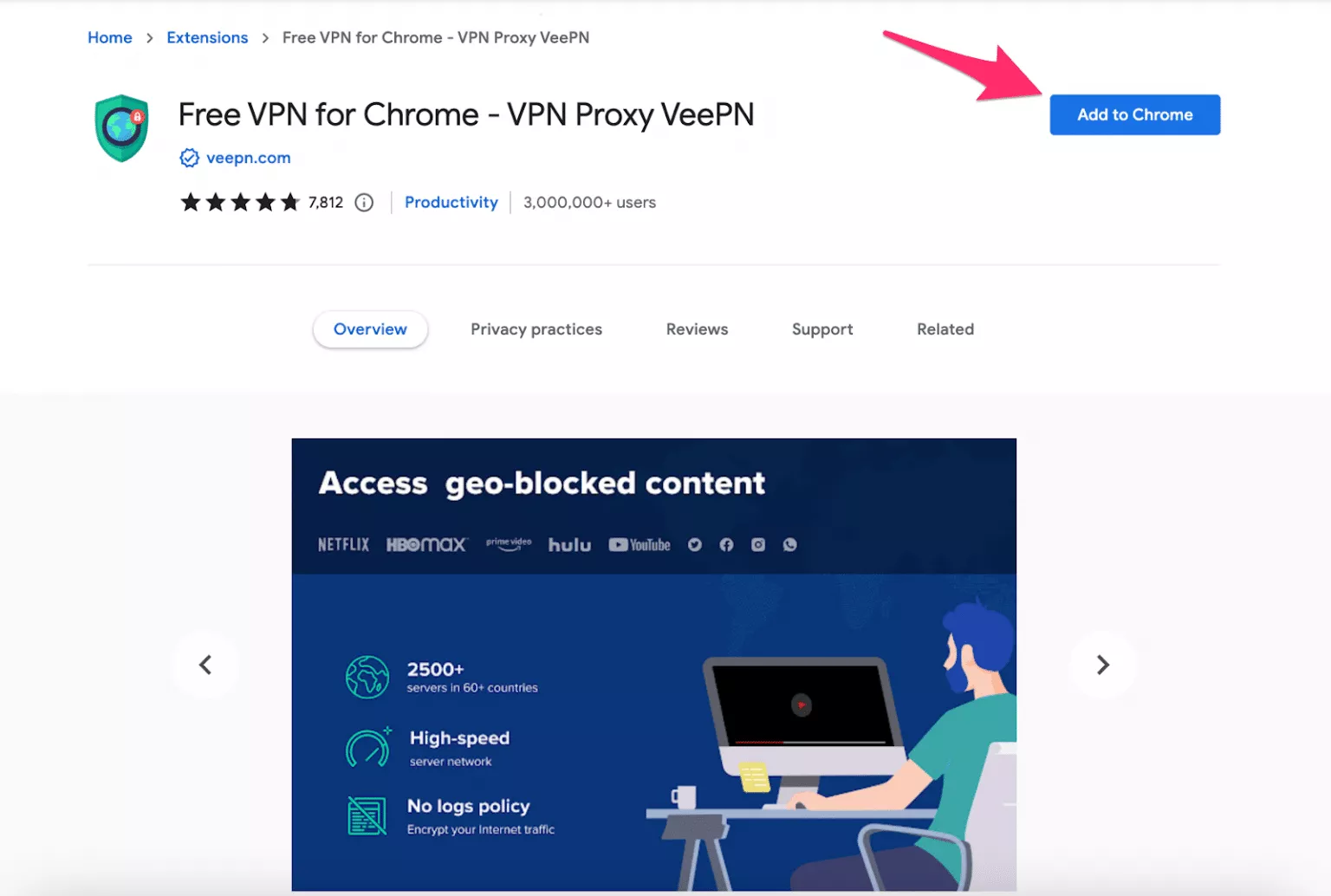
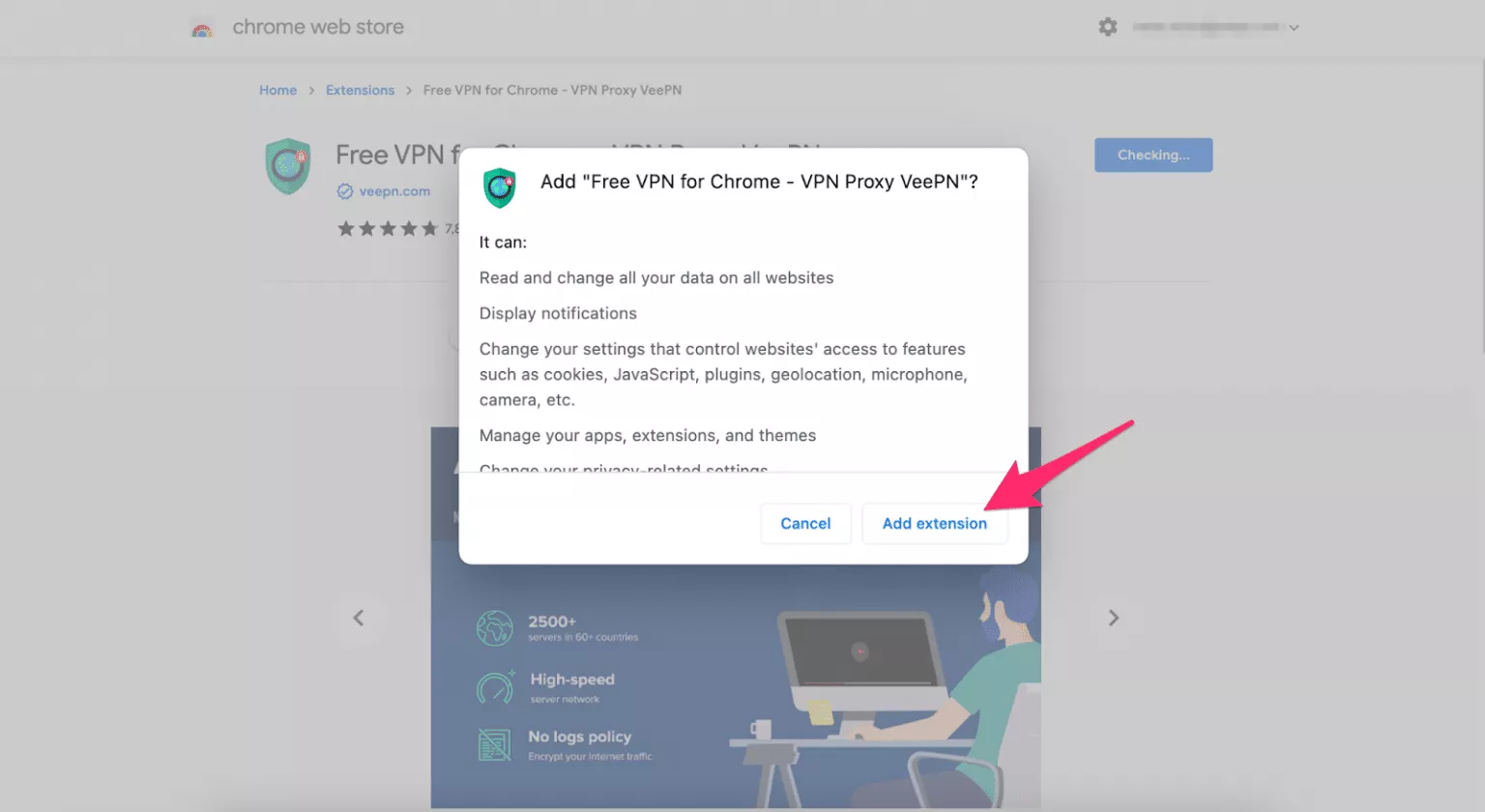
- Select Add to Chrome > Add extension.
- Go back to your Extensions settings and select VeePN.
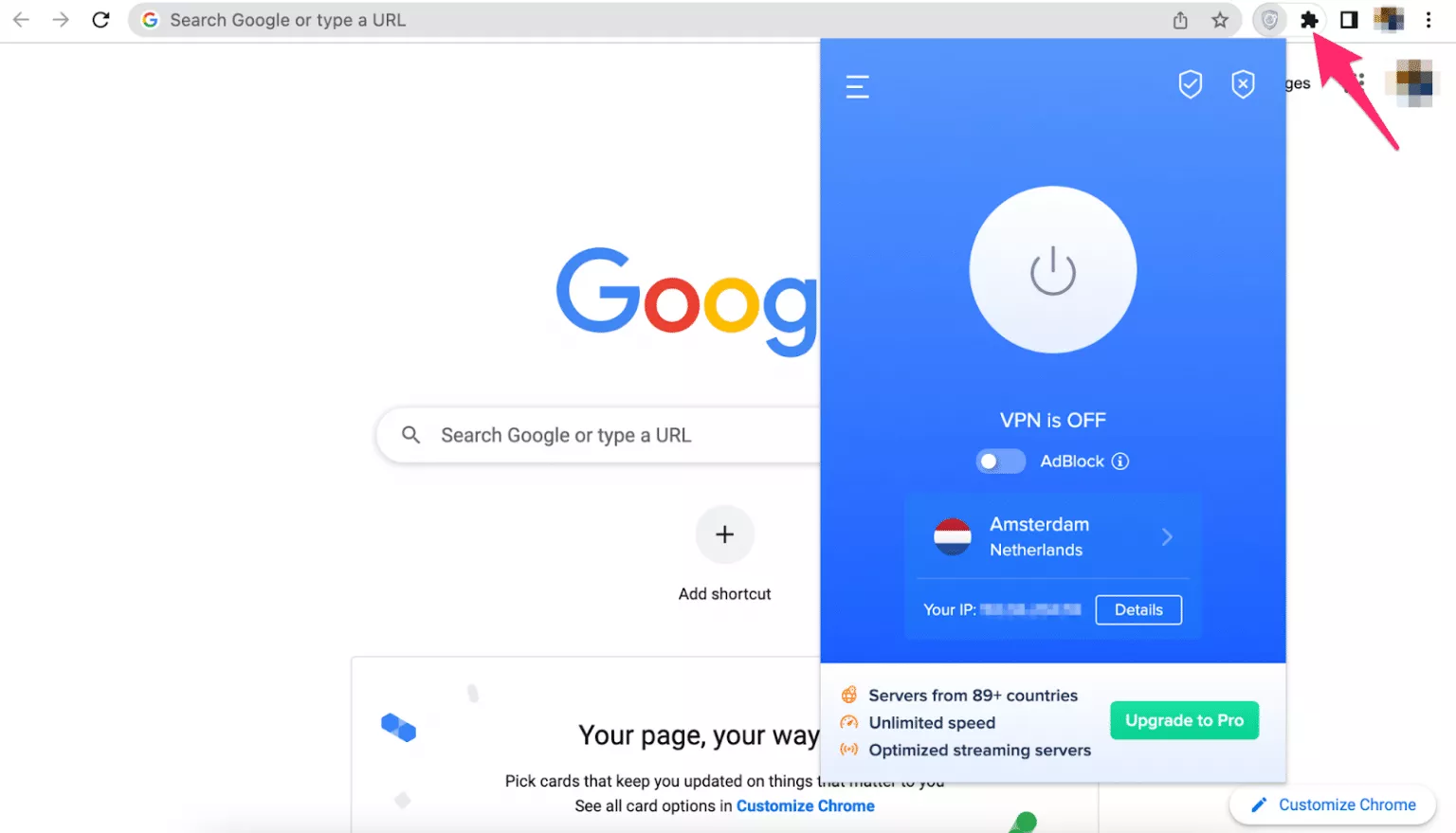
- Choose the preferred server.
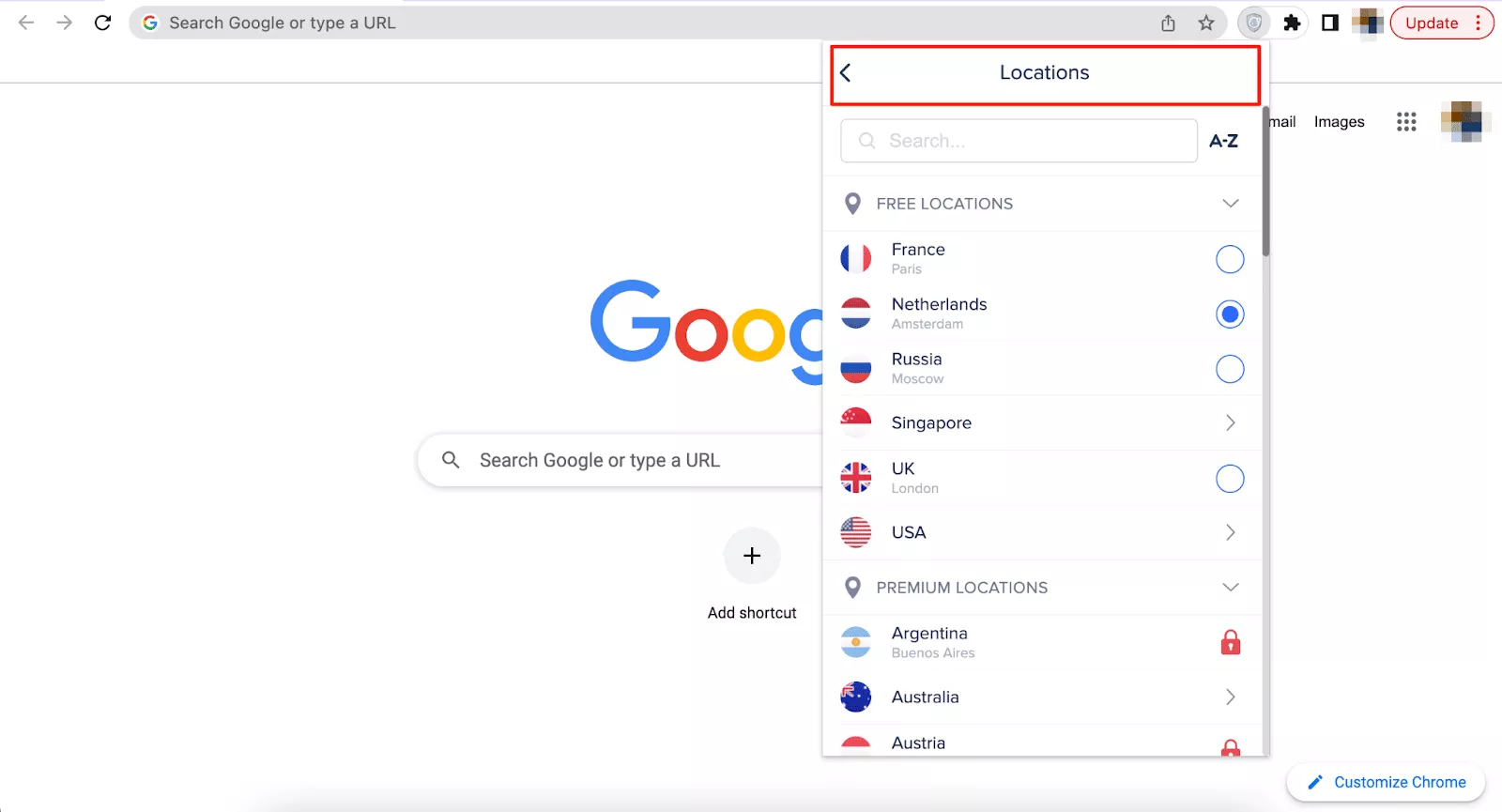
- Turn your VPN on.
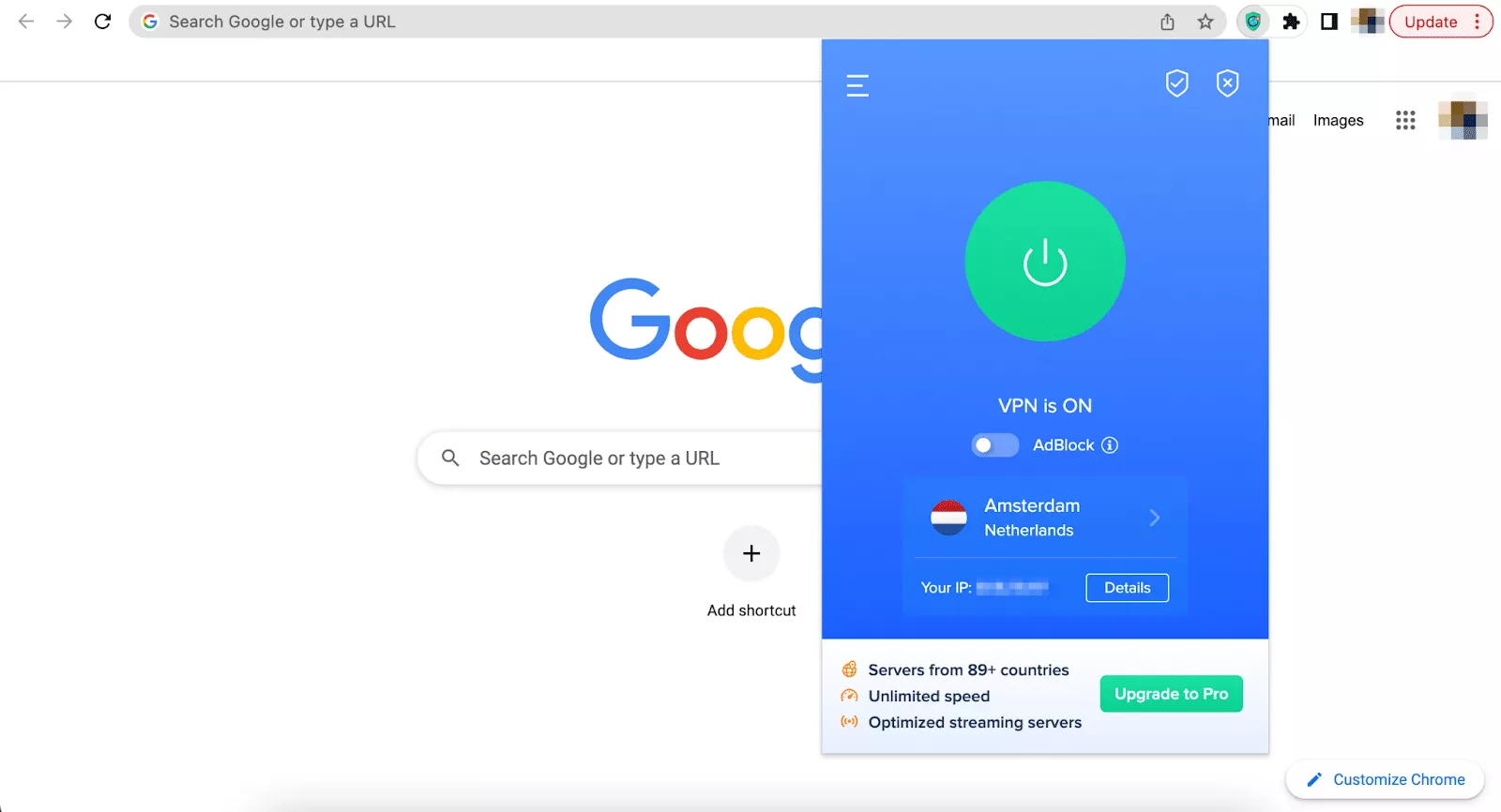
How to use a VPN for specific needs
The guides provided above cover the most common user requirements. Most VPN apps are user-friendly and available for a wide range of devices and platforms, making them easy to install and operate. Additionally, many VPN providers allow you to connect multiple devices simultaneously with a single subscription, depending on your chosen plan. Still, in some specific cases, you may need to set up a VPN on an alternative device, such as a Wi-Fi router or game console, or even use it on several devices simultaneously.
Luckily, all those options are also possible with VeePN.
Multiple devices
This option is suitable if you want to protect more than one device. For instance, you can securely use your desktop computer when at home and your smartphone or tablet while traveling – all covered with reliable VPN encryption. Also, this option makes VeePN a perfect choice for both personal and family use.
VeePN allows you to use VPN apps on up to ten devices within a single subscription. All you need to do is sign up for VeePN and pick a pricing plan. Then, you can download the VeePN app on any device of your choice.
Game console
VPN can be a great solution for gaming due to several reasons. First, you may use it to achieve a lag-free connection and quickly access the game’s servers. Also, a VPN allows you to stop Internet throttling – a technique many ISPs impose to limit users’ connection speed and bandwidth. And finally, a VPN protects you from DDoS attacks that are often targeted against gamers. As for your video game console, a VPN will protect you from IP and DNS leaks and prevent any potential PlayStation or Xbox account scams.
VeePN offers solutions for PlayStation 4 and 5 and Xbox One and Series X|S. Here is how to set it up.
- Open the VeePN website.
- Select your subscription and sign up for VeePN.
- Click Downloads and select an app for your game console (PS or Xbox).
- Download and install the VeePN application on your device.
Streaming device
A VPN for Smart TV or another streaming device will let you seamlessly watch any desired content without compromising the connection security and the amount of bandwidth.
With VeePN, you can use a VPN on Smart TV, Amazon Fire TV, or Android TV. Here is how.
- Enter the official VeePN website.
- Choose a subscription plan and create an account.
- Click downloads and select your streaming TV device.
- Download a VPN app and install it.
Note that some devices, including Apple TV, do not support native VPN applications. So to add an extra security layer to your streaming device, you can install a VPN on your Wi-Fi router.
Wi-Fi router
If you want to protect your entire home network and all the devices connected to it, using a VPN for your router is your best bet. This solution will allow you to encrypt traffic even on devices that don’t support VPN apps (such as smart home systems, IoT devices, security cameras, and so on). But note that the setup process is a bit more complicated and requires some extra steps.
Here is how to use a VPN on a router.
- Sign up for VeePN.
- Visit the VPN provider’s website to download the necessary VPN software or configuration files for your router.
- Open your router’s configuration settings by entering your IP address in your browser’s search bar.
- Look for the VPN setting. Their name and location varies depending on your router’s firmware.
- Test if your VPN connection works properly.
For more details, read our guide on installing a VPN on a Wi-Fi router.
What will you get with a VPN subscription?
Now that you’re aware of how to use a VPN on different devices and operating systems, let’s discuss what exactly you’ll get with this solution. VPNs use common VPN protocols such as OpenVPN, WireGuard, and IKEv2, each offering different balances of security and speed. The choice of VPN protocol can impact your connection’s security and performance, so it’s important to select the one that best fits your needs. Some VPNs can also change your IP address periodically to further enhance your privacy and security. Additionally, when choosing a VPN provider, make sure to check how many simultaneous connections are allowed, as this can affect how many devices you can protect at once.
Here are the key VPN features you can benefit from with a VeePN subscription.
VPN servers
VeePN provides access to over 2,500 servers across 89 locations in 60 countries. You can connect to the most suitable server location and switch to another one whenever needed. For instance, if you’re used to watching the American Netflix library, you can stream your favorite movies and series while traveling to another country where they’re unavailable. All you have to do is connect to the US-based VPN server, log in to your Netflix account, and enjoy the desired content.
NetGuard
NetGuard is an essential cybersecurity feature that blocks unwanted ads, keeps you away from malicious links, protects you from malware-infected websites, and prevents third-party monitoring. Moreover, NetGuard is an effective tool against phishing, man-in-the-middle attacks, DDoS attacks, and other threats. With its help, you can boost your Internet privacy and achieve peace of mind when surfing the web.
Kill Switch
The main purpose of Kill Switch is to save your data when your VPN connection suddenly fails. It switches off your Internet connection for a few moments when your traffic isn’t encrypted. This doesn’t allow online snoopers to compromise your privacy when your device is the most vulnerable to their interference.
Double VPN
Normally, connecting to a single VPN server is enough to defend yourself from cyber threats and access the content you need. However, some activities require an extra security layer. That is where Double VPN can help. It allows you to connect your device to two VPN servers simultaneously. For instance, your data will travel from your current location to a VPN server in the UK, then it will move to another server in the Netherlands, and only after that reach its final destination.
DNS and IP leak protection
DNS and IP leakage may reveal some of your private data to your ISP. This often happens to free VPN users since such services lack extra security measures. Additionally, free VPN providers and free VPN services may collect and sell your personal data, be riddled with ads, or even contain malware, making them a risky choice for privacy. Some free VPN providers may also compromise your security by exposing you to malware or selling your information, so opting for a paid VPN service is generally a safer and more reliable option. Luckily, this is not the case with VeePN. It prevents potential IP and DNS exposure and keeps your personal information protected at all times.
We won’t list all the VPN features you can access with VeePN in this article – after all, you can test them on your own. Whatever the purpose for using a VPN and the device you prefer, our trustworthy service got you covered. Try VeePN now and take advantage of a thirty-day money-back guarantee!
Advanced VPN Topics
Once you’re comfortable with the basics of VPN usage, you might want to explore some of the more advanced features and configurations that many VPN providers offer. Understanding different VPN protocols—such as OpenVPN, WireGuard, and the IPsec protocol—can help you tailor your VPN connection for optimal speed and security. Adjusting your VPN settings allows you to fine-tune your experience, whether you want to prioritize a faster connection, a specific server location, or enhanced privacy.
For users who want to protect every device on their network, setting up a VPN router is a powerful option. By installing VPN software directly on your router, you can secure the internet traffic of all connected devices, including smart TVs, gaming consoles, and IoT gadgets—even those that don’t support VPN apps natively. This is especially useful for families or anyone managing multiple devices.
Advanced VPN features like double VPN, split tunneling, and kill switches provide extra layers of security and flexibility. Double VPN routes your data through two remote servers for added privacy, while split tunneling lets you decide which apps use the VPN tunnel and which access the internet directly. A kill switch automatically disconnects your internet if the VPN connection drops, ensuring your sensitive data is never exposed.
If you’re concerned about maintaining fast internet speeds, many VPN providers offer tools to help you find the fastest VPN server or optimize your connection. Browser extensions can add an extra layer of privacy for your web traffic, and some VPN services even support unlimited simultaneous connections, so you can protect all your devices at once.
Whether you’re looking to access geo-restricted content, secure your local network, or experiment with advanced VPN settings, exploring these features can help you get the most out of your virtual private network VPN and ensure your online activities remain private and secure.
Conclusion
A VPN is an essential tool for anyone who values online privacy, security, and freedom. By encrypting your internet traffic and masking your physical location, a VPN connection keeps your sensitive data safe from hackers, advertisers, and even your internet service provider. With the right VPN provider, you can enjoy a secure connection on multiple devices, access geo-restricted content, and take advantage of advanced features like split tunneling, kill switches, and double VPN.
Whether you’re just starting to explore the world of virtual private networks or you’re ready to dive into advanced VPN settings, there’s a solution out there to fit your needs. Take the time to research, compare, and test different VPN services to find the one that works best for you. With a reliable VPN in place, you can browse, stream, and connect with confidence—knowing your online world is protected.
FAQ: How to use a VPN on all devices
- Choose a reputable VPN service like VeePN.
- Download and install the VPN app on your device.
- Connect to a VPN server located in the desired location.
- Enjoy your private and secure browsing experience.
To set up a stable and secure VPN connection, you just need to pick a credible VPN service, such as VeePN, and install a VPN app on your device. Then, you can choose a VPN server location that suits your needs and turn your VPN on. And there it is – your IP address is hidden, and your online activities are invisible to third parties.
- They often lack essential cybersecurity features
- They may turn out to be malicious programs striving to compromise your data
When traveling to another country, you need to install a VPN app on your device beforehand. After you sign up for a reliable VPN service and download such an app, you can securely browse the web wherever you go. In particular, it will allow you to access your favorite content even if it’s unavailable in your current location. Read this article to learn more about common VPN use cases.


VeePN is freedom
Download VeePN Client for All Platforms
Enjoy a smooth VPN experience anywhere, anytime. No matter the device you have — phone or laptop, tablet or router — VeePN’s next-gen data protection and ultra-fast speeds will cover all of them.
Download for PC Download for Mac IOS and Android App
Want secure browsing while reading this?
See the difference for yourself - Try VeePN PRO for 3-days for $1, no risk, no pressure.
Start My $1 TrialThen VeePN PRO 1-year plan