Deutsch
  Español
  Français
  العربية
  Indonesia
  Italiano
  한국어
한국어  Nederlands
  Polski
  Português
  Türkçe
  简体中文
简体中文  ไทย
ไทย  Tiếng Việt
  Čeština
  فارسی
فارسی  Română
  Filipino
  日本語
日本語 


How to Remove Adware on Mac and Stop Annoying Pop Ups
If your Mac has started acting off for no clear reason, there is usually a cause. Maybe you open your browser and land on a strange page. Maybe your default search engine changed. Maybe you keep getting pop ups, fake alerts, weird advertisements, or random new browser tabs you never asked for. That is classic adware behavior.
The good part is that this usually can be fixed. In a lot of cases, you do not need to wipe the whole computer or do anything dramatic. You just need to remove the bad app, clean up the browser, and check whether any hidden junk was left behind.
We’ll walk through the fastest way to remove adware, how to manually remove adware, when to use security software, and how a VPN like VeePN can help you stay away from the same mess later.
 VeePN Research Lab


 Quick Navigation
2. How to manually remove adware from your Mac
3. How to remove adware from your browser settings
4. How to remove suspicious extensions in Safari, Chrome, and Firefox
5. When security software is the smarter move
6. How to avoid adware on Mac next time
7. Why VeePN helps after you remove adware
FAQ
How to remove adware on Mac: look for the common signs first
Before you start deleting random files, make sure you are really dealing with adware. Here are the signs people usually notice first:
- Your search engine suddenly changes
- Your browser homepage is different
- You keep seeing pop ups
- Shady websites open by themselves
- Your search results look weird
- Your Mac feels slow because something is running in the background
- You spot odd browser extensions or suspicious extensions
- Fake virus warnings keep covering the screen
A common example is downloading a “free” video tool, PDF converter, or cleaner, then finding out later that it came with bundled adware. Another very common case is clicking on one of those urgent fake alerts that say your device is infected and you need to download a fix right now.
Most Mac adware also belongs to a handful of well-known families. Genieo (often bundled as InstallMac) hijacks the homepage and search engine, Pirrit injects ads straight into web pages and is known for resisting removal, and droppers like Bundlore and Shlayer arrive through fake Flash updates and shady “free download” installers. You do not need to know the name to clean up, but if one of these shows up in Activity Monitor or a scan report, you are definitely dealing with adware.
If any of this sounds familiar, move through the cleanup in order. That saves time and usually works better than jumping around.
How to manually remove adware from your Mac
This part is the backbone of the cleanup. Start here before you touch advanced tools.
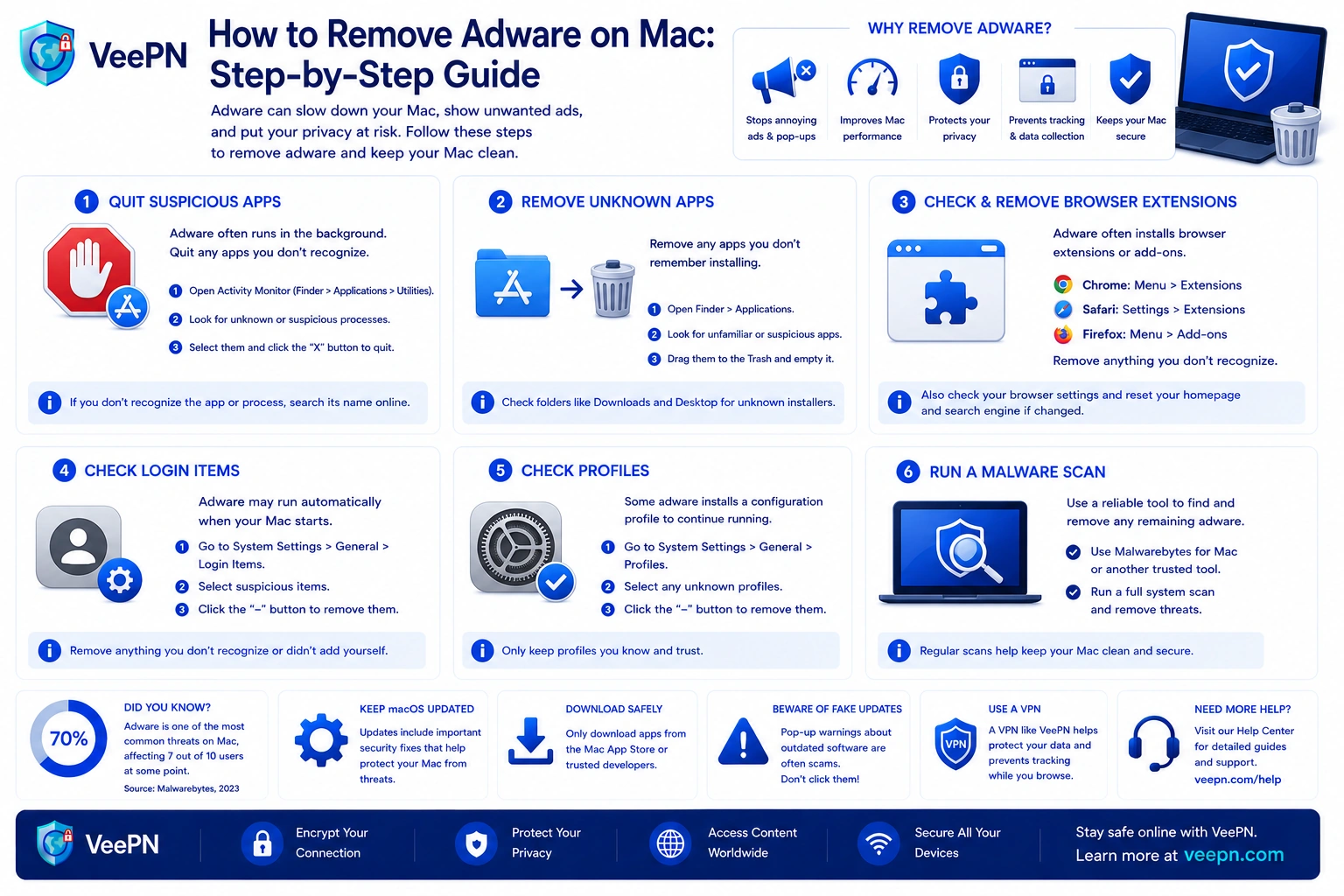
How to manually remove adware with Activity Monitor and Finder
Step 1: quit suspicious processes
Open Activity Monitor and look for anything odd.
Pay extra attention to:
- unknown programs
- processes using a lot of CPU
- anything with a weird name
- tools you did not knowingly install
If something clearly looks tied to the problem, quit it first. That makes the rest of the cleanup easier because the bad process is no longer actively running.
Step 2: open Finder and check Applications
Now open Finder and go to Applications.
Look for:
- unfamiliar apps
- fake cleaning tools
- random helper apps
- anything you do not remember installing
- suspicious software applications
If you find one, move it to Trash. Some apps also come with their own uninstall tool, so if you see one, use that first. Then empty the Trash.
Step 3: check Login Items
Sometimes adware is not very visible, but it keeps launching every time you sign in.
Go to:
- Apple menu
- System Settings
- General
- Login Items & Extensions
Remove anything suspicious from the list. This is one of the easiest places to miss, and it is also one of the reasons adware keeps coming back after a restart.
Step 4: check profiles
Some adware changes system behavior through a profile.
Go to:
- Apple menu
- System Settings
- General
- Device Management
If you see a profile you did not add yourself, remove it. On older Macs, this may still show under System Preferences.
Step 5: restart the Mac
Now restart the machine.
This step matters because it shows whether the junk is really gone. If the same redirects, alerts, or weird settings return right after startup, something is still sitting on the system.
How to remove adware from your browser settings
Once the bad app is out, clean the browser. This is where many people stop too early.
If you skip this part, the Mac may feel “still infected” even though the original app is already gone.
Reset the search engine and browser homepage
Open your browser and check these first:
- the default search engine
- the browser homepage
- the startup pages
- the search bar
- notification permissions
- odd tabs that reopen every time
If you use Safari, open Safari and check the General tab. Make sure the homepage is really yours and not some junk site stuffed with ads.
If you use Chrome or Firefox, do the same thing there. Look at startup behavior, search settings, and site permissions. Adware often changes all three.
Clear browsing data
This is worth doing after you fix the visible settings.
Clear:
- history
- cookies
- cached site data
- saved website permissions
That helps remove leftover tracking junk and sometimes stops the browser from opening the same bad pages again. If you want a deeper cleanup, see our guide on how to clear cache on Mac.
Block pop ups and bad notifications
If fake warnings still show up, turn off the source.
Check:
- website notifications
- pop ups
- permissions for sketchy sites
A lot of fake alerts are not deep malware at all. They are just abusive browser permissions that were allowed by mistake.
How to remove suspicious extensions in Safari, Chrome, and Firefox
This part deserves its own section because suspicious extensions cause a huge share of adware problems. A bad extension can:
- hijack the search engine
- change your homepage
- inject ads
- track your activity
- open sketchy pages
- mess with search results
Check Safari extensions
If Safari is your main browser:
- open Safari
- go to Settings
- open Extensions
- remove anything suspicious
If the extension came with an app, delete the app too. Otherwise it may reinstall itself.
Check Chrome extensions
In Chrome, open the extensions page and review everything carefully.
Remove:
- tools you do not remember adding
- shopping helpers you never use
- random search add-ons
- anything that appeared after a recent download
If you see something suspicious, click remove and do not overthink it.
Check Firefox add-ons
In Firefox, open Add-ons and Themes and review the list.
Again, the rule is simple: if you did not choose it on purpose, and you do not need it, remove it.
That one habit helps avoid adware, spyware, and a lot of other online threats later.
When security software is the smarter move
Sometimes the cleanup above is enough. Sometimes it is not. Use security software when:
- the same pop ups keep coming back
- the Mac still feels infected
- shady redirects continue
- weird files reappear after a restart
- the browser still behaves strangely
- you suspect hidden malicious files
- the Mac stays slow because something is running in the background
This is where a full scan helps. Manual cleanup is good for the obvious parts, while a proper scanner is better at catching hidden leftovers. A reputable dedicated tool such as Malwarebytes for Mac is a common pick for a one-off adware scan, and a lighter always-on option like VeePN Antivirus helps keep things clean afterwards.
So the best approach is usually layered:
- first manually remove adware
- then run security software
- then check the browser again
- then install pending security updates
That is usually much more effective than relying on one trick alone.
How to avoid adware on Mac next time
Once the Mac is clean, the next step is making sure you do not deal with this again next month. Here are the habits that help the most:
- Download software from trusted places. Use the Mac App Store or the official developer page. That cuts down the chance of fake installers and bundled adware.
- Slow down during setup. A lot of junk gets in during setup because people rush. Read the checkboxes. If a free tool tries to add extra software, uncheck it.
- Be careful with fake alerts. If a page says your Mac is infected, do not click anything inside it. Close the page and clean the browser instead.
- Keep macOS updated. Security updates matter. They help patch holes and improve built-in protections.
- Watch what extensions you install. People often focus on apps and forget extensions. But bad add-ons are one of the easiest ways to end up with a hijacked browser.
Why VeePN helps after you remove adware
VeePN is not a magic button that will instantly uninstall a bad app from your Mac. But it can help lower your exposure after cleanup and make everyday browsing safer.
- AES-256 encryption. VeePN encrypts your Internet traffic, which is especially useful on public Wi-Fi and other risky networks. That means your connection is harder to snoop on while you browse, shop, or sign in.
- Changing IP address. VeePN hides your real IP and gives you another one. That does not delete adware, but it does reduce simple tracking and makes your browsing less exposed.
- Kill Switch. If the VPN connection drops, Kill Switch stops traffic until protection is back. That helps avoid accidental leaks on sketchy networks.
- NetGuard. This is the most relevant feature here. NetGuard helps block intrusive ads, risky pages, trackers, and some malicious sites before they become another problem.
- No Logs policy. Privacy matters even when you are just trying to clean up your browsing habits. A no-logs policy means less of your activity is stored.
Try VeePN if you want a simpler way to block risky pages, secure your connection, and browse with fewer nasty surprises. It comes with a 30-day money-back guarantee.
FAQ
Start by opening Activity Monitor, quitting suspicious programs, then open Finder and remove unknown apps, login items, and profiles. After that, clean your browser, remove shady extensions, and run security software if the problem does not go away. Discover more in this article.
Do not click the alert. Close the page, block pop ups, remove bad website notifications, and check whether your search engine, homepage, or browser permissions were changed. If needed, clear browsing data and reset the browser settings.
No, it is not. Many adware pop ups lead to more malicious pages, fake cleaners, scam support numbers, or infected downloads. It is much safer to close the page and clean the Mac properly.
Not always. Adware is usually unwanted software, not a classic virus, but it can still be harmful. Some cases cross into malware or spyware if they track you, hijack settings, or keep reinstalling themselves. Discover more in this article.


VeePN is freedom
Download VeePN Client for All Platforms
Enjoy a smooth VPN experience anywhere, anytime. No matter the device you have — phone or laptop, tablet or router — VeePN’s next-gen data protection and ultra-fast speeds will cover all of them.
Download for PC Download for Mac IOS and Android App
Want secure browsing while reading this?
See the difference for yourself - Try VeePN PRO for 3-days for $1, no risk, no pressure.
Start My $1 TrialThen VeePN PRO 1-year plan