Deutsch
  Español
  Français
  العربية
  Indonesia
  Italiano
  한국어
한국어  Nederlands
  Polski
  Português
  Türkçe
  简体中文
简体中文  ไทย
ไทย  Tiếng Việt
  Čeština
  فارسی
فارسی  Română
  Filipino
  日本語
日本語 


How to Clear Xbox Cache Easily
Sometimes an Xbox console may start acting weird. You can notice it if your games load for a very long time, the dashboard feels too slow, an app gets stuck on a black screen, error pop-ups appear even though your Internet is fine. When that happens, clearing cache is one of the easiest fixes to try.
Clearing the Xbox cache can help and it is pretty simple as well. You do not need to factory reset the whole console in most cases. You also don’t even need to touch your game saves to remove temporary files.
We’ll go through the safe options first, then quickly cover what to do if the problem is deeper than the Xbox cache.
 VeePN Research Lab


 Quick Navigation
Why clearing Xbox cache can help
Your Xbox console stores temporary data so apps and games can open faster. Over time, some of those files can turn messy or corrupted. That can lead to slow loading, game freezes, failed launches, or strange connection issues.
The important part is this: normal clearing cache does not erase your saved progress. It may reset a few small preferences, but your game data and profiles usually stay safe. So if your console performance suddenly feels off, this is a smart place to start.
That said, not every issue is caused by the system cache. If Xbox services are down or your system is outdated, clearing the cache will not fix everything. So if the issue looks widespread, check Xbox Status first.
How to clear Xbox cache with a power cycle
This is the easiest and most useful method for most players. A full power cycle clears leftover temporary files and gives the system a fresh start.
How to clear Xbox cache on Xbox Series X and Xbox Series S
If you use an Xbox Series console, do this:
- Press the power button and fully shut down the Xbox console
Let it go completely dark. Do not leave it in standby mode. - Unplug the power cord or power cable
- Wait about 2 minutes if you want a deeper clear. If you only want a quick restart, a shorter wait may still help.
- Plug it back in and turn it on
- Open the same game or app that was causing trouble.
This method is especially helpful if your Xbox Series X feels sluggish, a game fails to launch after Quick Resume, or the menus suddenly become slow.
How to clear Xbox cache on Xbox One
The Xbox One works in a similar way, but the usual fix is the unplug method since there is no direct menu option for the general cache.
Here is what to do:
- Turn off the Xbox One completely. Make sure the light is off.
- Unplug the power brick from the back of the console. Wait at least 30 seconds.
- Plug it back in and restart the Xbox. Then test the app or game again.
It is a simple step, but it can help with slow apps, random launch problems, and general performance issues.
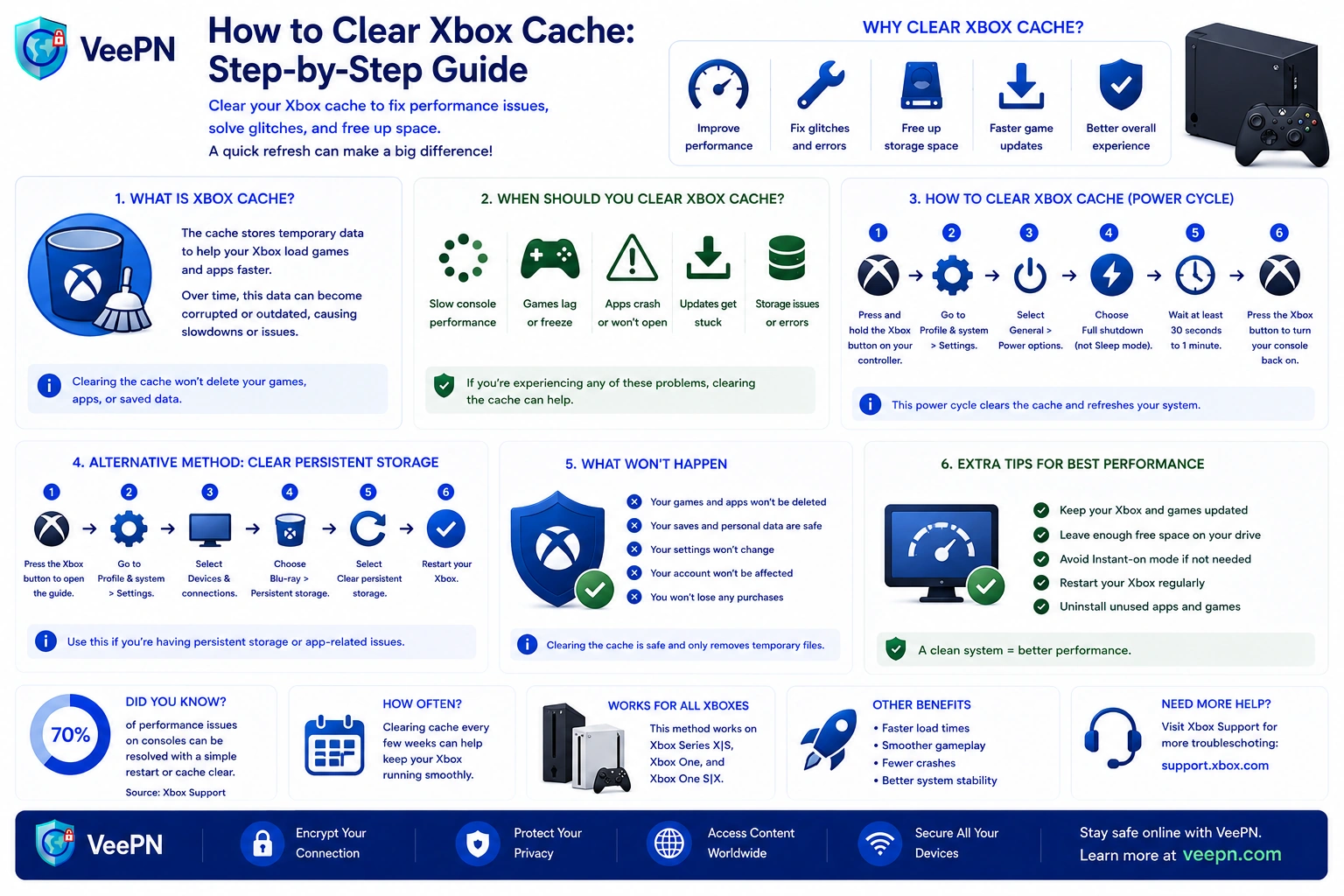
Use persistent storage if the problem is Blu-ray related
If the issue only happens with discs, there is a more specific fix. Xbox has a persistent storage option for Blu-ray data.
Follow this path:
- Press the Xbox button on your controller
- Go to Profile & system
- Select Settings
- Open Devices and connections
- Open Blu-ray
- Open Persistent Storage
- Choose Clear persistent storage
This is worth trying if discs load slowly, playback is odd, or your Xbox console behaves strangely only when using physical media. If you only use digital games, you probably will not need this step often.
When clearing cache is not enough
Sometimes how to clear Xbox cache is only part of the fix. If the same issue keeps coming back, it may be something else.
Check for updates first
An outdated system can cause lag, freezes, and weird bugs. So if the console still feels wrong after clearing the cache, open the settings menu and make sure everything is up to date. Sometimes the real issue is not the cache at all. It is old software.
Look at game data before you delete games
If only one title is broken, the issue may be tied to that specific game data rather than the whole Xbox cache.
Before you delete games, try this first:
- fully quit the game
- restart the console
- check for updates
- try the cache-clear steps above
Only after that should you think about deleting problem files or reinstalling the title. You do not want to remove something important too early.
Check your NAT type and region settings
If games load fine but multiplayer keeps failing, the cache is probably not the problem. Party chat that cuts out, lobbies you cannot join, and matchmaking that takes forever usually point to your NAT type. Press the Xbox button, go to Profile & system > Settings > General > Network settings, and check the NAT type field. Open is what you want. If it says Moderate or Strict, restart your router, make sure UPnP is on, and see our guide on how to change NAT type for the step-by-step fix.
Region matters too. Some games, apps, and store items are not available in every country, and a mismatch between your console region and your actual location can cause store or streaming errors that look a lot like cache problems. Check the region under Settings > System > Language & location before blaming temporary files.
Why VeePN still helps after clearing the cache
A cache clear can help the hardware side, but once your Xbox goes online, network risks are still there. That is where VeePN can be useful.
- AES-256 encryption. VeePN helps protect your traffic on public Wi-Fi. That matters when you sign in, sync saves, or download updates outside your home network.
- Changing IP address. VeePN hides your real IP and gives you another one. That adds privacy while you play online.
- Kill Switch. If the VPN drops, Kill Switch helps stop your traffic from leaking. That is useful if you care about keeping your connection protected.
- NetGuard. NetGuard blocks malicious sites, ads, and trackers. That helps if you browse forums, patches, or support pages on your PC or phone while troubleshooting your Xbox.
- No Logs policy. VeePN does not store browsing activity in a way privacy-conscious users worry about. That makes it a stronger fit for daily use.
- Up to 10 devices. One plan can cover your Xbox console, PC, phone, tablet, and more. So you can protect your whole setup, not just one device.
Try VeePN if you want your gaming setup to feel not just smoother, but safer online too, with a 30-day money-back guarantee.
FAQ
The easiest way to clear the Xbox cache is with a full power cycle. Turn off the Xbox console, unplug the power cord, wait a bit, then plug it back in and restart. Discover more in this article.
Normal clearing cache does not remove game saves. It mainly clears temporary files and may reset a few small settings, but your main data should stay intact.
Yes, especially if you have slow loading, game freezes, failed launches, or strange menu lag. It is one of the safest first fixes for everyday performance problems.
Yes, the Xbox One stores cached temporary data too. It just does not have a direct menu option for the general cache, so the usual fix is to shut it down, unplug the power brick, wait, and restart. Discover more in this article.


VeePN is freedom
Download VeePN Client for All Platforms
Enjoy a smooth VPN experience anywhere, anytime. No matter the device you have — phone or laptop, tablet or router — VeePN’s next-gen data protection and ultra-fast speeds will cover all of them.
Download for PC Download for Mac IOS and Android App
Want secure browsing while reading this?
See the difference for yourself - Try VeePN PRO for 3-days for $1, no risk, no pressure.
Start My $1 TrialThen VeePN PRO 1-year plan