Deutsch
  Español
  Français
  العربية
  Indonesia
  Italiano
  한국어
한국어  Nederlands
  Polski
  Português
  Türkçe
  简体中文
简体中文  ไทย
ไทย  Tiếng Việt
  Čeština
  فارسی
فارسی  Română
  Filipino
  日本語
日本語 


Is Your AI Browser Reading Everything? What Comet, Dia, and the Rest Actually Store
Your AI browser can read the page you’re on, and in some cases access other tabs or browsing history. But none of the AI browsers we reviewed says it keeps a full copy of your browsing activity. The information sent off your device, the data kept after your session as summaries, logs, or memories, and the privacy settings available all differ. We checked each company’s own documentation and tested Comet ourselves in September 2026 to understand these privacy-related specifics, including where the documentation is inconsistent, unclear, or leaves important questions unanswered.
 Fawad Ali

 Quick Navigation
2. Access, processing, and storage are not the same thing
3. Comet: History stays local, but AI requests leave a 30-day trail
4. Dia: Local storage, outside AI partners, and “best-effort” filtering
5. The rest of the field: What’s documented so far
6. Comet vs. Dia vs. the rest: a quick privacy comparison
7. What happens on email, banking, work, and medical pages?
8. Passwords and autofill
9. Which privacy settings are worth checking?
10. How much does your AI browser really know?
FAQ
Why an AI browser needs more context than a regular browser
A regular browser loads and displays web pages. An AI browser may need additional context to perform AI-powered tasks. It might summarize a tab, answer questions about it, find something you read previously, or fill in a form for you. These tasks can require access to the page text and, depending on the feature, other tabs or your history, as well as permissions to click and type for you.
All those capabilities expand what the AI can see. Whether the company keeps any of that data is a separate question.
Access, processing, and storage are not the same thing
It’s easy to confuse these three terms regarding the information an AI browser can access. But in reality, they have different meanings:
- Access means that an assistant can read something, either because you asked it to or a setting allows it.
- Processing means the content is run through an AI model to produce an answer to your request. This usually happens on the company’s server, but occasionally on your device.
- Storage is what remains after the answer arrives. It could be a full copy, a summary, a log, or a memory.
So a browser that can read your bank page won’t necessarily store it after the session is over. But even if it doesn’t store anything, the page may still have been sent off your device to be processed. Each section below sorts a product’s claims into these three buckets.
1. Comet: History stays local, but AI requests leave a 30-day trail
Perplexity says that Comet keeps browsing data, including your visited sites and cookies, on your device. It sends only the context needed to complete a request to Perplexity’s servers. The catch: your request context can be retained for up to 30 days.
Access
The assistant doesn’t access or upload your browsing history, open tabs, cookies, passwords, autofill data, or local files by default. It reads the current tab when a request requires it. It can also use content from other tabs when you explicitly reference them with @tab or use features that require multiple tabs.
Processing
Data is sent only when a request requires it, for example when the assistant is summarizing a tab, using selected text, or handling a task that needs email or calendar access. Incognito mode doesn’t change the fact that AI requests still need to be processed by Perplexity’s servers. However, Perplexity says memories and search history are automatically disabled in Incognito mode.
Storage
When a request uses page content, history items, or open tabs, that context is stored for up to 30 days. It powers your Library and query history and is deleted afterward. You can also delete those threads yourself sooner.
Controls
Comet splits its privacy controls between the browser and your Perplexity account. In the browser, open the menu in the top-right corner and go to Settings → Privacy and security → Comet Assistant. There you’ll find a Comet Assistant toggle that controls its ability to access your browser history and interact with websites. It was off when we checked after a fresh install. The same screen lets you block the assistant on specific websites, such as your bank. It also has a separate block list for the Selection Assistant, which suggests actions when you highlight text and was switched on in our test.
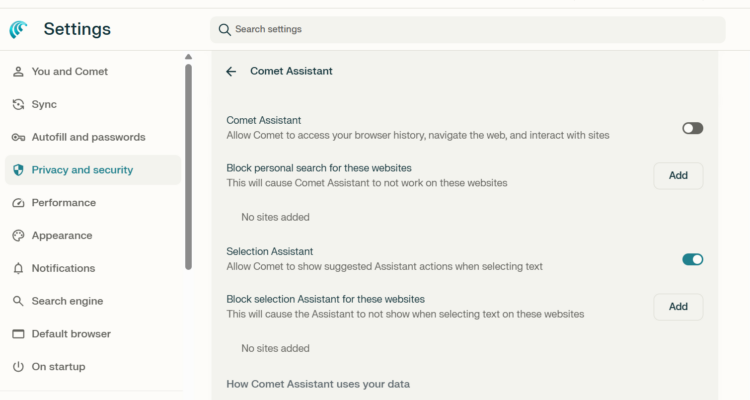
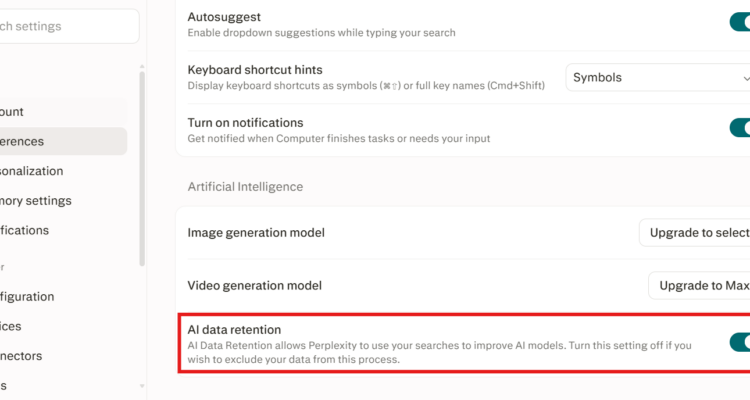
Your Perplexity account settings are separate. Click the profile icon in the bottom-left corner and choose All settings. That’s where AI data retention and search-history memory settings live. Both were on when we checked our test account. Deleting local browsing data doesn’t affect your Perplexity account.
What’s unclear
Perplexity’s Comet privacy FAQ says the assistant may use your open tab and relevant browsing history to complete a task. In turn, the help page says that your history isn’t uploaded by default. History access is controlled by the Comet Assistant toggle, which was off when we checked. Perplexity says turning the Assistant off prevents it from accessing your history. What isn’t clear is exactly when relevant history is sent once that access is enabled.
Comet’s help pages also don’t clearly explain whether assistant context is used for training. On a new free account we created in September 2026, AI data retention was switched on by default. Its description says it “allows Perplexity to use your searches to improve AI models.” But Perplexity doesn’t clearly say whether Comet Assistant requests count as “searches” for this purpose.
2. Dia: Local storage, outside AI partners, and “best-effort” filtering
Dia stores your conversations, history, bookmarks, and files encrypted on your device by default. However, your questions and the relevant context needed to answer them, go through its servers to outside AI partners. According to Dia’s security page, those partners are contractually restricted from retaining your data or using it to train their own models.
Access
As per Dia’s security page, every chat session begins without default access to other tabs if you don’t grant it. A recent third-party assessment (May, 2026) says that tabs are pulled in automatically when your question refers to them. Thus, Dia’s default isn’t clearly documented.
Processing
Dia sends data to its AI providers, including OpenAI, Anthropic, and Google models, when you ask it something. Some features, like the Morning Brief, do this on their own, without a request from you.
Sync
Sync is separate from the AI-processing question above. It moves data off your device even when you never ask the assistant anything. By default, your conversations, history, bookmarks, and files stay local. But if you turn on Sync, that data passes through Dia’s servers to other devices. According to Dia, this data is end-to-end encrypted, so its servers can’t read it. You can disable Sync in Settings.
Storage
Dia previously used Memory, which relied on summaries created on its servers and stored on your device. Dia said Memory excluded sensitive sites, such as banks and incognito tabs, although its sensitive-site filtering was described as “best-effort.” Users could also opt out per site, which deleted previously saved Memories from that site.
However, in its September 24, 2026 release notes, Dia announced that it is phasing out Memory and deleting existing Memory data. Newer versions instead pull relevant context on demand from sources such as your browsing history and previous chats.
Training
Dia uses some content data to improve the product by default. It isn’t tied to your account and is kept for 30 days. You can also turn it off in Settings → Privacy.
Deletion
If you clear local chats, files, or history, it removes them from your device. Deleting your Dia account removes all associated data within 30 days.
The rest of the field: What’s documented so far
A few other browsers now build AI in directly. We cover them more briefly, and their documentation varies. Some are well documented, while others rely mostly on launch announcements.
Gemini in Chrome
Gemini can use the content of the page you’re viewing, with your permission, to answer your questions. For work and school accounts, Google’s Workspace documentation says your prompts and current tab context aren’t used to train generative AI models. Content also isn’t shared outside your organization without permission.
For personal accounts, the rules are different. Gemini’s privacy documentation says activity is automatically deleted after 18 months by default, although you can change that to 3 or 36 months or turn auto-delete off. If you switch Keep Activity off, future chats are still retained for up to 72 hours, but Google says they aren’t used to train its AI models unless you submit feedback. Google’s Gemini privacy documentation covers page content shared from your browser, but it doesn’t clearly spell out how every retention rule applies specifically to page context used by Gemini in Chrome.
Copilot Mode in Edge
Microsoft retired Copilot Mode in May 2026 and moved its AI features directly into Edge. One of them, Journeys, uses your browsing history, with your permission, to group past browsing into topics with summaries and suggested next steps. According to Microsoft, Journeys excludes sensitive content such as banking and healthcare sites, personal identifiers, and InPrivate or Guest activity. Its data isn’t used to train AI models or for advertising.
Journeys are deleted after 14 days, and turning the feature off erases the data it collected. Separately, Copilot in Edge can use your browsing history to provide more relevant responses, with your permission. Microsoft says you’re in control of what Copilot can access.
Opera Neon
Neon splits its AI into three modes. Chat reads page context to answer questions. Do, which automates tasks like form-filling and bookings, processes page layout data locally so sensitive information stays on your device. Make, for generating websites or reports, runs in a cloud-based virtual machine. Opera documents privacy and retention practices for its AI services more generally, but we couldn’t find equally detailed terms explaining how those rules apply specifically to Neon Chat, Do, and Make.
Brave Leo
Brave browser’s Leo assistant doesn’t require an account. Brave says conversations aren’t stored or logged on its servers after a response is generated, and they aren’t used for model training. Chat history remains only in local storage on your device and can be cleared or disabled entirely. Since June 2025, Brave has also hosted the Anthropic models used by Leo on its own infrastructure.
ChatGPT Atlas (discontinued)
OpenAI’s Atlas browser stopped working on August 9, 2026, but it’s worth a brief look for comparison. It offered optional Browser memories built from summaries, deleted raw web content right after summarizing, and removed privacy-filtered summaries within seven days. Browser memories were stored separately until removed or the associated browsing history was deleted.
Since Atlas has been discontinued, these controls no longer factor into choosing a browser today.
Comet vs. Dia vs. the rest: a quick privacy comparison
| Comet | Dia | Gemini in Chrome | Copilot in Edge | Brave Leo | |
| AI can access your current page | Yes, when requested | Yes, when requested | Yes, with permission | Yes, with permission | Yes, when requested |
| AI can use other tabs as context | Yes, via @tab | Docs say no by default | Yes, when you share them (up to 10) | Yes, with permission | Not clearly documented |
| Uses browsing history/context | Yes, when enabled | Yes, via on-demand history search | Yes, opt-in; requires synced Chrome history | Yes, with Context Clues enabled | No |
| AI memory | Search-history memory; on in our test | Memory being retired; context pulled on demand | Gemini can reference past chats; Keep Activity applies | Journeys/personalization features | Local chat history only |
| Data may leave your device | Yes, when requested | Yes, to AI partners; also via Sync if enabled | Yes, when using page context | Yes, when browsing context is shared | Yes, per chat request |
| Training use | AI Data Retention on in our test; unclear for Assistant context | Partners barred; Dia itself opts in by default | Off for Workspace; unclear for personal accounts | Off for relevant Journeys data, per Microsoft | Off, per Brave |
| You can delete AI data | Yes | Yes; local and synced data have separate controls | Yes, via activity controls | Yes, controls depend on the feature | Yes, locally |
| You can disable memory/context | Yes | Yes, although Memory is being retired | Yes | Yes | Yes |
What happens on email, banking, work, and medical pages?
An AI browser can read any of these pages, including the most sensitive ones, if you ask about them or your settings allow it. However, none of the companies above describes uploading such pages in the background.
The exception to watch out for is memory and journey-building features: some memory and proactive features can process page content even when you aren’t explicitly asking for a summary, depending on the browser and your settings. Microsoft’s Journeys document this kind of passive behavior; how Comet’s assistant handles this is less clearly spelled out.
At the same time, each browser handles sensitive pages differently:
- Comet. If you block a certain website, it won’t be used for AI tasks or context.
- Dia. It isn’t HIPAA-compliant, so Dia advises against using it for work involving protected health information. Its sensitive-site filtering is best-effort rather than guaranteed.
- Copilot in Edge. Journeys automatically excludes banking and healthcare sites.
Another risk is prompt injection. Hidden instructions on a page or in an email may steer the assistant. Security researchers at LayerX reported that a single crafted link could make Comet send data from connected services such as Gmail and Calendar to an attacker. Separately, Perplexity has disputed another researcher’s claim about a hidden API in Comet. Dia says its defenses limit the damage but don’t eliminate the risk entirely.
None of this is about what a company stores. It’s about what an assistant can be tricked into doing, which is why agent features — the ones that click and type for you — deserve more caution than simple summaries.
Passwords and autofill
According to Perplexity, passwords and payment information saved in Comet are stored locally on your device. The Comet Assistant doesn’t get access to this information simply because it’s saved in the browser.
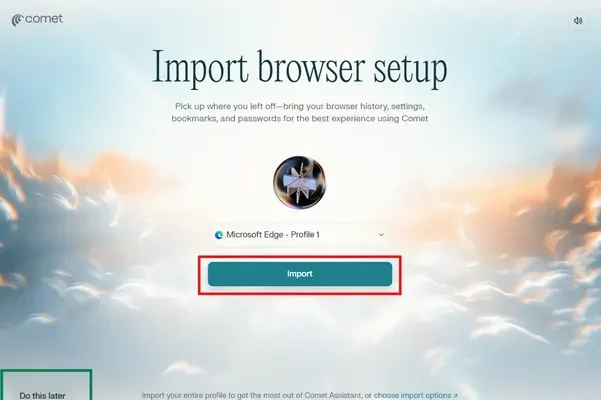
One thing to watch during setup is browser-data import. In our test, Comet offered to import data from an existing browser, including history and passwords. Importing this data doesn’t necessarily make it available to the AI assistant: Perplexity says account credentials such as passwords and credit card information remain stored locally on your device. If you don’t want your existing browsing history imported into Comet, you can skip the import during setup.
As for Dia, password fields and irreversible-action buttons are invisible to its agentic system. Dia can import passwords and browsing history from another browser, but its documentation doesn’t say that imported passwords become available to the AI. Browsing history, on the other hand, can be used as context by Dia’s AI features.
Which privacy settings are worth checking?
Start with the settings that are on by default, since those are the ones you never actually chose.
- Comet. During setup, untick “Help us improve Comet” if you don’t want to share that data (it was ticked when we installed it), and skip the profile import if you don’t need it. In the browser, open the top-right menu and go to Settings → Privacy and security → Comet Assistant to block sensitive domains and control history access. Then click the profile icon in the bottom-left corner, choose All settings, and review AI data retention under Preferences and “Use search history” under Memory settings. You can also delete old threads you don’t need.
- Dia. Go to Settings → Privacy → Share and disable content-data sharing if you don’t want Dia using it to improve the product. Also check whether Sync is enabled if you don’t want your browser data synced through Dia’s servers. Dia is phasing out its Memory feature, so older Memory controls may no longer apply.
- Gemini in Chrome. Check your Gemini Apps activity settings and review Gemini’s permissions under Chrome Settings → AI innovations → Gemini in Chrome, including whether it can share the current tab by default or browse for you. If you use Gemini’s Chrome history search, remember that it requires synced Chrome history.
- Copilot in Edge. Review Journeys and Context Clues under Edge’s Copilot and AI settings. Turning off Journeys stops new data collection and deletes the information previously stored to create Journeys. If you also want to prevent it from drawing on existing browsing history, Microsoft recommends turning off Journeys before clearing that history.
- Brave Leo. Turn chat history off entirely if you don’t want conversations saved even locally.
- Any AI browser. Consider keeping banking, health, and sensitive work in a separate profile or a privacy-focused browser without AI. When using agent mode, review actions involving sensitive data carefully. It also helps to know what these settings don’t cover: your internet provider can still see which sites you connect to, and those sites can see your IP address. A VPN such as VeePN hides your IP address and encrypts your traffic, but it can’t stop an AI browser from reading pages you’ve allowed it to access.
How much does your AI browser really know?
Your AI browser knows what’s on the page when you ask it. Afterwards, it may keep summaries, logs, or memories, for anywhere from zero days to years depending on the product and your settings. But none of these companies’ documentation describes uploading all your browsing habits, passwords, and activities.
The risks hide in the gaps examined above: whether Comet’s assistant context feeds training, exactly what browsing context Dia’s AI features process, and what data features like Sync move off your device. Treat anything undocumented as unknown, check the defaults first, and keep your most sensitive info to yourself whenever possible.
FAQ
Does an AI browser store everything I read?
None of these companies document doing that. Comet keeps browsing history on your device and may retain context used in AI requests for up to 30 days. Dia keeps browsing history locally by default and can pull relevant context from your history or previous chats when needed. If Sync is enabled, encrypted browser data can also be synced across devices. Brave says it doesn’t store Leo conversations on its servers after a response is generated.
Can I stop an AI browser from reading my bank or email?
The controls depend on the browser. In Comet, you can block the assistant on specific websites, such as your bank or email provider. Dia says it filters sensitive sites, including banking pages, although this protection is “best-effort” rather than guaranteed and may not apply when you explicitly include a page in your request. Copilot Journeys in Edge automatically excludes banking and healthcare sites.
Is my browsing used to train AI models?
It depends on the browser. Dia says its AI partners are contractually barred from training on your data, though Dia itself uses some content data by default unless you opt out. Brave says Leo conversations aren’t used for training, and Microsoft says the same about Journeys data. Perplexity’s AI data retention setting, which was on by default in our test, allows Perplexity to use your searches to improve AI models, but Perplexity doesn’t clearly say whether Comet Assistant requests are included.
FAQ
None of these companies document doing that. Comet keeps browsing history on your device and may retain context used in AI requests for up to 30 days. Dia keeps browsing history locally by default and can pull relevant context from your history or previous chats when needed. If Sync is enabled, encrypted browser data can also be synced across devices. Brave says it doesn’t store Leo conversations on its servers after a response is generated.
The controls depend on the browser. In Comet, you can block the assistant on specific websites, such as your bank or email provider. Dia says it filters sensitive sites, including banking pages, although this protection is “best-effort” rather than guaranteed and may not apply when you explicitly include a page in your request. Copilot Journeys in Edge automatically excludes banking and healthcare sites.
It depends on the browser. Dia says its AI partners are contractually barred from training on your data, though Dia itself uses some content data by default unless you opt out. Brave says Leo conversations aren’t used for training, and Microsoft says the same about Journeys data. Perplexity’s AI data retention setting, which was on by default in our test, allows Perplexity to use your searches to improve AI models, but Perplexity doesn’t clearly say whether Comet Assistant requests are included.


VeePN is freedom
Download VeePN Client for All Platforms
Enjoy a smooth VPN experience anywhere, anytime. No matter the device you have — phone or laptop, tablet or router — VeePN’s next-gen data protection and ultra-fast speeds will cover all of them.
Download for PC Download for Mac IOS and Android App
Want secure browsing while reading this?
See the difference for yourself - Try VeePN PRO for 3-days for $1, no risk, no pressure.
Start My $1 TrialThen VeePN PRO 1-year plan