Deutsch
  Español
  Français
  العربية
  Indonesia
  Italiano
  한국어
한국어  Nederlands
  Polski
  Português
  Türkçe
  简体中文
简体中文  ไทย
ไทย  Tiếng Việt
  Čeština
  فارسی
فارسی  Română
  Filipino
  日本語
日本語 


TP-Link VPN Setup: What Your Router Can and Cannot Do
In case you have more than just one phone to protect, TP-link VPN is a smart option. You would need to install VPN software on each device, but you can also configure the VPN on your router and blanket all your devices with a single network. In this way, your smart television, console, laptop and others can all use the identical secure VPN connection.
This is a useful trick for privacy, safe browsing, and easy control of your whole home network. In this piece, we’ll walk you through the basics, the options of setup, and the most common things to check if something does not work. We’ll also reveal how a VPN like VeePN can help.
 VeePN Research Lab


 Quick Navigation
2. Before You Start
3. Option 1: VPN Client Mode
4. Option 2: VPN Server Mode
5. Common Problems
6. Where VeePN Fits
7. Identify the Exact TP-Link Model First
8. Server Mode: For Accessing Home From Outside
9. Client Mode: For Routing Devices Through VeePN
10. Policy Routing Is Better Than All-or-Nothing
11. Protocol Choice: OpenVPN, WireGuard, and Legacy Options
12. Testing After Setup
13. Security Basics Before You Touch VPN Settings
14. If Setup Breaks the Household Network
15. A Short Compatibility Note
16. The router rule
FAQ
TP-Link routers can support different VPN features depending on the model and firmware. Some can run a VPN server so you can connect back to your home network. Some can run a VPN client so devices at home route traffic through a VPN provider. Those are not the same thing.
This guide helps you choose the right setup before you spend an hour in the router admin panel.
The Main Difference
| Feature | VPN server on TP-Link | VPN client on TP-Link |
|---|---|---|
| Purpose | Connect to your home network while away | Route home devices through a VPN provider |
| Example | Access NAS or camera from travel | Protect smart TV or console traffic |
| Needs VPN provider? | No | Yes |
| Protects all home devices automatically? | No | Only if configured that way |
| Common protocols | OpenVPN, PPTP, L2TP depending on model | OpenVPN, WireGuard, VPN Client depending on model |
If your goal is to use VeePN for your TV, console, or whole home, you need VPN client support.
Before You Start
Check the exact router model and hardware version printed on the label. TP-Link features vary by model, region, and firmware. Update firmware from TP-Link’s official support page before configuring VPN.
Log in to the router admin panel. Common addresses are tplinkwifi.net, 192.168.0.1, or 192.168.1.1. Change the router admin password if it is still default.
Option 1: VPN Client Mode
Use this when you want devices on your network to use a VPN provider.
- Open the router admin panel.
- Find
VPN Client,OpenVPN Client, orWireGuard Client. - Import the configuration file from your VPN provider.
- Enter credentials if required.
- Choose which devices use the VPN tunnel.
- Save and connect.
- Test the public IP from a connected device.
If the router lets you choose devices, start with one device. Test before routing the whole network.
Option 2: VPN Server Mode
Use this when you want to access your home network while traveling. This is useful for a NAS, home lab, or local files.
Do not expose old protocols unless you understand the risk. Prefer modern, strongly authenticated options available on your model.
Common Problems
| Problem | Cause | Fix |
|---|---|---|
| No VPN Client menu | Model does not support it | Use app on device or different router |
| Slow speed | Router CPU is weak | Use WireGuard if available or app-based VPN |
| Streaming app fails | Server or location blocked | Switch server |
| All devices lose internet | Bad config or DNS issue | Disable VPN client and test one device |
| Cannot access printer/NAS | Traffic routed differently | Exclude local devices from VPN policy |
Where VeePN Fits
VeePN is relevant if your TP-Link router supports VPN client configuration or if you install VeePN directly on devices that support apps. Router setup is useful for smart TVs, consoles, and devices that do not run VPN apps.
If your TP-Link model only supports VPN server mode, it will not route your home traffic through VeePN by itself. In that case, use the VeePN app on individual devices or consider a router that supports VPN client mode.
Identify the Exact TP-Link Model First
TP-Link model names can be confusing because the same marketing name may have multiple hardware versions. Look at the sticker on the router and note the model, hardware version, and region. Then check TP-Link’s official support site for that exact version.
Do not assume a guide for Archer AX55 v1 applies to AX55 v2, or that a feature shown in a US support article exists in every regional firmware. Router firmware features change by hardware revision and market.
The settings path also varies. Some interfaces use Advanced > VPN Client. Others place VPN features under Advanced > VPN Server, OpenVPN, WireGuard VPN, or VPN Client. The label matters less than the direction of the tunnel.
Server Mode: For Accessing Home From Outside
VPN server mode turns your router into a destination. You connect from your phone or laptop while traveling, and the encrypted tunnel goes back to your home network. This can be useful for accessing a NAS, home lab, local camera system, or files stored at home.
It does not send your smart TV through VeePN. It does not hide your home traffic from the ISP. It does not change the public IP used by devices inside the house.
Use server mode if the sentence is: “I want to reach my home network while I am away.”
Client Mode: For Routing Devices Through VeePN
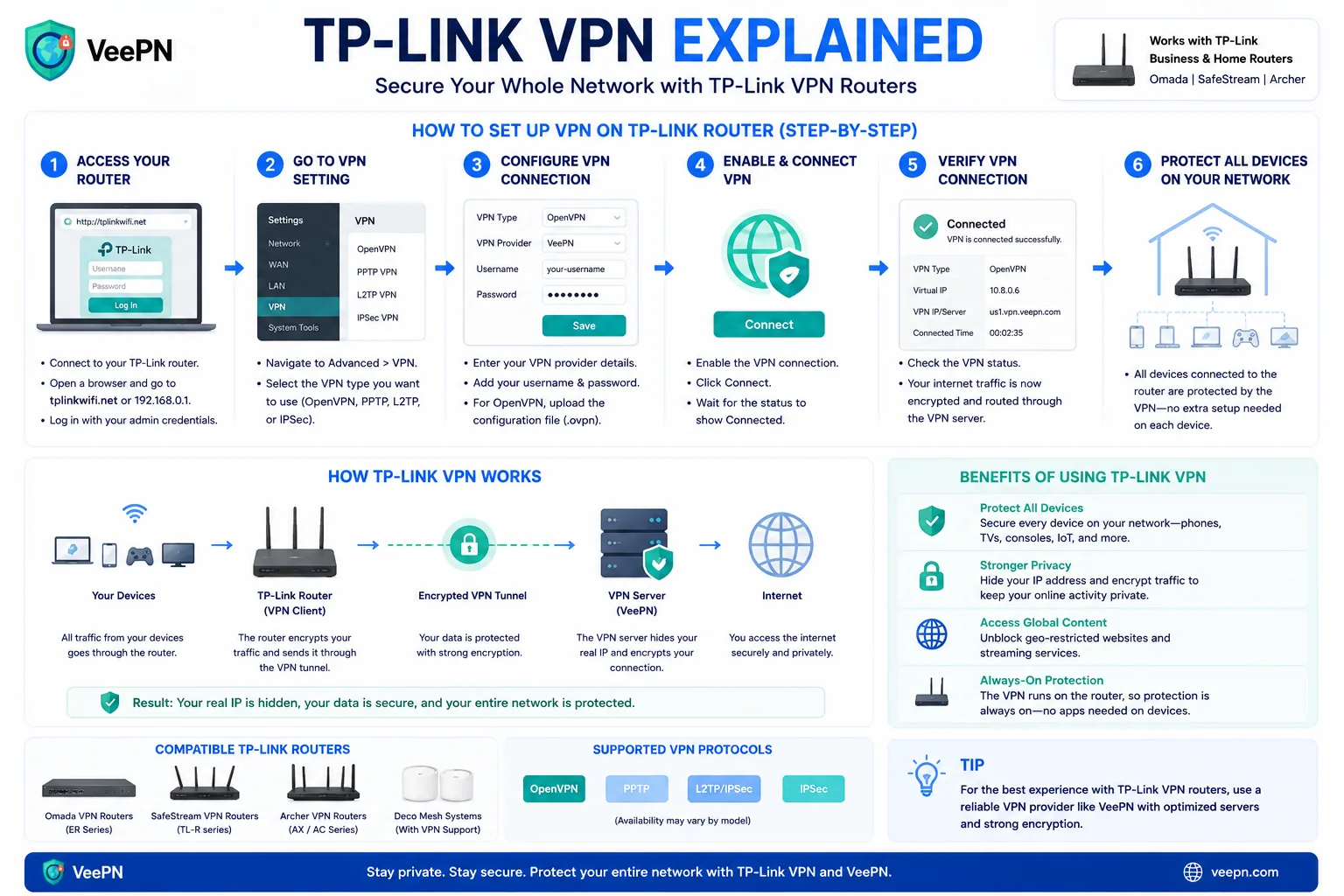
VPN client mode turns your router into a device that connects outward to a VPN provider. Then selected home devices can use that tunnel. This is the mode most readers want when they search for “TP-Link VPN” and expect whole-home VPN protection.
TP-Link has published VPN Client setup examples, including configuration guidance for compatible routers. The details vary, but the principle is consistent: import or enter provider configuration, connect, choose devices or policies, and test the public IP.
Policy Routing Is Better Than All-or-Nothing
If the router supports selecting devices, use that feature. Route the smart TV, streaming box, or console through the VPN first. Leave printers, local NAS devices, smart home hubs, and work devices outside the tunnel until you confirm everything behaves correctly.
All-or-nothing VPN routing can create side effects:
- Banking sites may ask for extra verification.
- Streaming apps may behave differently.
- Local printers or casting may stop working.
- Work apps may reject unfamiliar network paths.
- Speeds may drop if the router CPU is weak.
Policy routing lets you protect the devices that need it without making every device harder to troubleshoot.
Protocol Choice: OpenVPN, WireGuard, and Legacy Options
If your router supports WireGuard client mode, it is often faster on consumer hardware because it is leaner. OpenVPN is widely supported and stable, but it can be CPU-heavy on cheaper routers. Avoid PPTP for privacy or security; it is outdated and should not be recommended as a modern protection option.
The best protocol is the one your exact router and VPN provider support reliably. Do not flash unofficial firmware just to chase a protocol unless you understand the risk. A failed firmware flash can brick the router or void support.
Testing After Setup
After connecting the router VPN, test from a device routed through the tunnel:
- Open What Is My IP and confirm the visible IP changed.
- Run DNS Leak Test and check whether DNS matches the expected provider.
- Open a local device such as a printer or NAS to confirm LAN access still works if needed.
- Test streaming or browsing speed.
- Restart the router and confirm the VPN reconnects as expected.
If the IP does not change, the device may not be assigned to the VPN policy. If DNS still points to the ISP, check DNS settings in the router VPN profile.
Security Basics Before You Touch VPN Settings
Router VPN does not help if the router itself is poorly secured. Change the admin password. Disable remote administration unless you truly need it. Update firmware. Remove unused port forwards. Turn off WPS. Use WPA2 or WPA3 with a strong Wi-Fi password.
For households that mainly want VPN protection on phones and laptops, installing VeePN apps directly may be easier than router setup. Use the router path when you need coverage for TVs, consoles, or devices that cannot run the app, such as VeePN for router, Android TV VPN, and Smart TV VPN.
If Setup Breaks the Household Network
Have a rollback plan before changing router VPN settings. Save or screenshot the original WAN, DNS, and VPN pages. Test one device first. If the internet stops working, disable the VPN client profile rather than factory-resetting the router.
If local casting breaks, keep the phone and TV on the same routing policy or exclude both from the VPN. If a work laptop complains, remove it from the VPN policy. Whole-home privacy is useful only if the network remains usable.
A Short Compatibility Note
If a reader cannot find VPN Client mode, the answer may simply be that the router does not support it. That is not user error. Suggest app-based VPN for phones, laptops, and Android TV, or a VPN-capable router for whole-home coverage.
This avoids sending readers into firmware menus that cannot solve their problem.
The router rule
For TP-Link routers, the most important question is direction. VPN server mode lets you connect back home while away. VPN client mode routes home devices through a VPN provider like VeePN.
If your router lacks client mode, use the VeePN app on supported devices or choose a VPN-capable router. Compatibility decides the path.
This is also why checking the exact model and hardware version matters before following any setup guide.
One letter or hardware revision can change the available VPN menus.
FAQ
Do all TP-Link routers support VPN client mode?
No. Features vary by model and firmware. Check TP-Link’s official support page for your exact hardware version.
Is router VPN slower than an app?
Often yes. Many consumer routers have limited CPU power for encryption. Device apps can be faster.
Should I use PPTP?
Avoid PPTP for privacy or security. It is outdated. Use OpenVPN or WireGuard where available.


VeePN is freedom
Download VeePN Client for All Platforms
Enjoy a smooth VPN experience anywhere, anytime. No matter the device you have — phone or laptop, tablet or router — VeePN’s next-gen data protection and ultra-fast speeds will cover all of them.
Download for PC Download for Mac IOS and Android App
Want secure browsing while reading this?
See the difference for yourself - Try VeePN PRO for 3-days for $1, no risk, no pressure.
Start My $1 TrialThen VeePN PRO 1-year plan