Deutsch
  Español
  Français
  العربية
  Indonesia
  Italiano
  한국어
한국어  Nederlands
  Polski
  Português
  Türkçe
  简体中文
简体中文  ไทย
ไทย  Tiếng Việt
  Čeština
  فارسی
فارسی  Română
  Filipino
  日本語
日本語 


iPhone Lost Mode: What to Do the Minute Your Phone Goes Missing
Losing your iPhone always feels awful because it is never just a phone. It is your photos, your logins, your cards, your chats, and a big chunk of your daily life. That is exactly why Apple built iPhone Lost Mode into Apple’s Find system. If Find My app was already turned on, you can lock the phone, add a custom message, pause Apple Pay, and start tracking the missing iPhone before anyone gets too far with it.
First, we’ll cover what Lost Mode actually does. Then we’ll walk through the steps to enable Lost Mode, the extra moves that protect your Apple account, and the point where it makes sense to remotely erase the phone instead of hoping it comes back.
Before we get into buttons and menus, it helps to know what Lost Mode lets you do. It is not magic, but it does buy you time and shuts down several obvious risks right away.
 VeePN Research Lab


 Quick Navigation
2. Why the Find My app matters before the phone is lost
3. How to enable Lost Mode in the Find My app
4. What to put on the lock screen and what not to share
5. How your Apple account and Apple device setup can save you trouble
6. When to turn off Lost Mode and when to erase the phone
7. When remotely erase is the better move
8. Why VeePN helps after iPhone Lost Mode
FAQ
What the lock screen and Apple Pay do after you turn on Lost Mode
When you turn on Lost Mode, your lost device is locked with the existing device passcode. You can put a contact number and custom message on the device’s lock screen, which is useful if an honest person finds it and wants to help. At the same time, normal alerts stop showing on the screen, so your texts and other messages are not sitting there for anyone to read.
A few more things happen in the background:
- Apple Pay is suspended, including linked credit or debit cards and debit cards in Wallet. That blocks quick tap-to-pay abuse without forcing you to cancel every card right away.
- Your phone can still receive phone calls and FaceTime calls. That sounds small, but it matters when someone decent picks up the phone and tries to return it.
- Activation Lock stays on. So even after a factory reset, the phone still cannot be set up again without your Apple account credentials.
Why the Find My app matters before the phone is lost
This part is easy to miss until it is too late. You can only activate Lost Mode if Find My was already enabled before the phone disappeared. If the phone is offline, the request sits there and starts the next time the device connects through Wi-Fi or cellular data.
That also means location tracking has limits:
- If the phone is online, you may see its current location or movement in the Find My app.
- If it is offline, you may only see the last known location until it comes back online.
- If the battery dies, tracking pauses. No battery means no live updates.
How to enable Lost Mode in the Find My app
Apple’s official steps are short, and that is a good thing.
Use another Apple device, Apple Watch, or Find Devices on the web
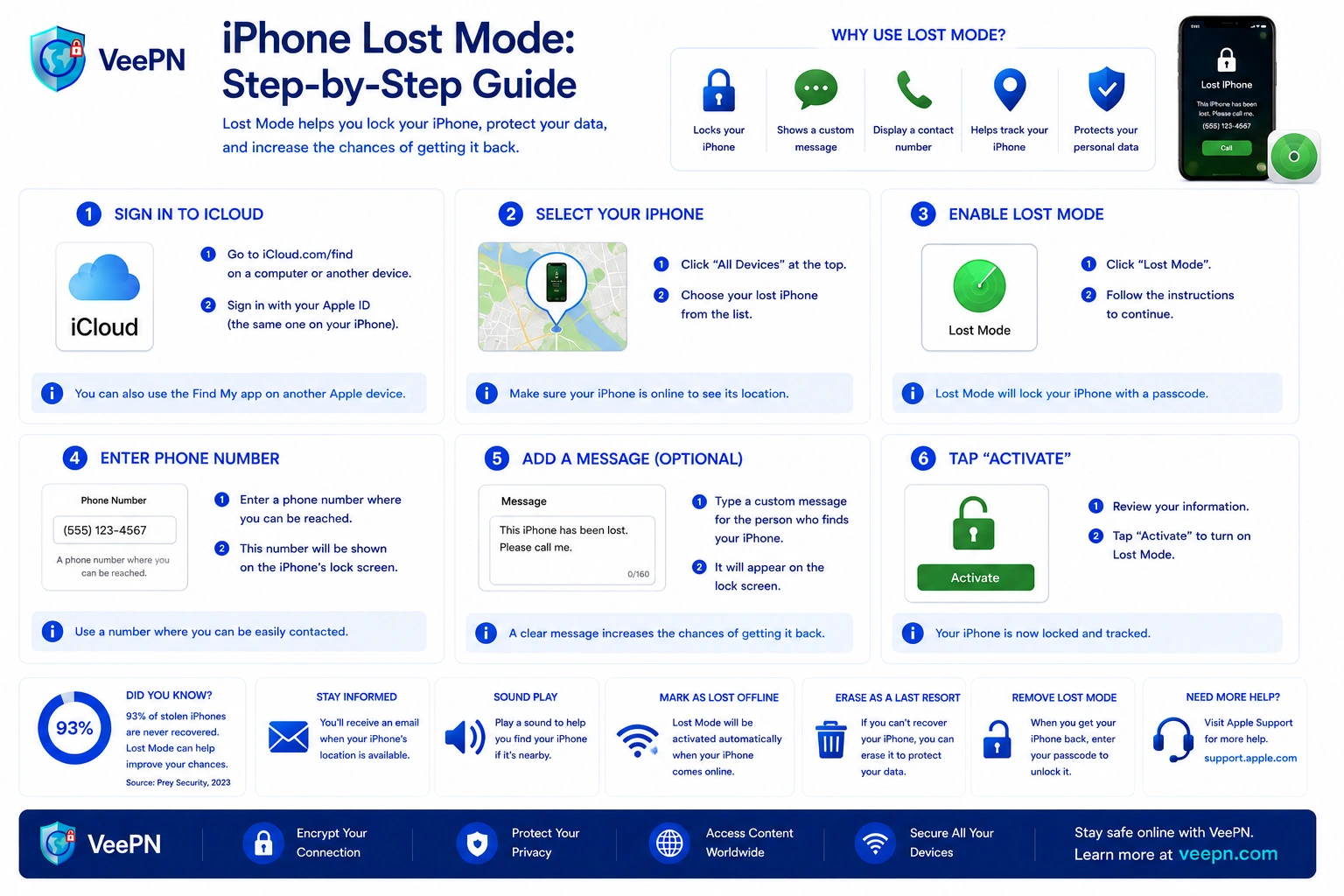
Here are the cleanest ways to enable Lost Mode:
- Open the Find My app on another Apple device. This can be another iPhone, an iPad, or a Mac.
- If you wear an Apple Watch, open Find Devices, choose your phone, and turn on Lost Mode there.
- If you do not have another Apple device nearby, go to iCloud’s Find Devices page and sign in to your Apple account.
- Select the missing device, tap enable Lost Mode, follow the onscreen steps, and press Activate.
If you use Family Sharing, a family member’s device can help too. Apple says shared devices can appear there, which is genuinely useful when your own phone is the thing that vanished.
What to put on the lock screen and what not to share
This is where people sometimes make it worse without meaning to. Yes, you want the finder to reach you. No, you do not want to give away anything sensitive.
Use this instead:
- add a safe callback number or secondary email
- keep the custom message short
- ask the finder to call or text
- avoid personal details you do not need to share
Do not put any of this on the lock screen:
- your Apple ID password
- any verification code
- home address
- anything that makes account takeover easier
That warning is not theoretical. Apple says it will never contact you to say your phone has been found, and recent phishing campaigns have targeted people with fake “we found your lost iPhone” messages that try to steal account details and bypass Activation Lock.
How your Apple account and Apple device setup can save you trouble
Once Lost Mode is active, do not stop there. The phone is only one part of the problem. The bigger danger can be your accounts, SIM access, and the rest of your Apple setup.
Do these Apple account checks right away
If the phone is truly gone, do these additional steps next:
- Review your Apple account and make sure you still control it. If anything feels off, change the password from a trusted device.
- Check the device list tied to your account. Make sure the lost iPhone is still there and no strange Apple device has been added.
- If you use Stolen Device Protection, keep it on. Apple says this can require Face ID or Touch ID to turn off Lost Mode, which makes a thief’s job much harder even if they know the passcode.
Call your wireless carrier and think beyond the phone
If the phone was probably stolen, Apple says to contact your wireless carrier and report it. Ask them to suspend service, check your wireless carrier plan, and see whether they have theft, replacement, or fraud steps you should follow. Also file a police report instead of trying to chase the map pin yourself.
A couple of practical moves help here too:
- Tell your carrier to lock down the line if you are worried about SIM abuse.
- Keep screenshots of the phone’s map location and serial details for the report.
- Do not meet strangers alone just because the phone looks nearby.
When to turn off Lost Mode and when to erase the phone
Sometimes the phone turns up in the sofa. Sometimes it does not. You want a clear next step for both cases.
How to turn off Lost Mode after you recover the phone
If you are lucky to get the phone back, you can turn off Lost Mode in a few ways:
- Open the Find My app and stop the lost status there.
- Use Find Devices on iCloud and stop Lost Mode from the web.
- Enter the device passcode on the phone itself to unlock it.
If Stolen Device Protection is active, Apple says Face ID or Touch ID may be required to turn Lost Mode off. That can feel annoying in normal life, but it is excellent news when the phone is in the wrong hands.
When remotely erase is the better move
If recovery starts to look unlikely, you may need to remotely erase the phone. This wipes your data the next time the phone goes online. That is usually the right move when the phone is clearly gone for good or when the bigger concern is your private information, not the hardware.
One important detail: do not remove the phone from Find My right after the wipe. If you remove it from the account too early, you also remove Activation Lock, and that makes the device easier for someone else to reuse.
Why VeePN helps after iPhone Lost Mode
iPhone Lost Mode protects the handset. VeePN helps protect what comes after it.
That matters when you are signing back into accounts on public Internet connections, checking bank apps on café Wi-Fi, or trying to avoid more tracking after a lost or stolen phone.
- AES-256 encryption. VeePN says it uses AES-256 encryption. That gives you a much safer way to reset passwords, review logins, and use sensitive apps on public networks after the incident.
- Changing IP address. A fresh IP will not recover your phone, but it can reduce easy tracking while you sort things out on hotel, airport, or coffee-shop networks. VeePN also has practical iPhone privacy guides around location and IP settings, which fits this situation well.
- Kill Switch. If the VPN connection drops, Kill Switch helps stop your traffic from leaking onto an open network. That is especially useful when you are rushing through password changes and do not want your connection exposed halfway through.
- No Logs policy. VeePN says it follows an independently audited No Logs policy. If you are already dealing with a device loss, that kind of privacy promise matters more than flashy marketing.
- Multi-device coverage. VeePN says one account can protect up to 10 devices. That is useful when you are not only securing your iPhone, but also checking your iPad, Mac, or another backup Apple device after the loss.
Try VeePN to secure the rest of your accounts and devices after a phone loss. Try it without risks, as we offer a 30-day money-back guarantee.
FAQ
When iPhone Lost Mode is active, the phone locks with its passcode, shows your custom message on the lock screen, and suspends Apple Pay cards and passes. It can still receive phone calls and FaceTime calls, but regular alerts stay hidden. Discover more in this article.
Usually, no. Lost Mode blocks normal access, and Activation Lock makes the phone much harder to reuse even after a wipe. If Stolen Device Protection is on, Apple says Face ID or Touch ID may also be required for certain sensitive actions. Discover more in this article.
Yes. You can turn off Lost Mode in the Find My app, in Find Devices on iCloud, or on the phone by entering the passcode. If the phone has been recovered, that is the normal way to get full access back.
Yes. An iPhone in Lost Mode can still receive phone calls and FaceTime calls. That is helpful because the finder can still contact you while the rest of the phone stays locked.


VeePN is freedom
Download VeePN Client for All Platforms
Enjoy a smooth VPN experience anywhere, anytime. No matter the device you have — phone or laptop, tablet or router — VeePN’s next-gen data protection and ultra-fast speeds will cover all of them.
Download for PC Download for Mac IOS and Android App
Want secure browsing while reading this?
See the difference for yourself - Try VeePN PRO for 3-days for $1, no risk, no pressure.
Start My $1 TrialThen VeePN PRO 1-year plan