Deutsch
  Español
  Français
  العربية
  Indonesia
  Italiano
  한국어
한국어  Nederlands
  Polski
  Português
  Türkçe
  简体中文
简体中文  ไทย
ไทย  Tiếng Việt
  Čeština
  فارسی
فارسی  Română
  Filipino
  日本語
日本語 


How to Protect Your Home Computer from Cyber Threats
Your home computer likely stores far more than documents and photos. It may contain saved passwords, financial information, work files, personal messages, and access to online accounts.
Most cyberattacks don’t involve sophisticated hackers targeting individuals directly. Instead, they take advantage of common weaknesses such as outdated software, reused passwords, phishing emails, or unsecured networks.
Protecting your computer doesn’t require advanced technical knowledge. A handful of basic security practices can significantly reduce your risk.
 VeePN Research Lab


 Quick Navigation
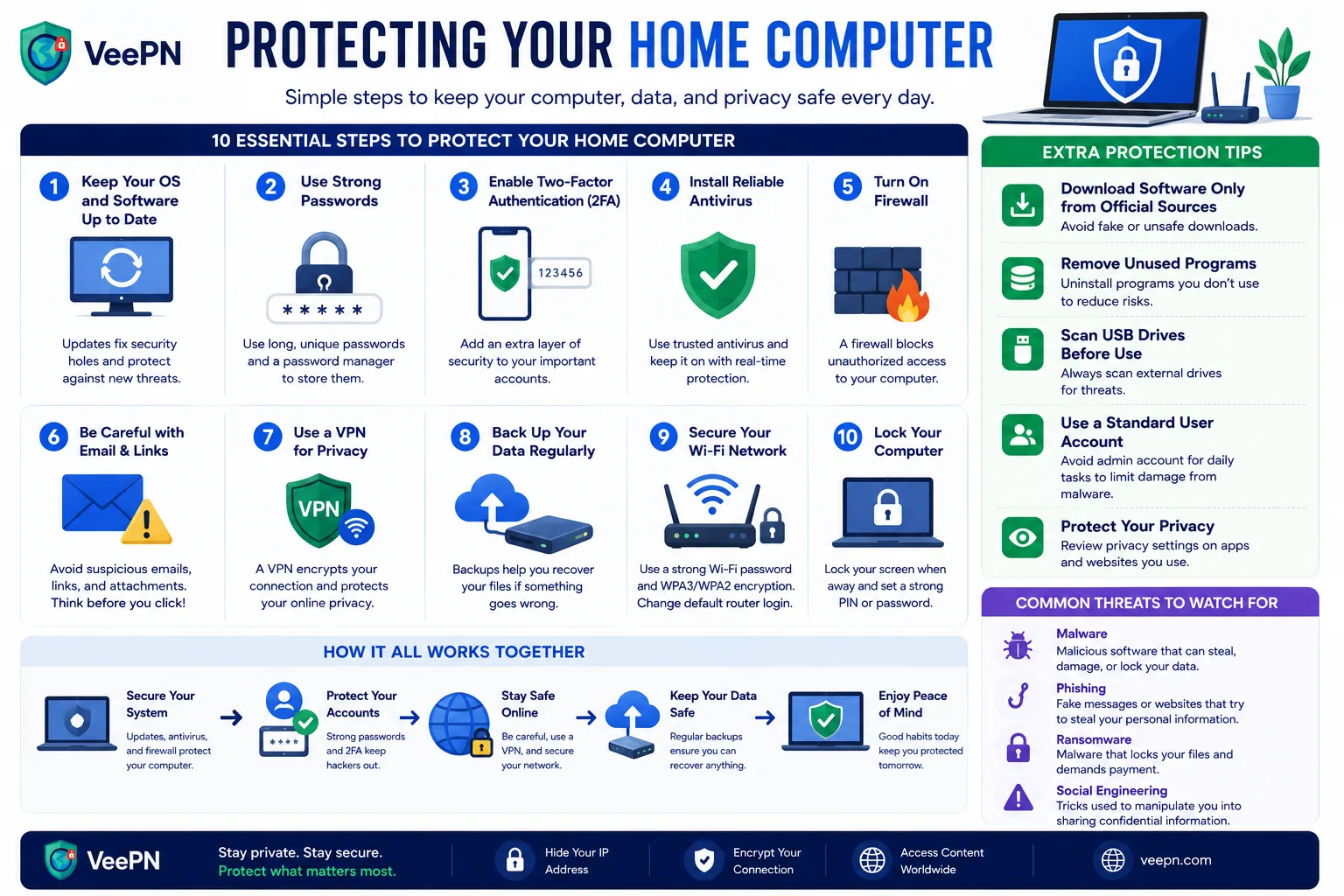
2. Keep Software Updated
3. Use Strong Passwords and a Password Manager
4. Install Reliable Malware Protection
5. Back Up Important Files
6. Be Cautious with Email and Downloads
7. Secure Your Home Wi-Fi Network
8. Use Standard Accounts for Everyday Activities
9. Consider a VPN on Untrusted Networks
10. Protect Children and Shared Devices
11. Watch for Warning Signs
12. Final Thoughts
Start with the Built-In Security Tools
Modern operating systems include security features that provide a solid foundation.
For most home users, the built-in protections in Windows and macOS are sufficient when they are enabled and kept up to date. These typically include:
- Malware protection
- Firewall functionality
- Security updates
- Basic phishing and website protection
Before installing additional security software, make sure these built-in tools are active and configured correctly.
Keep Software Updated
Software updates often contain security fixes for vulnerabilities that attackers actively exploit.
Enable automatic updates for:
- Your operating system
- Web browsers
- Password managers
- Productivity software
- Router firmware when available
Delaying updates for weeks or months can leave known security flaws unpatched.
Use Strong Passwords and a Password Manager
Weak or reused passwords remain one of the most common causes of account compromise.
A password manager can help you:
- Generate unique passwords
- Store credentials securely
- Avoid reusing passwords across websites
- Fill passwords automatically
Popular options include Bitwarden, 1Password, and other reputable password managers.
For important accounts such as email, banking, and cloud storage, enable multi-factor authentication (MFA) whenever possible.
Install Reliable Malware Protection
Malware can arrive through email attachments, malicious downloads, fake software installers, and compromised websites.
While built-in protection is often adequate for many users, some people prefer additional security software that offers:
- Real-time scanning
- Web protection
- Ransomware monitoring
- Suspicious behavior detection
Regardless of which product you choose, keep it updated and avoid running multiple antivirus programs simultaneously, as they can interfere with one another.
Back Up Important Files
No security solution can guarantee that data will never be lost.
Hardware failures, ransomware, accidental deletion, and theft can all result in lost files.
A practical approach is to keep at least:
- One local backup (external drive or NAS)
- One cloud backup
Automated backups are generally more reliable than manual ones because they continue running without requiring regular attention.
Be Cautious with Email and Downloads
Many attacks begin with a convincing message rather than a technical exploit.
Be skeptical of emails that:
- Create urgency
- Request passwords or verification codes
- Contain unexpected attachments
- Ask you to click unfamiliar links
Before downloading software, verify that it comes from the developer’s official website or a trusted app store.
Secure Your Home Wi-Fi Network
Your home network is part of your overall security posture.
A few simple steps can help:
- Change the router’s default administrator password
- Use WPA3 encryption when available (or WPA2 if WPA3 isn’t supported)
- Install router firmware updates
- Disable features you don’t use, such as remote administration
Guest networks can also help isolate visitors’ devices from computers and smart devices on your primary network.
Use Standard Accounts for Everyday Activities
Many people use administrator accounts for daily browsing and work.
A safer approach is to use a standard user account for routine activities and reserve administrator privileges for software installation or system changes.
If malware executes under a standard account, it may have fewer opportunities to modify critical system settings.
Consider a VPN on Untrusted Networks
A VPN is not a replacement for antivirus software, updates, or strong passwords.
However, it can be useful when:
- Using public Wi-Fi
- Working while traveling
- Connecting through networks you don’t control
A VPN encrypts traffic between your device and the VPN provider, helping protect data from local network interception. It does not prevent malware infections, stop phishing attacks, or make you anonymous online.
Protect Children and Shared Devices
If children use the family computer, consider:
- Separate user accounts
- Parental controls appropriate for their age
- Restrictions on software installation
- Regular conversations about online safety
Technical controls are helpful, but education is equally important.
Watch for Warning Signs
Security problems often reveal themselves through unusual behavior, such as:
- Unexpected software installations
- Browser redirects
- Unknown login alerts
- Significant performance changes
- New accounts or settings you didn’t create
Investigating these issues early can prevent larger problems later.
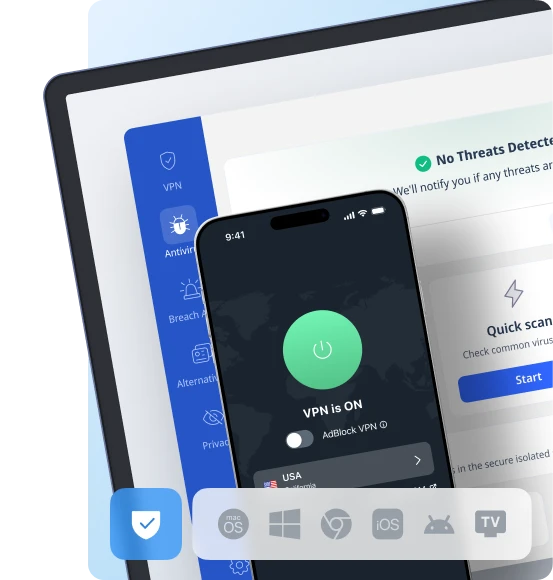
For broader guidance, see CISA’s Secure Our World tips and the FTC’s advice on recognizing phishing scams. On top of your built-in tools, VeePN’s Antivirus adds malware scanning on supported devices, Kill Switch protects you on untrusted Wi-Fi, and Data Breach Alert warns if your accounts are exposed.
Final Thoughts
Protecting a home computer is less about finding a single security product and more about reducing avoidable risks.
Keeping software updated, using strong passwords, enabling multi-factor authentication, maintaining backups, and staying cautious online will do more to improve security than any single tool.
If you regularly use public Wi-Fi or travel with your devices, a VPN can provide an additional layer of protection for your internet connection. But it should be viewed as one component of a broader security strategy, not a complete solution.


VeePN is freedom
Download VeePN Client for All Platforms
Enjoy a smooth VPN experience anywhere, anytime. No matter the device you have — phone or laptop, tablet or router — VeePN’s next-gen data protection and ultra-fast speeds will cover all of them.
Download for PC Download for Mac IOS and Android App
Want secure browsing while reading this?
See the difference for yourself - Try VeePN PRO for 3-days for $1, no risk, no pressure.
Start My $1 TrialThen VeePN PRO 1-year plan