Deutsch
  Español
  Français
  العربية
  Indonesia
  Italiano
  한국어
한국어  Nederlands
  Polski
  Português
  Türkçe
  简体中文
简体中文  ไทย
ไทย  Tiếng Việt
  Čeština
  فارسی
فارسی  Română
  Filipino
  日本語
日本語 


My Saved Passwords on This Device: What You Should Know
Saving passwords on a device is convenient. It allows you to sign in quickly without remembering dozens of credentials, and modern browsers can even generate strong passwords for new accounts.
But convenience comes with trade-offs. If someone gains access to your device or your account, your saved credentials may be exposed. Understanding where passwords are stored and how to protect them is an important part of staying secure online.
This guide explains how saved passwords work, where to find them, and how to manage them safely.
 VeePN Research Lab

 Quick Navigation
Are Saved Passwords Safe?
In most cases, modern browsers and operating systems encrypt saved passwords and protect them with your device account, screen lock, or biometric authentication.
That said, saved passwords are not risk-free. Common security concerns include:
- A lost or stolen device that isn’t properly secured
- Malware designed to steal stored credentials
- Unauthorized access to your Google, Apple, or Microsoft account
- Shared devices where multiple people can access saved logins
- Weak or reused passwords across multiple accounts
The risk is usually not the password storage feature itself. Problems arise when device security, account security, or password hygiene are weak.
Browser Password Managers: Pros and Limitations
Most major browsers, including Chrome, Edge, Firefox, and Safari, offer built-in password management.
These tools can:
- Save login credentials
- Autofill usernames and passwords
- Generate strong passwords
- Warn about known compromised passwords
- Sync passwords across devices when signed in to the same account
For many people, built-in password managers provide an acceptable balance between convenience and security.
However, they are typically tied to a single browser ecosystem. If you frequently switch between browsers, operating systems, or work and personal devices, a dedicated password manager may offer greater flexibility and additional security controls.
The right choice depends on how many accounts you manage and how you use your devices. Here’s a quick comparison of browser-based and dedicated password managers.
| Feature | Browser Password Manager | Dedicated Password Manager |
|---|---|---|
| Password storage | Built into the browser | Stored in a separate encrypted vault |
| Cross-platform support | Usually tied to one browser ecosystem | Works across multiple browsers and devices |
| Password sharing | Limited or unavailable | Often includes secure sharing features |
| Security controls | Basic password management tools | Advanced security features and monitoring |
| Account recovery options | Depends on the browser account provider | Typically offers dedicated recovery methods |
| Ease of use | Very simple and built in | Requires initial setup but offers more flexibility |
| Best for | Users with a small number of devices and accounts | Users managing many accounts across platforms |
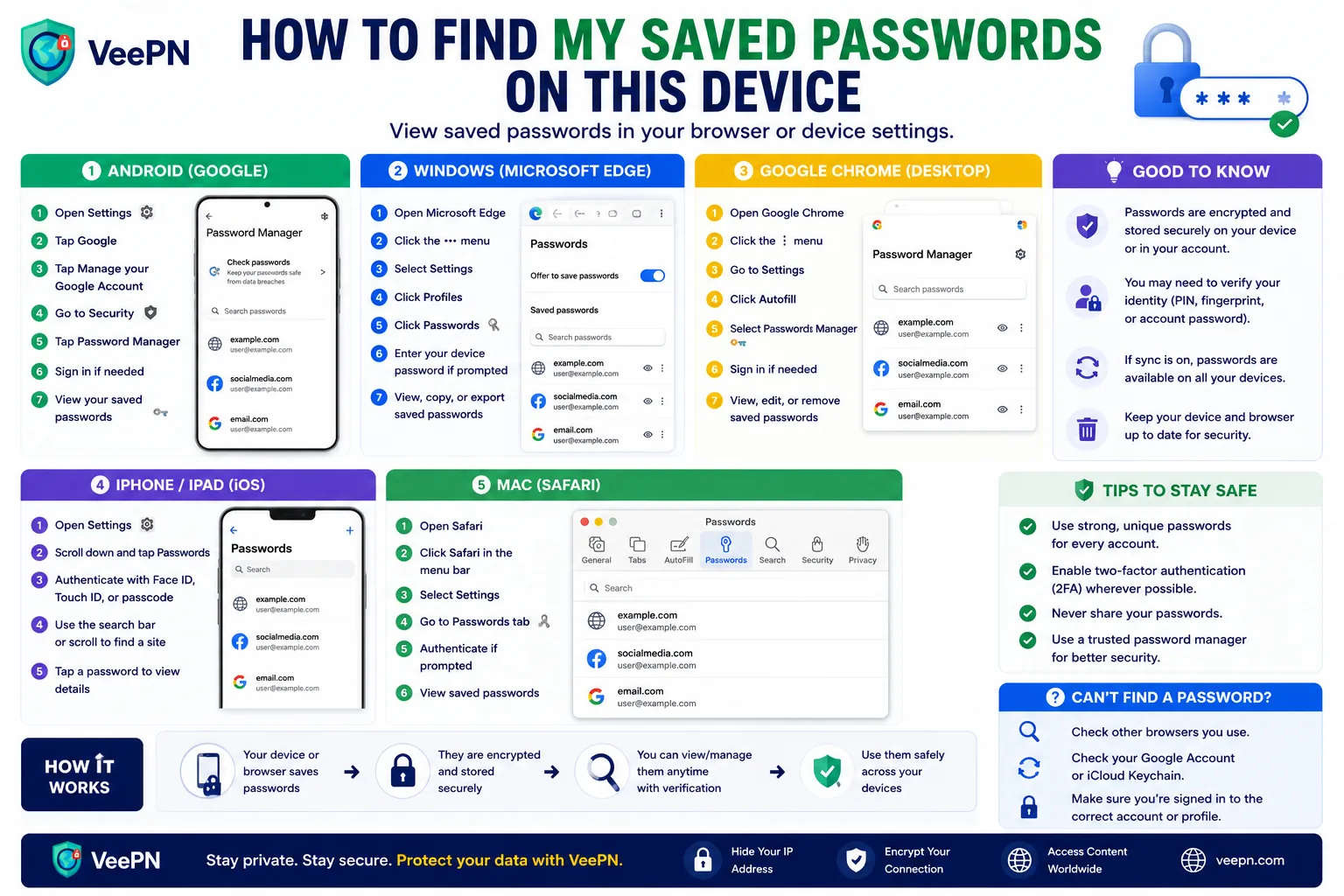
How to Find Your Saved Passwords
Google Chrome
- Open Chrome.
- Select Settings.
- Open Password Manager (or Autofill and Passwords depending on your version).
- View, edit, or delete saved credentials after verifying your identity.
Safari (iPhone, iPad, and Mac)
- Open Settings (iPhone/iPad) or System Settings (Mac).
- Select Passwords.
- Authenticate using Face ID, Touch ID, or your device password.
- View and manage saved accounts.
Android Devices
Depending on your device version:
- Open Settings.
- Go to Google.
- Select Password Manager.
- Authenticate to view saved credentials.
Microsoft Edge
- Open Edge.
- Go to Settings.
- Select Profiles.
- Open Passwords.
- Verify your identity to view stored logins.
Should You Use a Dedicated Password Manager?
A dedicated password manager can make sense if you:
- Manage a large number of accounts
- Use multiple browsers and devices
- Want advanced sharing and recovery options
- Need stronger organizational features
Popular options include Bitwarden, 1Password, and Dashlane.
Regardless of which tool you use, the most important security practice is creating unique passwords for every account. A password manager makes that much easier.
Best Practices for Protecting Saved Passwords
A few habits can significantly reduce your risk:
- Use unique passwords for every account.
- Enable two-factor authentication (2FA) whenever available.
- Protect your device with a strong passcode, fingerprint, or face recognition.
- Keep your operating system and browser updated.
- Remove old accounts and passwords you no longer use.
- Review security alerts from your browser or password manager.
These steps generally provide more protection than simply switching from one password storage method to another.
Where a VPN Fits In
A VPN and a password manager solve different problems.
A password manager helps store and organize credentials securely. A VPN helps protect data transmitted over a network by encrypting your internet connection, which can be particularly useful on public Wi-Fi networks.
A VPN does not secure passwords already stored on your device, replace a password manager, or prevent all forms of credential theft. It should be viewed as one layer of a broader security strategy rather than a complete solution.
Your browser’s built-in password manager is convenient, and basic habits like the NCSC’s online-security tips cover the fundamentals. To reduce the bigger risks around saved logins, VeePN’s Data Breach Alert warns if your credentials leak, VeePN Antivirus helps stop password-stealing malware, and Alternative ID keeps your real email off low-trust signups.
Final Thoughts
Saved passwords can be both convenient and reasonably secure when combined with good account and device security.
Whether you use a browser’s built-in password manager or a dedicated password management app, focus on the fundamentals: unique passwords, two-factor authentication, a secured device, and regular security reviews. Those measures will do far more to protect your accounts than relying on any single tool alone.


VeePN is freedom
Download VeePN Client for All Platforms
Enjoy a smooth VPN experience anywhere, anytime. No matter the device you have — phone or laptop, tablet or router — VeePN’s next-gen data protection and ultra-fast speeds will cover all of them.
Download for PC Download for Mac IOS and Android App
Want secure browsing while reading this?
See the difference for yourself - Try VeePN PRO for 3-days for $1, no risk, no pressure.
Start My $1 TrialThen VeePN PRO 1-year plan