Deutsch
  Español
  Français
  العربية
  Indonesia
  Italiano
  한국어
한국어  Nederlands
  Polski
  Português
  Türkçe
  简体中文
简体中文  ไทย
ไทย  Tiếng Việt
  Čeština
  فارسی
فارسی  Română
  Filipino
  日本語
日本語 


How to Clear Outlook Cache Without Deleting Your Emails
When Microsoft Outlook starts lagging, showing old suggestions, failing to sync, or acting strangely with attachments, search, and folder updates, the cache is often one of the first places to check. The good news is that clearing Outlook cache usually removes temporary local data, not your actual mailbox. In most cases, cache files are rebuilt the next time you open Outlook or re-sync the account.
Still, it helps to be precise here. There is no single magic clear cache button that works the same way in Classic Outlook, New Outlook, Mac, and iPhone. Microsoft handles cache in Outlook differently depending on the app version, which is why people often clear the wrong thing and get nowhere.
We’ll walk through the versions that matter, keep the steps short, and show where a VPN like VeePN fits in.
 VeePN Research Lab


 Quick Navigation
2. Delete Outlook cache in Classic Outlook on Windows
3. How to clear Outlook cache from the RoamCache folder
4. How to clear Outlook cache on Mac
5. How to clear Outlook cache on iPhone and iPad
6. How to clean Outlook new cache and web data
7. When to clear Outlook cache and when to try another fix
8. Why VeePN still helps after you clear Outlook cache
FAQ
How to clear Outlook cache and know what you are actually clearing
Before you start deleting all the files you can find, it helps to know what Outlook stores locally. Some cached data is there to make the email client load faster. Some of it is tied to recipient suggestions. Some belong to add-ins. And some of it is just local folder content waiting to sync with a server.
That is why clearing the cache can help with slow performance, stale recipient suggestions, odd sync errors, or stuck local data. But it is also why you should not treat every Outlook issue like a cache problem.
Microsoft still keeps separate “recent issues” pages for both classic and new Outlook, updated through 2026, which is a good reminder that some bugs come from the app itself, not from local clutter on your system.
Outlook versions and where the cache lives
| Outlook version | Where the cache lives and how to clear it |
|---|---|
| Classic Outlook (Windows) | RoamCache folder at %LOCALAPPDATA%\Microsoft\Outlook |
| New Outlook (Windows) | No user-facing cache folder. Reset the app, or use the Office cache steps only for add-in issues |
| Outlook for Mac | Right-click a folder > Properties > Empty Cache, or Tools > Accounts > Reset Account |
| Outlook for iOS and iPad | Outlook app > Settings > choose the account > Reset Account |
| Outlook on the web | Sign out, clear the browser cache, close tabs, sign back in |
Delete Outlook cache in Classic Outlook on Windows
If you use Classic Outlook on Windows, this is the version where manual cleanup makes the most sense. Two things are usually worth clearing first: the auto complete cache and the RoamCache folder.
How to clear auto complete cache first
If Outlook keeps suggesting the wrong address, this is the fastest fix. Microsoft says you can:
- Go to File > Options > Mail
- Look under Send messages
- Use the Empty AutoComplete List button.
That clears the saved auto complete list in one go.
If the problem is just one bad address, you do not need to wipe the whole list.
- Open a new message
- Start typing the address
- Wait for the suggestion to appear
- Click the X beside it or press Delete.
Microsoft specifically recommends that as a workaround for some address-related sending problems. That small fix solves a lot of everyday Outlook annoyances. It is quick, safe, and much better than digging through folders if your only issue is stale suggestions.
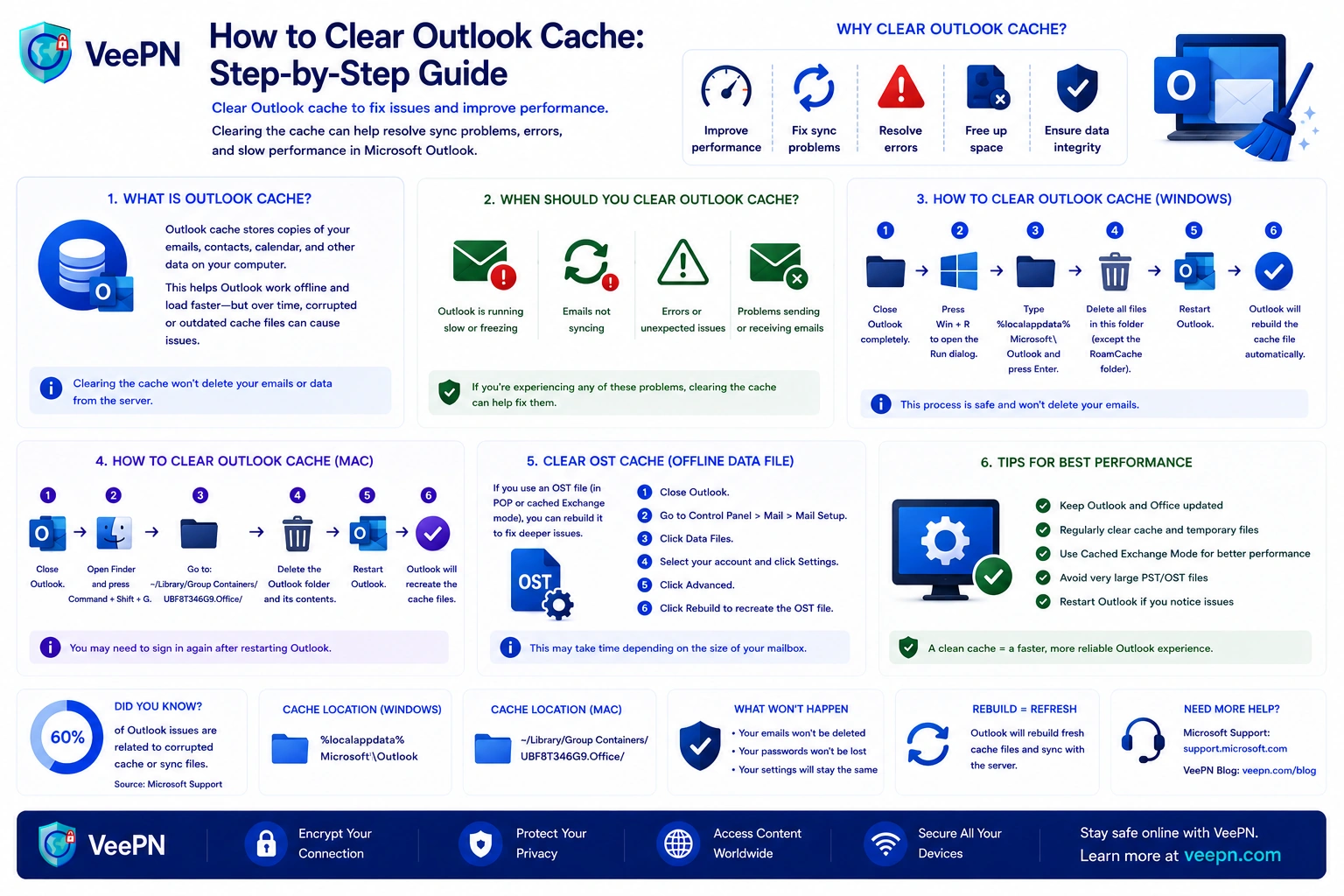
How to clear Outlook cache from the RoamCache folder
If Outlook still feels stuck, slow, or weird after that, clear the local Outlook cache files in RoamCache. Microsoft’s own troubleshooting steps for AutoComplete problems point to the RoamCache folder inside %LOCALAPPDATA%\Microsoft\Outlook, and say Outlook will create a new folder again after restart.
Use these steps:
- Close Outlook fully. Do not just minimize the Outlook app. Make sure it is really closed, or the files may stay locked.
- Press Windows + R to open the Run dialog box. This is easier than digging through hidden files manually in File Explorer.
- In the run command box, type %LOCALAPPDATA%\Microsoft\Outlook
- press Enter. This opens the local path where Windows keeps Outlook’s cache-related data.
- Double click the RoamCache folder.
- Select the contents, right click, and either delete them or rename the whole folder so Outlook can create fresh new cache files next time it launches. Microsoft’s older Learn guidance uses renaming, which is the safer approach if you want an easy rollback.
- Restart Outlook. Outlook should rebuild what it needs. If your account is on Exchange Server or Microsoft 365, give it a little time to re-sync.
One small note here. If your only issue is the recipient list, clearing the whole folder is overkill. Start with the clear auto complete cache option first.
How to clear Outlook cache on Mac, iPhone, and the web
This is where many guides get messy. Mac, iPhone, and web Outlook do not use the same cleanup flow as Windows desktop.
How to clear Outlook cache on Mac
Microsoft gives Mac users two official routes. If just one Exchange folder is acting up, you can right click that folder, open Properties, and choose Empty Cache. Outlook then downloads fresh items from the Exchange Server again.
If the problem is broader, Microsoft also says you can reset the whole account:
Tools > Accounts > choose the account > Manage > Reset Account.
That forces Outlook to download fresh local data again.
The part people skip is the warning. Microsoft says this can remove information that is not synchronized with the server yet. So on Mac, let Outlook finish syncing before you touch the cache.
How to clear Outlook cache on iPhone and iPad
On iPhone, Outlook does not offer the same folder-based cleanup you get on Windows. Microsoft’s advice for Outlook for iOS is simple: first force close and reopen the app.
If that does not help, go to the Outlook app > Settings > choose the email account > Reset Account.
If the app is crashing when it opens, Microsoft also says to clear the browser cache on the device, then remove and reinstall Outlook. So if you were searching for how to clear Outlook cache on iPhone, that is the closest official route, not a hidden in-app cache button.
How to clean Outlook new cache and web data
With New Outlook, things are less straightforward. Microsoft does publish cache-clearing steps for Office cache in New Outlook, but those steps are mainly for add-ins and developer testing, not for ordinary mailbox cleanup. In other words, if your normal mail view is acting strange, do not start deleting random folders just because a forum post said so.
If you use Outlook in the browser and pages refuse to load properly, Microsoft’s support guidance is to sign out, clear your browser cache, close all browser tabs, and sign back in. That is the right fix for Outlook.com web issues, not the RoamCache method from classic desktop Outlook.
When to clear Outlook cache and when to try another fix
Clearing the cache helps most when Outlook is using bad local data. Think stale name suggestions, sync hiccups, old folder content, or document cache corruption that leaves items stuck. Microsoft’s Office Document Cache article even says deleting the cache is not dangerous and may clear sync problems, after which Office repairs or recreates what it needs.
But if Outlook broke right after an update, or you are seeing a bug that many users suddenly report at the same time, cache cleaning may not do much. Microsoft’s recent issues pages for both New Outlook and classic Outlook are worth checking before you start heavy-handed fixes like profile rebuilds or reinstalls.
A good rule is this. If the problem looks local, start with the cache. If it looks widespread, update Office, check Microsoft’s current issue pages, and only then move to bigger repairs.
Why VeePN still helps after you clear Outlook cache
Clearing local clutter can fix Outlook glitches. It does not protect your email traffic on risky networks, and it does not stop fake login pages or shady links from showing up in your inbox. That is where VeePN still makes sense.
- AES-256 encryption. When you check mail on hotel, airport, or café Wi-Fi, encryption matters more than people think. VeePN uses AES-256 encryption, which helps keep your traffic from being easy to inspect on shared networks.
- Kill Switch. A VPN drop is exactly the kind of quiet problem users miss. VeePN’s Kill Switch cuts the connection until the secure tunnel is back, so Outlook traffic is less likely to slip out unprotected.
- No Logs Policy. Privacy is not just about encryption. It also depends on what your VPN provider keeps, and VeePN says it runs on a strict No Logs Policy with zero browsing, DNS, or search logs stored.
- NetGuard. Outlook problems sometimes start with a fake attachment page, a bad download, or a phishing link, not with the cache itself. NetGuard helps block malicious websites, trackers, and intrusive ads before they become a bigger mess to clean up later.
Try VeePN if you want Outlook sessions to stay safer on public Wi-Fi, your traffic protected across devices, and the whole setup backed by a 30-day money-back guarantee.
FAQ
There usually is no single global cache setting in Outlook. In Classic Outlook, you normally clear the auto complete cache from
File > Options > Mail, or reset local Outlook cache files through the RoamCache folder.
On Mac and iPhone, Microsoft points you to Reset Account or Empty Cache instead. Discover more in this article.
For New Outlook, there is no neat one-click “clean cache” button for normal mailbox data. Microsoft’s published cache-clearing steps are mostly for add-ins and Office cache, while web issues are usually fixed by signing out and clearing the browser cache.
The cache in Outlook is a group of temporary local files and saved bits of cached data that help the app load faster. That can include recipient suggestions, local folder content, and add-in web data. It is there to speed things up, but when it gets stale or corrupted, Outlook can start feeling slow or inaccurate.
Use the official mobile route. Open the Outlook app, go to Settings, select your email account, and tap Reset Account. If the app crashes at launch, Microsoft also suggests clearing the phone’s browser cache and reinstalling Outlook. Discover more in this article.


VeePN is freedom
Download VeePN Client for All Platforms
Enjoy a smooth VPN experience anywhere, anytime. No matter the device you have — phone or laptop, tablet or router — VeePN’s next-gen data protection and ultra-fast speeds will cover all of them.
Download for PC Download for Mac IOS and Android App
Want secure browsing while reading this?
See the difference for yourself - Try VeePN PRO for 3-days for $1, no risk, no pressure.
Start My $1 TrialThen VeePN PRO 1-year plan