Deutsch
  Español
  Français
  العربية
  Indonesia
  Italiano
  한국어
한국어  Nederlands
  Polski
  Português
  Türkçe
  简体中文
简体中文  ไทย
ไทย  Tiếng Việt
  Čeština
  فارسی
فارسی  Română
  Filipino
  日本語
日本語 


Apple Phishing Emails: How to Spot and Avoid Apple ID Scams
Emails claiming to be from Apple are among the most common phishing scams online. They often warn about suspicious account activity, payment issues, password resets, or unauthorized purchases. The goal is simple: convince you to click a link, sign in to a fake website, or share sensitive information.
While some phishing emails are easy to spot, others closely imitate legitimate Apple communications. Knowing what to look for can help you avoid account theft, financial fraud, and identity-related scams.
 VeePN Research Lab


 Quick Navigation
How Apple Phishing Emails Work
Apple phishing emails typically create a sense of urgency. Common examples include claims that:
- Your Apple ID has been locked or suspended
- Someone signed in to your account from a new device
- A payment method failed
- You made a purchase you don’t recognize
- Your account requires immediate verification
- Your iCloud storage or subscription has changed
The message usually contains a link that leads to a fake website designed to look like an Apple login page. Once you enter your credentials, attackers can attempt to access your Apple account and any connected services.
What Legitimate Apple Messages Look Like
Understanding what Apple does not ask for is often the easiest way to spot a scam.
Apple does not request the following through email:
- Your Apple ID password
- Two-factor authentication codes
- Device passcodes
- Credit card information
- Security questions and answers
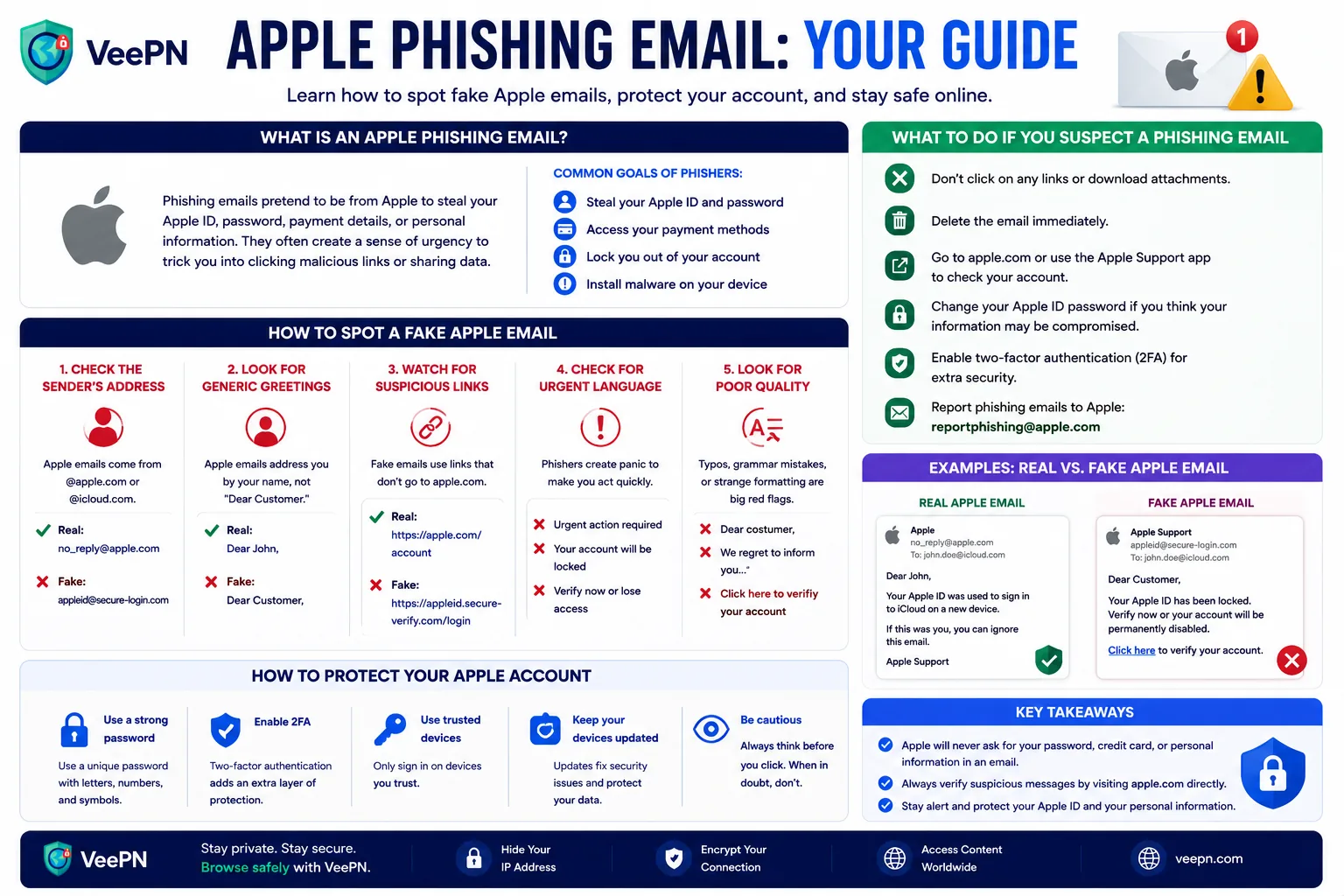
Legitimate Apple emails generally come from Apple-owned domains, but scammers can sometimes spoof sender information. For that reason, the sender address alone should not be treated as proof that a message is genuine.
If you’re unsure whether a message is real, avoid using any links in the email. Instead, open the Apple website directly or access your account through your device settings.
Warning Signs of a Fake Apple Email
1. Unexpected urgency
Many phishing emails pressure you to act immediately.
Examples include:
- “Your account will be suspended today.”
- “Unauthorized access detected.”
- “Verify your account within 24 hours.”
Creating panic is one of the oldest phishing tactics.
2. Suspicious links
Before clicking any link, inspect the destination.
A legitimate Apple login page will use an Apple-owned domain. Phishing emails often use domains that look similar but contain extra words, misspellings, or unusual characters.
3. Requests for sensitive information
Apple does not ask you to email passwords, verification codes, or payment information.
Any message requesting these details should be treated as suspicious.
4. Generic greetings
While not always a red flag by itself, messages addressed to “Dear Customer” or “Apple User” rather than your name deserve additional scrutiny.
5. Poor grammar or unusual formatting
Many phishing campaigns still contain spelling errors, awkward phrasing, broken layouts, or inconsistent branding.
Professional-looking emails can also be fraudulent, but obvious quality issues remain a common warning sign.
6. Unexpected attachments
Be cautious when an email includes an attachment you weren’t expecting, especially if it encourages you to open a document to review a purchase, invoice, or account issue.
Attachments can be used to distribute malware or collect information.
What to Do If You Receive a Suspicious Apple Email
If you think an email may be fraudulent:
- Do not click links or open attachments.
- Do not reply to the sender.
- Verify account activity directly through your Apple account.
- Forward the email to [email protected].
- Delete the message after reporting it.
If you already clicked a link or entered your credentials:
- Change your Apple ID password immediately.
- Review trusted devices connected to your account.
- Enable or confirm two-factor authentication.
- Monitor payment methods and account activity for unauthorized changes.
Practical Ways to Protect Your Apple Account
Good security habits are more effective than trying to identify every scam email individually.
Enable two-factor authentication
Two-factor authentication adds an extra layer of protection if someone obtains your password.
Use a strong, unique password
Avoid reusing passwords across multiple accounts. A password manager can help generate and store unique credentials securely.
Keep devices updated
Security updates for iPhone, iPad, Mac, and other Apple devices often address newly discovered vulnerabilities.
Review account activity regularly
Occasionally check your Apple ID settings, trusted devices, and recent purchases for anything unusual.
Be cautious on public Wi-Fi
Public networks can increase certain security risks. If you frequently connect to public Wi-Fi, a VPN can encrypt your internet traffic and reduce exposure to network-based attacks. However, a VPN cannot prevent phishing emails from arriving or guarantee protection against scams.
Legitimate Apple Message vs. Phishing Email
| Feature | Legitimate Communication | Common Phishing Sign |
|---|---|---|
| Request for password | Never asks by email | Requests credentials or codes |
| Urgency | Usually informational | Threatens immediate suspension |
| Links | Lead to Apple-owned domains | Lookalike or unrelated domains |
| Attachments | Rare for account alerts | Unexpected invoices or documents |
| Verification codes | Never requested by email | Asks you to send or enter them |
| Account access | Can be verified directly through Apple | Pushes you to use email links |
Apple’s own guidance on recognizing and avoiding phishing scams and how to identify legitimate Apple emails is the authoritative reference. For an extra layer, VeePN’s guide to phishing sites, the Link Checker for suspicious URLs, and Data Breach Alert help you catch trouble before it reaches your Apple ID.
Final Thoughts
Apple phishing emails succeed because they exploit urgency and trust. The safest approach is simple: never rely on links in unexpected emails to access your account.
If a message claims there’s a problem with your Apple ID, go directly to Apple’s official website or your device settings and verify the claim yourself. A few extra seconds of caution can prevent account compromise and significant cleanup later.


VeePN is freedom
Download VeePN Client for All Platforms
Enjoy a smooth VPN experience anywhere, anytime. No matter the device you have — phone or laptop, tablet or router — VeePN’s next-gen data protection and ultra-fast speeds will cover all of them.
Download for PC Download for Mac IOS and Android App
Want secure browsing while reading this?
See the difference for yourself - Try VeePN PRO for 3-days for $1, no risk, no pressure.
Start My $1 TrialThen VeePN PRO 1-year plan