Deutsch
  Español
  Français
  العربية
  Indonesia
  Italiano
  한국어
한국어  Nederlands
  Polski
  Português
  Türkçe
  简体中文
简体中文  ไทย
ไทย  Tiếng Việt
  Čeština
  فارسی
فارسی  Română
  Filipino
  日本語
日本語 


Stop Background Apps and Save Battery Life the Smart Way
Some background apps are useful. Others quietly eat your battery life, use mobile data, and keep your Android device busy for no good reason. Google has even started warning about apps with heavy background battery drain in Google Play, which shows this is a real issue, not just an old Android myth.
The good news is that you do not need to obsessively kill apps all day. Most of the time, the better fix is to find the few bad actors, limit their background usage, and leave the rest alone. Android already manages memory on its own, so the goal is not to shut down everything. It is to stop the apps that are clearly wasting battery, data, or both.
 VeePN Research Lab


 Quick Navigation
2. How to find a noisy Android app on your Android device
3. How to stop background apps Android without overdoing it
4. How to force stop one app when it keeps acting up
5. How to reduce background usage and save battery life
6. How to cut background data usage if apps keep eating mobile data
7. When Developer Options are worth using
8. Why VeePN is still useful after you stop background apps
FAQ
Why background apps can be a real problem for battery life
This usually shows up in small ways first. Then one day you realize your phone’s battery life feels worse than it did a week ago.
Here are the most common signs:
- Your phone loses charge fast even when the screen is off.
- One Android app keeps showing up high in battery stats, even though you barely open it.
- Your mobile data disappears faster than expected.
- The device feels warm while sitting in your pocket.
- Notifications, sync, and random background processes keep waking the phone up.
That kind of drain is often tied to apps that stay running in the background too aggressively, and sometimes it is not even Android’s fault. In 2025, Google told users to update Instagram after a bug caused abnormal battery drain on Android devices, a reminder that a single app can drag down the whole phone.
That is why we would not start by randomly closing everything. We would start by checking what is actually causing the drain.
How to find a noisy Android app on your Android device
It is worth doing first. It takes a minute, and it usually shows where the problem starts.
Next steps:
- Open the Settings app
- Tap Battery
- Tap Battery usage
- If your phone shows it, switch to view by app
- Tap the app you want to inspect
- Open App battery usage
On many Android phones, you will then see battery options such as Optimized, Restricted, or Unrestricted. Google recommends Optimized for most apps, and Restricted is the better pick for apps with too much background activity.
A simple rule helps here. If an app uses far more battery than expected, and you do not need it updating all day, restrict it. If it is a messaging app, navigation app, or something you rely on for live updates, be more careful. Restricting the wrong app can delay messages or stop helpful features from working when you need them.
How to stop background apps Android without overdoing it
Closing apps is the part most people care about, and there is more than one way to do it. Not every method does the same thing.
How to close apps running from the recent apps screen
If you simply want to close apps you are done with, use the recent apps view. Next steps:
- Swipe up from the bottom of the screen
- Hold for a moment
- Let go to open recent running apps
- Swipe up on one app to remove it
- Or swipe left and right through your app cards
- If your phone shows it, tap Clear all for more apps at once
If you use 3-button navigation, tap the Recent apps button instead. This is the easiest way to clear clutter fast, and it feels good when you have a pile of apps displayed on screen. But it is mostly a cleanup step. It does not always stop deeper background processes from coming back later.
How to force stop one app when it keeps acting up
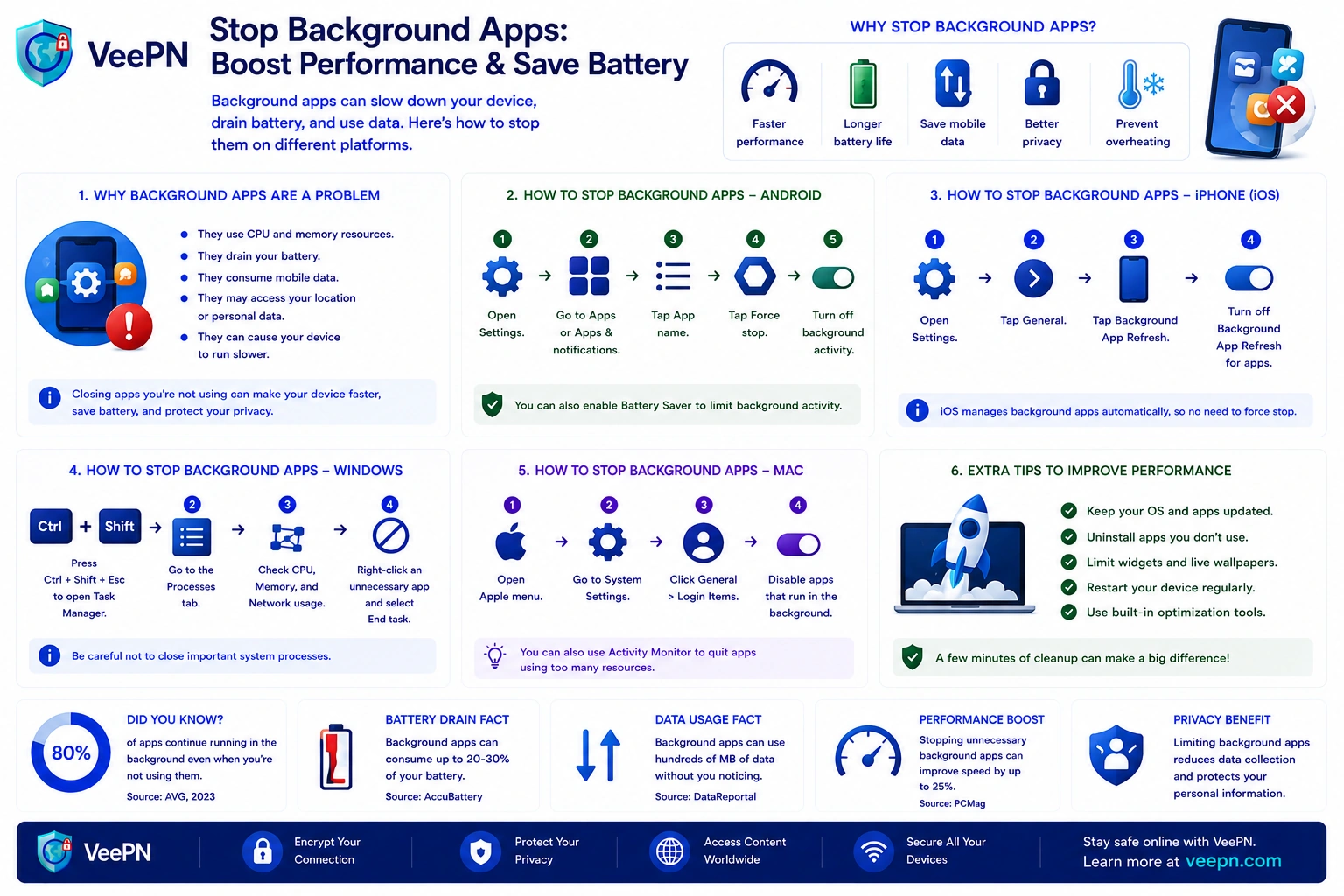
If an app freezes, loops, or refuses to calm down, Force stop is the stronger option. Next steps:
- Open the Settings app
- Tap Apps
- Tap See all apps
- Choose the app you want
- Tap Force stop
- Confirm your choice
This works well when an app is misbehaving right now. For example, if it keeps refreshing, spamming the notification shade, heating up the phone, or draining power after an update, this can help. But it is not a permanent block. Once you launch the app again, or the system needs it, it may start running again.
One more note here. Some essential services and system apps cannot be shut down normally. That is by design. If you could casually stop core Android services, the device would stop working properly.
How to reduce background usage and save battery life
If you want a more lasting fix, this is usually the best section to focus on. Instead of only closing things, you change how the app behaves.
Try these steps:
- Go to Settings app > Apps > pick the app > App battery usage
- Change Allow background usage to Restricted if the app is too active
- Check whether the app really needs constant refresh
- Turn on Battery Saver when your charge starts dropping too fast
- Remove widgets from home screens if they update all the time
- Review old apps you barely use and disable or uninstall them if possible
Battery Saver is especially useful because Android can limit some background activity automatically when power gets low. And if you have a lot of widgets, this is an easy win. Weather, shopping, news, and social widgets may look harmless, but they can quietly keep pulling data in the background.
This is also the more realistic way to improve performance. You are not fighting Android. You are just telling it which apps deserve fewer resources.
What changes on Samsung, Xiaomi, and other brands
The menus above follow stock Android, and most brands move things around a little. The logic stays the same, only the names change:
- Samsung (One UI). Settings > Battery > Background usage limits. Put heavy apps into Sleeping or Deep sleeping apps, and keep the ones that must stay live in Never sleeping apps.
- Xiaomi, Redmi, Poco (HyperOS/MIUI). Settings > Apps > Manage apps > choose the app > Battery saver, then pick Restrict background activity. Check the Autostart toggle for the same app too.
- OnePlus and Oppo (OxygenOS/ColorOS). Settings > Battery > App battery management, where you can move an app from Smart control to stricter background limits.
- Google Pixel and other stock-like phones. Exactly the flow described above: App battery usage with Optimized, Restricted, or Unrestricted.
How to cut background data usage if apps keep eating mobile data
Sometimes the real problem is not the battery. It is background data usage. In that case, go after the network side too.
Next steps:
- Open the Settings app
- Tap Network & internet
- Tap Data Saver
- Turn Data Saver on
- If needed, allow only a few trusted apps to use unrestricted data
- Review background data settings for the noisiest apps
Google says Data Saver lets most apps and services get background data only over Wi-Fi. That can be a big help if you are trying to save mobile data on a limited plan. It is especially useful for social apps, shopping apps, and any app that keeps syncing when you are not even using it.
So, if you lock down everything, some apps may stop syncing until you switch them back.
When Developer Options are worth using
For most people, normal app settings are enough. But if you want more control, Developer Options give you extra tools.
Next steps to enable Developer Options:
- Open the Settings app
- Go to About phone
- Find Build number
- Tap it seven times
- Go back to settings
- Developer Options should now appear
Inside that menu, Android includes a background process limit setting. It can be useful if you want to test things, squeeze a bit more life out of an older Android device, or troubleshoot a stubborn performance issue. But we would treat it carefully. Push it too hard, and apps may reload more often, content may not stay where you left it, and some features can become annoying.
The option is there if you want it, but it would not be our first stop on a phone you use every day.
A quick extra trick many people miss
On some Android devices, you may also see active apps from quick settings.
Try this:
- Pull down the notification shade
- Look for active apps
- If your phone shows a stop button, tap it to stop each active app
This is not available in exactly the same way on every phone, so do not worry if you do not see it. But on supported devices, it is a quick way to stop obviously active apps without digging through menus.
Why VeePN is still useful after you stop background apps
Stopping background apps can help with battery life, speed, and background usage. But some traffic will still run in the background, especially from email, banking, cloud storage, and other apps you actually need. That is where VeePN becomes useful.
If you want to go a bit further, our guides on public Wi-Fi safety, checking if your VPN works, and DNS leak protection explain the bigger picture in a practical way.
- AES-256 encryption. VeePN encrypts the traffic that still leaves your phone, which is especially useful on hotel, airport, or café Wi-Fi. So even if a trusted app keeps syncing in the background, outsiders have a much harder time reading that traffic.
- Kill Switch. If the VPN drops, Kill Switch blocks traffic so your real connection does not suddenly leak. That is handy when your phone is doing things quietly in the background and you are not watching every second.
- DNS leak protection. DNS leaks can expose where your data is going even when you think you are protected. VeePN’s DNS leak protection helps keep those requests inside the encrypted tunnel.
- NetGuard. NetGuard helps block trackers, malicious sites, and some annoying ad traffic. That is useful when you want fewer shady connections in the background, not just a prettier browsing experience.
Try VeePN if you want to stop unnecessary exposure, protect the traffic that still runs, and keep your Android safer on shared networks. It comes with a 30-day money-back guarantee.
FAQ
Open the Settings app, then go to Battery > Battery usage and check usage by app. If one app is using a surprising amount of battery or staying active too long, that is usually your first clue. Discover more in this article.
Open the app’s battery settings and change its background access from Optimized to Restricted if that option is available. You can also turn on Data Saver to reduce background data for many apps at once. Discover more in this article.
Open recent apps, swipe through them, and tap Clear all if your phone shows that option. This is good for quick cleanup, but it is not always the best long-term fix for heavy background apps.
Use these next steps:
- Open Settings app
- Tap Apps
- Tap See all apps
- Pick the app you want
- Tap Force stop
This is best when one app is frozen, looping, or clearly misbehaving. Discover more in this article.


VeePN is freedom
Download VeePN Client for All Platforms
Enjoy a smooth VPN experience anywhere, anytime. No matter the device you have — phone or laptop, tablet or router — VeePN’s next-gen data protection and ultra-fast speeds will cover all of them.
Download for PC Download for Mac IOS and Android App
Want secure browsing while reading this?
See the difference for yourself - Try VeePN PRO for 3-days for $1, no risk, no pressure.
Start My $1 TrialThen VeePN PRO 1-year plan