Deutsch
  Español
  Français
  العربية
  Indonesia
  Italiano
  한국어
한국어  Nederlands
  Polski
  Português
  Türkçe
  简体中文
简体中文  ไทย
ไทย  Tiếng Việt
  Čeština
  فارسی
فارسی  Română
  Filipino
  日本語
日本語 


How To Set Up a VPN on Android TV
If you want to setup VPN on Android TV, you do not need to make it complicated. The configuration is not that complicated on most current Android TV devices, or even Android TV Box. You open the Google Play Store, install any one of the supported VPN applications, sign in and start your VPN connection. Google says Android can use either a built-in setup or a separate VPN app, and VeePN’s own Android TV page shows the same simple flow through Google Play.
Let’s consider why people should need a VPN on Android TV at all.
 VeePN Research Lab


 Quick Navigation
2. Method 1: Install the VPN App From Google Play
3. Method 2: Sideload an APK
4. Method 3: Set Up VPN on a Router
5. Troubleshooting
6. Where VeePN Fits
7. Before You Install Anything, Check the Device Type
8. App Setup: The Clean Path
9. Sideloading: Useful, but Easy To Get Wrong
10. Router Setup: Better Coverage, Less Convenience
11. Speed Tuning for Streaming
12. Smart DNS vs VPN on Android TV
13. Privacy Limits on a TV
14. If you only want streaming to work
FAQ
The easiest way to use a VPN on Android TV is to install the VPN app from Google Play, sign in, choose a server, and connect. If the app is not available on your TV, you can use an APK, set up the VPN on a router, or use Smart DNS where supported.
This guide is for Android TV and Google TV users who want private streaming, safer public or shared-network use, and fewer setup headaches.
Pick the Right Setup Method
| Method | Best for | Difficulty | Main trade-off |
|---|---|---|---|
| Play Store app | Most Android TV users | Easy | App must be available for your device |
| APK sideload | TVs without app listing | Medium | Must trust the APK source |
| Router VPN | Whole-home coverage | Harder | Router must support VPN client mode |
| Smart DNS | Streaming devices with no VPN app | Medium | Usually no traffic encryption |
Start with the Play Store method. It is the cleanest and easiest to update.
Method 1: Install the VPN App From Google Play
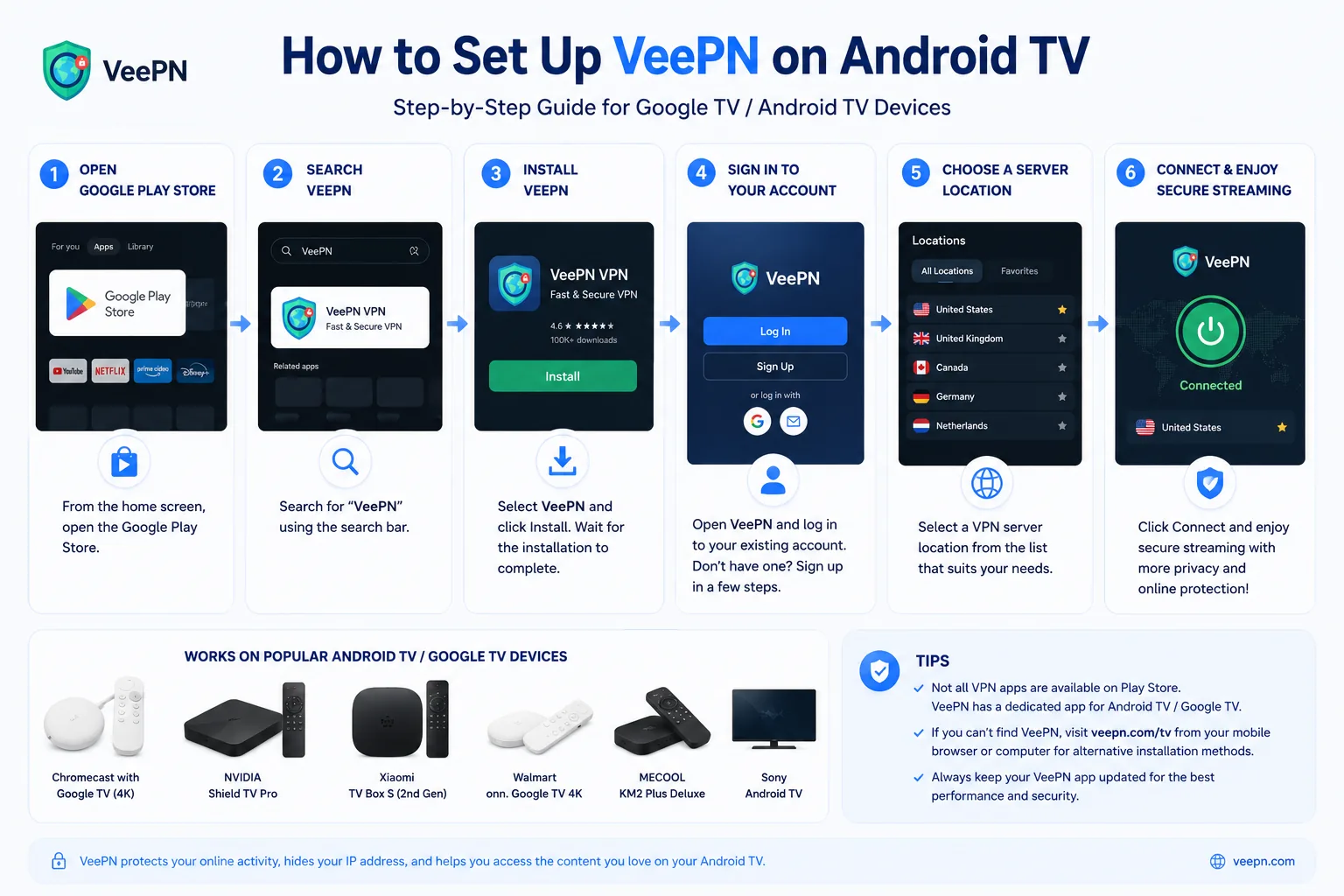
- Open Google Play Store on your Android TV.
- Search for the VPN app.
- Install it.
- Open the app and sign in.
- Choose a server location.
- Select Connect.
- Open a browser or streaming app and test the connection.
On some TVs, you may need to approve the VPN connection request the first time the app runs.
Method 2: Sideload an APK
Use this only if the app is not available in the Play Store on your device. Download APKs only from the VPN provider or a trusted source. Avoid random APK mirrors.
The usual path is: enable installs from unknown sources for the file manager app, transfer the APK to the TV, install it, sign in, and connect.
After installation, turn unknown-source access back off.
Method 3: Set Up VPN on a Router
Router setup protects devices that cannot run VPN apps. It also covers multiple devices at once. The catch is compatibility: the router must support VPN client mode, not only VPN server mode.
Check the router admin panel for OpenVPN, WireGuard, or VPN Client settings. If the router only offers “VPN Server,” that lets you connect back home from outside. It does not route your TV through a VPN provider.
Troubleshooting
| Problem | Likely cause | Fix |
|---|---|---|
| App not visible in Play Store | Device or region compatibility | Use router setup or provider APK |
| Streaming app shows an error | VPN server blocked or region mismatch | Switch server or clear app cache |
| Slow video | Far server or weak Wi-Fi | Choose a closer server and use Ethernet |
| VPN disconnects after sleep | TV power management | Reconnect after wake or use router VPN |
| No internet after connecting | DNS or network conflict | Restart TV and router, switch protocol |
Where VeePN Fits
VeePN supports Android TV, so the app route is the best starting point for most users. Use a nearby server for speed, a specific country server for location-based access where allowed, and router setup if you want to cover the whole TV network.
A VPN encrypts the TV’s internet traffic between the device and the VPN server. It does not give you free access to paid streaming services, and streaming platforms may enforce their own regional and account rules.
Before You Install Anything, Check the Device Type
Android TV and Google TV are close enough for most VPN setup steps, but they are not the same as every “smart TV.” Samsung Tizen TVs, LG webOS TVs, Roku devices, and many older smart TVs do not run Android TV apps. If the TV does not have Google Play Store, the app method will not apply.
Check Settings > System > About or Settings > Device Preferences > About, depending on the interface. Look for Android TV OS or Google TV. Also check whether the device is a TV with Android built in or a streaming box such as Chromecast with Google TV, Nvidia Shield TV, Xiaomi TV Box, or onn. Google TV.
This small check saves time. Many failed setup attempts happen because the user is following Android TV instructions on a non-Android platform.
App Setup: The Clean Path
The Google Play route is easiest because updates are handled normally and the app receives the permissions it expects. Google’s own Android TV app guidance explains that app availability can vary by device and region, which is why one TV may show a VPN app while another does not.
After installing VeePN or another VPN app, test with a browser or a trusted IP-checking page before opening streaming apps. If the visible IP changes, the tunnel is active. If it does not, reconnect, restart the TV, or check whether the VPN permission prompt was denied.
The first connection may show a system message asking whether you trust the app to set up a VPN connection. That prompt is normal for VPN apps. It should name the app you installed. If the name is unfamiliar, cancel and review what you installed.
Sideloading: Useful, but Easy To Get Wrong
Sideloading is a fallback, not the default. It can help if the Play Store listing is unavailable on your model, but it creates two new responsibilities: source trust and update management.
Only download an APK from the VPN provider’s official site or a source the provider explicitly recommends. Do not search for a random “latest VPN APK” and install the first result. Fake APKs are a common malware path because users are already in a permission-granting mood.
After installing, disable unknown-source permission for the file manager or downloader app. Leaving it on makes the next risky install easier.
Router Setup: Better Coverage, Less Convenience
Router VPN is attractive because it covers devices that cannot run a VPN app. It can protect a TV, console, streaming stick, and other home devices at once. The trade-off is control. Changing countries, switching servers, or troubleshooting one app becomes slower when everything runs through the router.
Before choosing router setup, confirm the router supports VPN client mode. VPN server mode is different: it lets you connect back home from outside, but it does not route your Android TV through a VPN provider. This distinction also matters in VeePN’s router VPN and TP-Link setup content.
For streaming, app-based VPN is usually easier. For whole-home privacy or devices without apps, router VPN is stronger.
Speed Tuning for Streaming
Video problems often look like VPN problems even when the cause is Wi-Fi. If 4K playback stutters, test these in order:
- Choose a VPN server closer to your physical location.
- Switch from Wi-Fi to Ethernet if your TV or box supports it.
- Restart the streaming app after connecting the VPN.
- Clear the app cache if it remembers an old location.
- Try a different VPN protocol if the app offers one.
- Test the same server on a phone to separate TV issues from server issues.
Distance matters because TV apps are less forgiving than browsers. A server across the world may work for web browsing but struggle with high-bitrate video.
Smart DNS vs VPN on Android TV
Smart DNS is sometimes offered for streaming devices. It changes DNS routing for selected services but usually does not encrypt traffic. A VPN encrypts traffic between the device and VPN server and changes the visible IP address. The better choice depends on the goal.
| Goal | Better option | Why |
|---|---|---|
| Encrypt traffic on public or shared network | VPN app | Smart DNS is usually not encrypted |
| Fast streaming with minimal overhead | Smart DNS or nearby VPN | Depends on service support |
| Protect several devices at home | Router VPN | Covers devices without apps |
| Easy country switching on TV | Android TV app | Faster than router changes |
| Privacy from local network operator | VPN | DNS-only routing is not enough |
Privacy Limits on a TV
A VPN changes the network path. It does not stop every form of tracking inside a streaming app. Apps can still use account history, device IDs, payment country, cookies, and platform rules. If you sign into the same streaming account on every device, the service still knows it is you.
That is not a reason to avoid a VPN. It is a reason to describe it accurately. VeePN is useful for encrypted traffic, IP masking, and safer browsing around Android TV. It is not a tool for breaking service terms or bypassing every account-level restriction.
For device-specific help, VeePN’s Android VPN and Smart TV VPN pages are the most relevant next steps.
If you only want streaming to work
Keep the answer practical: install the Android TV app if available, choose a nearby server first, and test speed before changing regions. If the app is unavailable, router setup is the next durable option. Smart DNS may help some setups, but it is not the same as VPN encryption.
Avoid promising that every streaming app will work. Streaming services change detection, licensing, and account rules often enough that absolute claims age badly.
FAQ
Can I install a VPN on any Android TV?
Most Android TV and Google TV devices support VPN apps, but availability varies by model, region, and Play Store compatibility.
Is router VPN better than a TV app?
Router VPN is better for whole-home coverage. The TV app is better for easy server switching and troubleshooting.
Does Smart DNS encrypt traffic?
Usually no. Smart DNS can help with DNS-based location routing, but it is not the same as a VPN tunnel.


VeePN is freedom
Download VeePN Client for All Platforms
Enjoy a smooth VPN experience anywhere, anytime. No matter the device you have — phone or laptop, tablet or router — VeePN’s next-gen data protection and ultra-fast speeds will cover all of them.
Download for PC Download for Mac IOS and Android App
Want secure browsing while reading this?
See the difference for yourself - Try VeePN PRO for 3-days for $1, no risk, no pressure.
Start My $1 TrialThen VeePN PRO 1-year plan