Deutsch
  Español
  Français
  العربية
  Indonesia
  Italiano
  한국어
한국어  Nederlands
  Polski
  Português
  Türkçe
  简体中文
简体中文  ไทย
ไทย  Tiếng Việt
  Čeština
  فارسی
فارسی  Română
  Filipino
  日本語
日本語 


Port Forwarding for Gaming: When It Helps and How to Set It Up
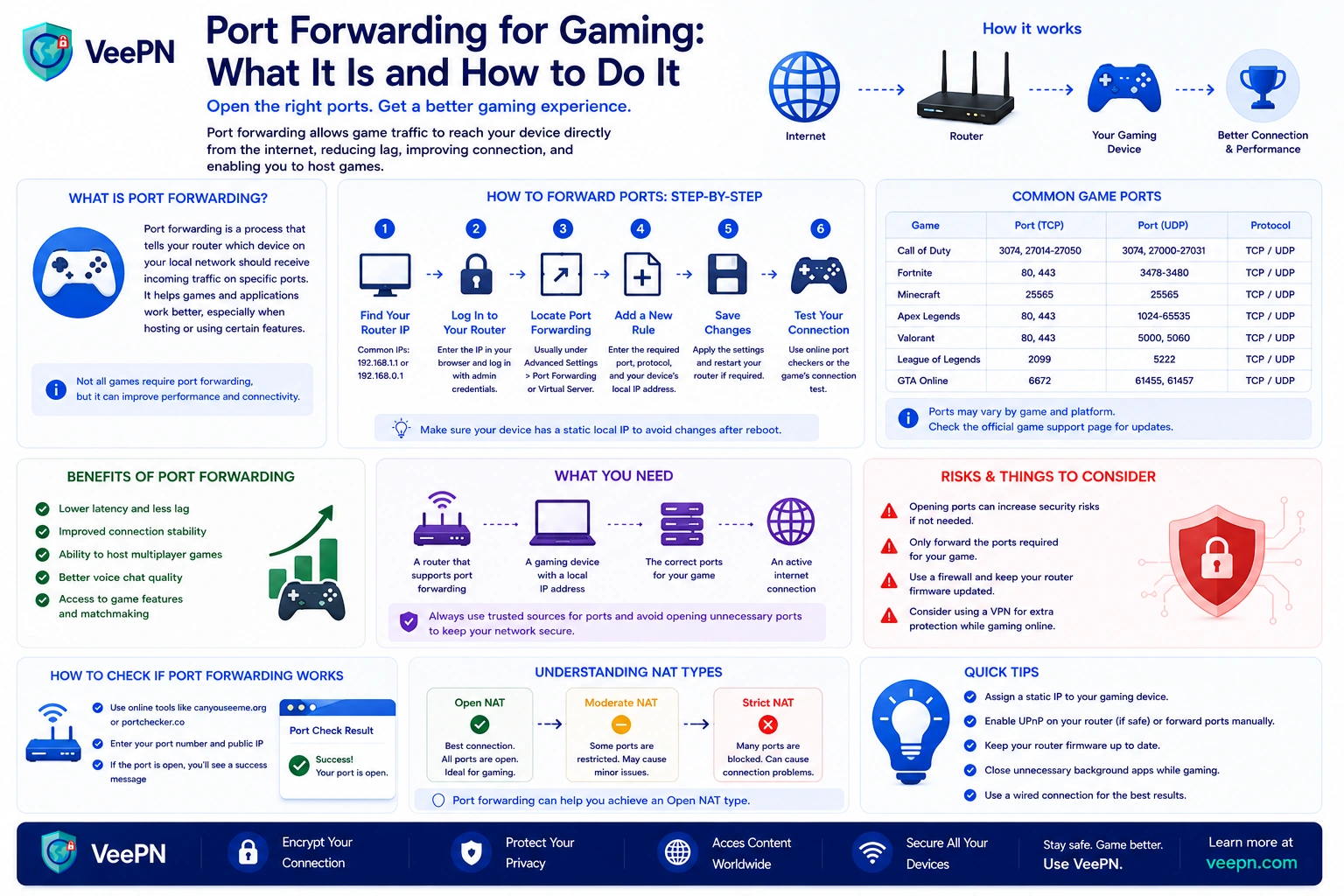
A lot of players think port forwarding for gaming is a magic ping booster. It is not. What it really does is help incoming connections get through your router when network address translation would normally block them. That is why it can help with Strict NAT, hosting a game server, or fixing “can’t join” issues, but it will not magically fix a weak Internet connection by itself.
Your router uses network address translation to hide devices on your home network behind one public IP address. This is good to the security of the network, since it prevents unsolicited traffic on the internet. There is one exception made by Port forwarding, the traffic reaching a particular port number is forwarded to one selected device in your local area network.
That is the core of understanding port forwarding. It is less about speed and more about access. If a game or host needs the Internet to reach your gaming device, open ports can make that path available.
 VeePN Research Lab


 Quick Navigation
When port forwarding for gaming actually helps
The best use case is hosting. If you want to run a game server, host a match, or make a local service reachable from outside, port forwarding rules tell your router where that traffic should go. Google Fiber uses the same example in its own docs: forwarding is useful when you host a multi-player game server on your network.
It can also help when NAT is the real problem. Xbox support ties NAT issues to symptoms like not being able to join or host a multiplayer game online, and Sony support still tells PS5 players to try opening specific ports and even set a static IP manually for some network errors.
But it is not needed for every title. Many modern routers support UPnP, and Netgear says UPnP can automatically help devices such as multiplayer games create the access they need. Google Fiber says the same idea in simpler terms: UPnP can set up relevant forwarding rules automatically, so manual port forwarding is often only needed when UPnP is missing or not working correctly.
So the rule of thumb is simple. Try automatic options first. Reach for manual port forwarding when a specific game, console test, or hosting setup clearly points to NAT trouble.
How to set up port forwarding in your router settings
Before you enable port forwarding, gather the basics. You need the router’s IP address, the device’s local IP address, and the right specific ports for your game or platform. On Windows, open Command Prompt and type IPconfig. Microsoft says IPconfig shows your IPv4 address and default gateway, which is usually the router’s IP address you will use to log in.
You also want the gaming device to keep the same IP address. That is why many setup guides recommend a static IP or DHCP reservation. Sony’s PS5 support page specifically suggests setting a static IP manually when working through port-opening issues.
Once you have that info, the flow is usually this:
- Open a browser
- enter the router’s IP address
- sign in to the admin page
On many routers, the port forwarding section sits under advanced settings, NAT, Gaming, or Security. Netgear’s own setup path is:
Advanced > Advanced Setup > Port Forwarding/Port Triggering.
- Add a new rule and pick a name for the game
- Enter the internal IP address of the device that should receive the traffic, then enter the port number or range
Some routers ask for an external and internal port. If the app uses one value on both sides, that is the same port setup. Netgear’s docs also note that many routers let you keep the same internal port range for the rule.
- Choose the protocol. Many games use TCP, UDP, or both, so always follow the official game or platform list instead of guessing.
- Save the rule. Then click save or Apply and test the game again. If you are on PC, remember that the router and Windows Firewall are separate layers. Microsoft warns that opening a port in Windows Firewall is a security risk and is generally less safe than simply allowing the app when needed.
That is the basic step-by-step guide version. In plain English, you log into the router, point the rule at the right device, and forward only the traffic the game actually needs.
What ports should you open for Xbox, PlayStation, or PC?
There is no universal gaming range. The right answer depends on the platform, the specific game, and whether you are just joining matches or actually hosting something.
Common gaming ports: quick reference
The table below summarizes ports commonly documented by Xbox and PlayStation for network gaming or connection troubleshooting. These are reference values, not a universal list of ports that every player should forward. Only create a forwarding rule when the platform, game, or troubleshooting instructions specifically require it.
| Platform | Protocol | Ports | When they may be relevant |
|---|---|---|---|
| Xbox network | UDP | 88 | Xbox network services |
| Xbox network | TCP/UDP | 3074 | Multiplayer and Xbox network connectivity |
| Xbox network | TCP/UDP | 53 | DNS-related connectivity |
| Xbox network | TCP | 80 | Xbox network services |
| Xbox network | UDP | 500, 3544, 4500 | IPsec/Teredo-related connectivity |
| PlayStation 5 | TCP | 80, 443, 3478–3480 | PS5 connection troubleshooting |
| PlayStation 5 | UDP | 3478–3479 | PlayStation Network connectivity |
| PlayStation 5 | UDP | 49152–65535 | Used in some PS5 troubleshooting guidance |
| PC games | TCP/UDP | Varies by game | Check the game publisher’s official documentation |
Important: Do not forward every port in this table by default. Start with the ports specifically required for your platform or game, and remove forwarding rules you no longer need.
- For Xbox, Microsoft lists ports including UDP 88, TCP/UDP 3074, TCP/UDP 53, TCP 80, UDP 500, UDP 3544, and UDP 4500 for Xbox network gaming.
- For PlayStation, Sony’s PS5 support page suggests trying TCP 80, 443, 3478, 3479, 3480 and UDP 3478, 3479, 49152 to 65535 for some connection issues. Those examples show why copying random settings from a forum is a bad habit. Port forwarding is very IP address based and service-specific.
- For PC games, always start with the official support page for that title. A hosted web server, FTP service, and game server all use the same forwarding idea, but the actual ports vary. Netgear’s docs frame it exactly that way: you make a local web server, FTP server, or game server visible by forwarding the right traffic to the right device.
Common mistakes that break port forwarding
- The biggest one is forwarding to the wrong device. If your computer’s IP address changes, the rule points nowhere useful. That is why the same IP address or a reservation matters so much.
- The second big issue is double NAT. If you have a second router between your console and the internet, you can end up with two layers of NAT. Xbox has an official “Double NAT detected” warning, and Google Nest says double NAT can cause issues with online games, UPnP, and port forwarding rules.
- The third issue is security sprawl. Opening too many open ports or broad ranges creates a bigger security risk. Microsoft says opening a port leaves it open until you close it, which is why narrow rules are safer than sloppy ones. If nothing else works and your router offers DMZ, treat it as a last resort, not a default gaming tweak. Netgear notes that DMZ can help some applications that do not play well with NAT, but it is far less selective than a targeted forward.
Where a VPN fits into a gaming setup
Port forwarding and a VPN address different network needs. Port forwarding allows selected incoming connections to reach a device on your home network, while a VPN primarily changes how your Internet traffic is routed and can add encryption and IP privacy.
For gaming, a VPN may be useful when you want to hide your public IP from services or other parties that would otherwise see it, or when you are using an untrusted network such as hotel or public Wi-Fi. However, it is not required for port forwarding and should not be treated as a fix for every NAT, latency, or connectivity problem.
There is also an important compatibility point: traditional port forwarding may not work through a VPN connection unless the VPN service specifically supports incoming port forwarding. If you are hosting a game server, check this before routing the server’s traffic through a VPN.
VeePN can provide encrypted VPN connections and IP address masking for supported devices and router setups. These features can add a privacy layer to a gaming setup, but your router configuration, firewall rules, NAT type, game servers, and Internet connection still determine whether port forwarding works correctly.
If you want an additional privacy layer while gaming, you can try VeePN with a 30-day money-back guarantee.
FAQ
Start with three things: your router’s IP address, your device’s local IP address, and the right port number for the game. Then log into the router, find the port forwarding section, create the rule, and click save. If the game is on PC, also check Windows Firewall so the app is not blocked there. Discover more in this article.
There is no one list for every game. Xbox and PlayStation publish their own ports, and a specific game may use something different again. For example, Microsoft lists ports such as 88 UDP and 3074 TCP/UDP for Xbox network gaming, while Sony suggests a different set for certain PS5 connection errors.
Usually, only if the official platform or app tells you to. Sony does include TCP 80 and 443 in some PS5 troubleshooting steps, but those are also common web ports, so opening them “just in case” is not a great habit. Keep your forwarded ports narrow and purposeful, because every open path adds some security risk. Discover more in this article.
Use the smallest range the game or platform actually documents. There is no safe universal “gaming range” for all online games. The right range depends on the console, the server model, and whether you are hosting or simply joining other players.


VeePN is freedom
Download VeePN Client for All Platforms
Enjoy a smooth VPN experience anywhere, anytime. No matter the device you have — phone or laptop, tablet or router — VeePN’s next-gen data protection and ultra-fast speeds will cover all of them.
Download for PC Download for Mac IOS and Android App
Want secure browsing while reading this?
See the difference for yourself - Try VeePN PRO for 3-days for $1, no risk, no pressure.
Start My $1 TrialThen VeePN PRO 1-year plan