Deutsch
  Español
  Français
  العربية
  Indonesia
  Italiano
  한국어
한국어  Nederlands
  Polski
  Português
  Türkçe
  简体中文
简体中文  ไทย
ไทย  Tiếng Việt
  Čeština
  فارسی
فارسی  Română
  Filipino
  日本語
日本語 


OneLaunch Malware: What It Is and How to Remove It Safely
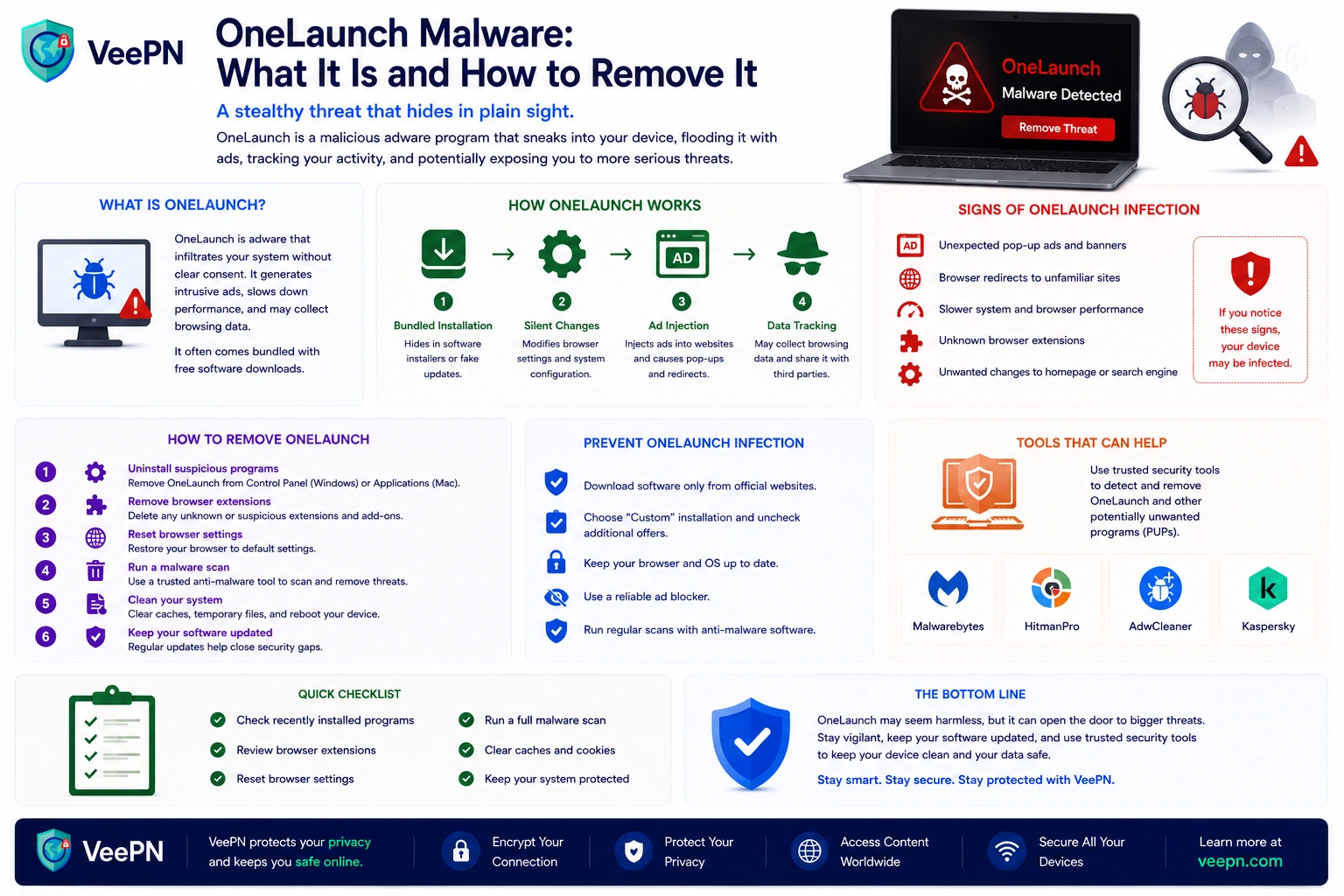
You install a program, and soon a new dock appears, Windows starts launching unfamiliar processes, or your browser behaves differently. That is when many users start wondering whether they have OneLaunch malware on their PC.
OneLaunch is generally discussed as potentially unwanted software rather than traditional malware. The bigger concern is how it may be installed, the changes it can make, and the components that may remain after a standard uninstall.
This guide shows you how to identify OneLaunch, remove it from Windows, check common leftover file and registry locations, and scan your PC for other unwanted software.
 VeePN Research Lab


 Quick Navigation
2. Is OneLaunch safe, or just unwanted software?
3. OneLaunch dock and browser changes: the signs something is off
4. Uninstall OneLaunch: the first step most users should take
5. Disable OneLaunch if it keeps opening on startup
6. Remove OneLaunch malware completely: do not stop at the uninstall button
7. Why OneLaunch keeps showing up on some PCs
8. How to reduce privacy risks after removing OneLaunch
9. How to avoid similar unwanted apps in the future
FAQ
OneLaunch malware: why this app worries so many users
At first glance, OneLaunch looks like a normal software program. It presents itself as a tool that improves the Windows experience with a custom dashboard, a search bar, and the OneLaunch dock for quick access to websites, apps, and daily tools.
That sounds harmless enough. But the reason people distrust it is not the marketing. It is the way the app often lands on the device and what it changes after it gets installed.
Many users do not intentionally download OneLaunch. It often appears after installing free software, using bundled installers, or clicking through setup too quickly. That is why it is commonly described as a potentially unwanted program rather than a tool people actively asked for.
This matters because unwanted apps rarely stay in one neat corner of the computer. They can affect your startup settings, leave extra background tasks, and push changes into your browser that make normal use more annoying than before.
Is OneLaunch safe, or just unwanted software?
OneLaunch should not automatically be treated the same way as ransomware, spyware, or another confirmed malware infection. However, security tools may classify software with similar installation and behavior patterns as a potentially unwanted program (PUP).
If you did not intentionally install OneLaunch, there is little reason to keep it. Warning signs may include:
- an unfamiliar desktop dock;
- changed browser or search settings;
- OneLaunch processes running in the background;
- automatic startup with Windows;
- unwanted software installed alongside it.
If these changes appeared without your clear consent, removing the program and checking the system for leftovers is the safest approach.
OneLaunch dock and browser changes: the signs something is off
Usually, people do not notice OneLaunch because they reviewed its features and calmly changed their mind. They notice it because their PC starts acting differently.
Here are the common signs:
The OneLaunch dock suddenly appears
The OneLaunch dock is often the first thing people notice. It can sit at the top of the desktop and instantly make the screen feel unfamiliar. Even if it looks small, it is usually a clue that a bigger change has happened in the background.
Your browser settings change without warning
This is where people get especially suspicious. A new homepage, different search results, an unfamiliar default search engine, or odd redirects can all point to a program interfering with your browser settings. If a desktop tool starts controlling how you browse, trust drops fast.
The app keeps showing up after restart
You close it, restart the computer, and it comes back. That usually means there is still a startup entry, a scheduled task, or a background process tied to it. This is why many people first search for disable OneLaunch before they search for full removal.
Your PC feels heavier than usual
The system may still work, but something feels wrong. Apps open slower, there is more clutter, and your normal Windows experience becomes irritating. It is not always dramatic, but it is enough to affect day to day use.
That mix of symptoms is why this app gets so much attention. It often feels less like a useful add-on and more like something that invited itself in.
Uninstall OneLaunch: the first step most users should take
If you want to uninstall OneLaunch, start with the normal Windows method first. Do not jump straight into advanced tools unless the basic removal fails.
On your Windows PC, do this:
- open Settings
- go to Apps
- open Installed apps
- find OneLaunch
- click Uninstall
Some users still prefer the Windows Control Panel route under installed programs or remove programs, and that is fine too. The main thing is removing the primary app entry before you deal with leftovers.
After the uninstall, restart the device. That restart is important. It helps clear stuck background processes and makes it easier to see whether the app really left or whether part of it is still hanging around. If the uninstall fails or the app seems active during removal, do not keep retrying the same thing. Move to the next steps and check what is still running.
Disable OneLaunch if it keeps opening on startup
Sometimes the app is still active enough that you need to stop it before you can remove it properly.
If that happens, try to disable OneLaunch first. Open the app if it still launches and check its settings. If there is an option to stop it from launching on startup, turn it off. This may stop the OneLaunch dock from popping up every time you sign in.
If that does not help, open Task Manager. Check for OneLaunch-related processes and close them before trying to uninstall again. This step is simple, but it matters. A lot of stubborn apps refuse to leave cleanly while they are still running in the background.
If the app keeps returning, it usually means something else is still telling Windows to open it.
Remove OneLaunch malware completely: do not stop at the uninstall button
This is the part many users miss. The app may look gone, but the cleanup is not always finished. If you want to remove OneLaunch malware properly, go a little further.
Check for leftover files
After uninstalling, open File Explorer and look for leftover files tied to OneLaunch. Check common locations like Program Files and local app data folders. If you still find OneLaunch folders or files, delete them.
Then empty the Recycle Bin.
This matters because some unwanted apps leave behind scraps that can keep cluttering the system or trigger the feeling that the app never fully disappeared.
Check Task Manager and Task Scheduler
A returning app is often not the main app anymore. It can be a background process or a scheduled task.
Look in Task Manager for active OneLaunch-related items. Then check Task Scheduler for anything suspicious tied to the app. If something keeps launching it, you want to remove that too. This step is especially helpful if OneLaunch comes bundled with other software.
Reset browser settings
If OneLaunch changed your browser settings, uninstalling the main app may not undo that on its own.
Check:
- homepage
- startup pages
- extensions
- default search engine
- search provider
If anything looks off, reset it manually. This is important because many people think the unwanted app is still active when really the app is gone but the browser is still carrying the damage.
Run a full scan with reputable antivirus software
Once the manual cleanup is done, run a full scan. Use reputable antivirus software or a trusted anti-malware tool, not just a quick scan. If the original download came through software bundles, there is always a chance that other programs came with it.
A full scan helps check for:
- PUP components
- suspicious registry entries
- hidden startup items
- extra unwanted downloads
- other lingering traces
This is also the point where some users use stronger uninstallers or cleanup tools if Windows removal was not enough. That can help with stubborn leftovers and broken uninstall routines.
Why OneLaunch keeps showing up on some PCs
Potentially unwanted software can reach PCs through bundled installers or additional offers presented during software installation. If users choose a default or express installation without reviewing optional components, they may install more than the program they originally wanted.
To reduce this risk:
- download software from official sources;
- review every installation screen;
- use Custom or Advanced installation when available;
- decline optional applications and browser changes;
- keep Windows potentially unwanted app protection enabled.
How to reduce privacy risks after removing OneLaunch
Once the app is gone, many people start asking the bigger question: what if this was not just an annoying toolbar problem?
That concern is fair. Apps like this raise privacy risks because they can touch browsing behavior, search habits, startup activity, and system settings. Even if the main problem is already fixed, it is still smart to do a little post-cleanup hygiene.
Here is what to do next:
- change passwords if you downloaded the app from a suspicious source
- review your browser extensions
- remove unknown other programs
- check for unusual account activity
- keep automatic updates on
- make sure real-time protection is enabled
This is also a good moment to think about your general download habits. One careless install does not mean your whole PC is doomed. But it is often a sign that your setup could use stronger filtering and better protection.
How to avoid similar unwanted apps in the future
Programs like OneLaunch are often installed through software bundles, misleading download pages, or aggressive advertising. To reduce the risk of similar installations:
- Download software only from official vendor websites.
- Review installation screens carefully and opt out of additional offers.
- Keep your operating system and browser up to date.
- Use reputable security software that can detect potentially unwanted programs (PUPs).
- Be cautious with browser extensions and free utilities from unknown sources.
- Regularly review installed applications and browser add-ons for anything you do not recognize.
These habits can help prevent unwanted software from being installed again and make it easier to spot suspicious activity early.
FAQ
To get rid of OneLaunch malware, first uninstall OneLaunch through Windows Apps settings. Then check Task Manager, remove leftover files, reset browser settings, and run a full scan with reputable antivirus software. If it still comes back, look in startup items and Task Scheduler. Discover more in this article.
If you did not knowingly install it, then yes, you should probably remove OneLaunch. Many people see it as a potentially unwanted program because it can change settings, affect the browser, and clutter the system. If you actually use it on purpose, that is different, but most users prefer to remove it.
To stop it from appearing, first disable OneLaunch in its own settings if that option is available. Then check startup items and Task Manager for anything tied to the OneLaunch dock. If it keeps returning, fully uninstall it and restart your PC. Discover more in this article.
To detect hidden malware, run a full scan with reputable antivirus software instead of relying only on a quick scan. Also watch for strange browser settings, random popups, slow performance, unknown apps, or unusual startup behavior. Those small clues often show that something unwanted is still active. Discover more in this article.


VeePN is freedom
Download VeePN Client for All Platforms
Enjoy a smooth VPN experience anywhere, anytime. No matter the device you have — phone or laptop, tablet or router — VeePN’s next-gen data protection and ultra-fast speeds will cover all of them.
Download for PC Download for Mac IOS and Android App
Want secure browsing while reading this?
See the difference for yourself - Try VeePN PRO for 3-days for $1, no risk, no pressure.
Start My $1 TrialThen VeePN PRO 1-year plan