Deutsch
  Español
  Français
  العربية
  Indonesia
  Italiano
  한국어
한국어  Nederlands
  Polski
  Português
  Türkçe
  简体中文
简体中文  ไทย
ไทย  Tiếng Việt
  Čeština
  فارسی
فارسی  Română
  Filipino
  日本語
日本語 


How To Recover Deleted Files on Android
It usually happens in seconds. You clean up your Android phone, tap the wrong file, and suddenly something important is gone. Maybe it was a photo, a work document, a voice note, or a whole folder you meant to keep. That little moment is enough to ruin your mood fast.
The good news is that “deleted” does not always mean gone forever. In many cases, deleted files can still be brought back, especially if you act quickly and do not keep using the device like normal.
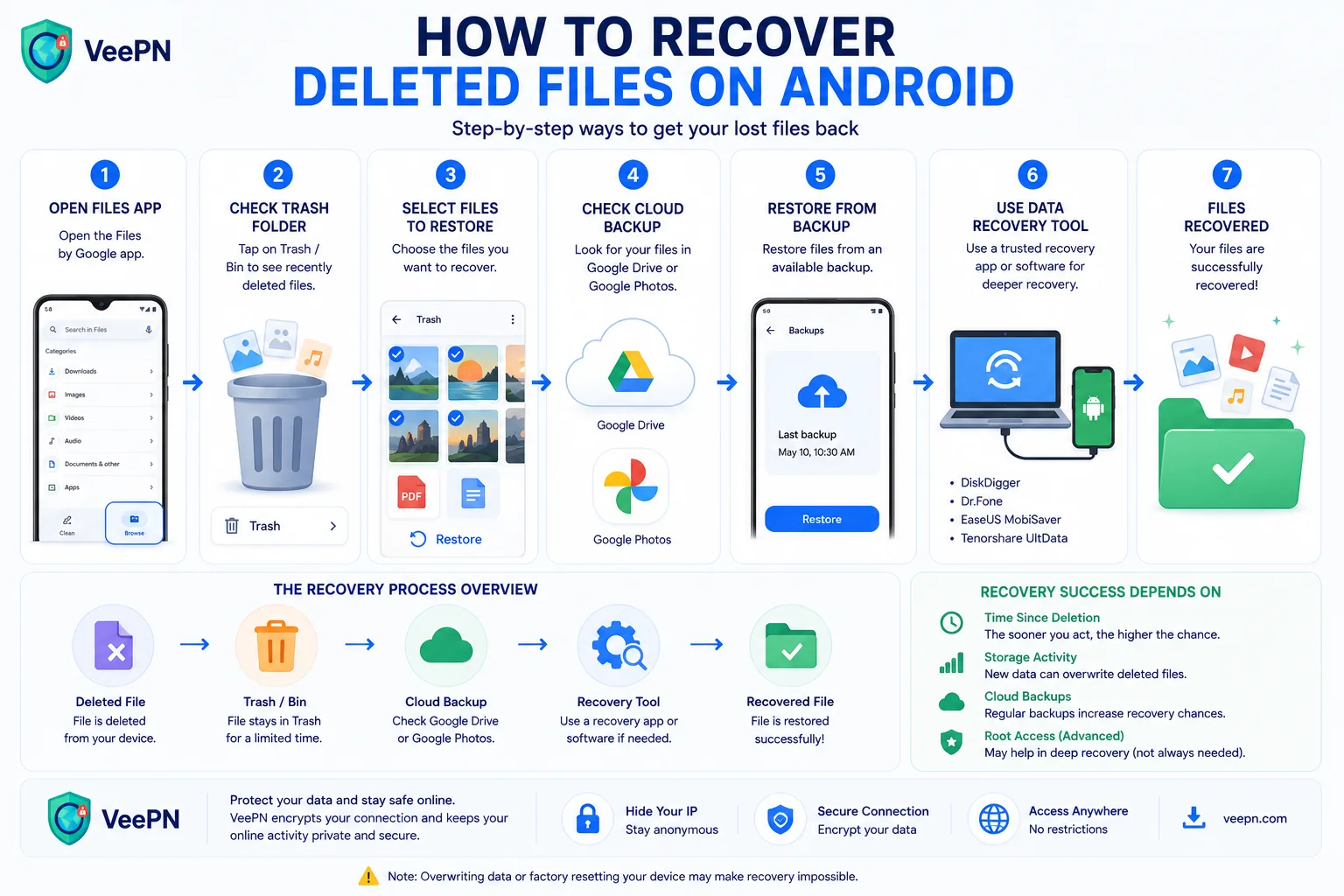
In this article, we’ll explain how to recover lost files on Android in a simple way. We will begin with the quick-and-easy solutions that may work immediately, before moving on to backups, cloud storage and data recovery software, if the file can no longer be found. We’ll also demonstrate how VeePN can keep your data safe.
 VeePN Research Lab


 Quick Navigation
2. Where To Check First
3. Recover Photos and Videos
4. Recover Documents and Downloads
5. Be Careful With Recovery Apps
6. Prevention for Next Time
7. Where VeePN Fits
8. Recovery Depends on Where the File Lived
9. Google Photos: Know the Trash Window
10. Documents, PDFs, and Downloads
11. WhatsApp and Messaging Apps
12. SD Card Recovery Is Different
13. Why Modern Android Recovery Is Hard
14. Prevention Setup That Takes 15 Minutes
15. Recovery Myths To Remove
16. A Practical Backup Setup
17. What To Do Before Selling or Repairing the Phone
18. Related tools
19. A Recovery Order That Avoids Damage
20. What Counts as “Recovered”
21. Recovery for Work Phones
22. If Nothing Works
23. The recovery rule
FAQ
Deleted Android files are sometimes recoverable, but speed matters. Stop using the phone for new photos, downloads, and app installs. New data can overwrite the space where deleted files used to live, especially on local storage.
Start with built-in trash folders and cloud backups before trying recovery apps.
First Rule: Stop Creating New Data
If the missing files were stored locally, avoid recording video, taking photos, installing apps, or downloading files. If the files were on an SD card, remove the card and recover from a computer instead of continuing to use it in the phone.
For cloud-synced files, local overwriting matters less. The recycle bin or version history matters more.
Where To Check First
| File type | First place to check | Typical limit |
|---|---|---|
| Photos/videos | Google Photos Trash | Often 30 or 60 days depending on backup status |
| Local files | Files by Google Trash | Availability depends on app and version |
| WhatsApp media | WhatsApp backup or media folder | Depends on backup schedule |
| Google Drive files | Drive Trash | Usually 30 days before automatic deletion |
| SD card files | Computer recovery software | Best before new writes |
Recover Photos and Videos
Open Google Photos, go to Library > Trash or Collections > Trash depending on app version, select the files, and tap Restore. If the item is not there, check whether it was backed up to another Google account.
Samsung Gallery, OnePlus Gallery, and other manufacturer apps may have their own Trash or Recycle Bin. Check the gallery app you actually used.
Recover Documents and Downloads
Open Files by Google and look for Trash. Also check Google Drive Trash if the file was stored or synced there.
If the deleted files were on an SD card, remove the card and use recovery software on a computer. Do not format the card when prompted.
Be Careful With Recovery Apps
Many Android recovery apps overpromise. Modern Android storage, encryption, and app sandboxing make deep recovery harder than old guides suggest. Some apps only recover thumbnails or files that are still cached.
Avoid apps that demand unnecessary permissions, ask for payment before showing recoverable files, or require rooting your phone without explaining the risk.
Prevention for Next Time
Turn on Google Photos backup for important albums. Use Google Drive or another cloud storage service for documents. Export important chat media. Keep SD card backups on a computer. For work files, use a managed cloud folder instead of only local phone storage.
Where VeePN Fits
A VPN does not recover deleted files. File recovery depends on backups, trash folders, storage behavior, and whether data has been overwritten.
VeePN can help protect the accounts and networks around your backups. Use the VPN on public Wi-Fi when accessing cloud storage. Data Breach Alert can warn if an email tied to your backup accounts appears in known breaches. VeePN Antivirus can help on supported devices when you download recovery tools or handle files from unknown sources.
Recovery Depends on Where the File Lived
Android recovery advice gets messy because “deleted file” can mean several different things. A photo backed up to Google Photos, a PDF in Downloads, a WhatsApp image, a Drive document, and a video on an SD card all have different recovery paths.
Start by identifying the storage location:
| File location | Best recovery path | What not to do |
|---|---|---|
| Google Photos backup | Google Photos Trash | Do not clear Trash while checking |
| Device Downloads | Files app Trash or backup | Do not download recovery apps first |
| Google Drive | Drive Trash and version history | Do not remove shared-drive access |
| WhatsApp media | WhatsApp backup or media folder | Do not overwrite latest backup blindly |
| SD card | Remove card and recover on computer | Do not format when prompted |
| App-specific storage | App backup or support export | Do not uninstall app before checking |
This is why the first step is not installing a recovery app. The first step is finding the most likely bin, backup, or sync location.
Google Photos: Know the Trash Window
Google’s Photos restore guide explains that deleted photos and videos may remain in Trash for a limited period, with the exact behavior depending on backup status and account settings. Open Google Photos, check the account icon to confirm you are in the right Google account, then open Trash and restore from there.
If the item is missing, check other Google accounts on the device. Many people have a personal account and a work or school account. Photos can also be in a device gallery app’s trash rather than Google Photos.
For Samsung, Xiaomi, OnePlus, and other Android devices, the manufacturer’s Gallery app may have its own recycle bin. Check it before assuming the file is gone.
Documents, PDFs, and Downloads
For documents, open Files by Google or the phone’s default file manager. Look for Trash, Recently Deleted, or Recycle Bin. Then check Google Drive. Google’s Drive recovery guide covers Trash and missing-file paths for Drive files.
If the document came from email, search the email account. Attachments often survive in the original message even when the local copy is deleted. If the file came from a messaging app, check that app’s media folder or cloud backup.
Do not install several recovery apps while trying to recover a local file. Every install writes new data and can reduce the chance of recovery.
WhatsApp and Messaging Apps
WhatsApp recovery depends heavily on backup timing. WhatsApp’s restore chat history guide explains the normal restore path from Google Drive or local backups. The important caution: restoring a backup can replace current chat state. If the backup is older than the deletion, it may help. If the backup happened after deletion, it may not.
Before reinstalling WhatsApp, check whether the missing media still exists in the phone’s storage, Google Photos, or the chat itself on another linked device. For work messaging apps like Slack, Teams, or Telegram, recovery may depend on workspace retention rules and cloud history rather than local phone storage.
SD Card Recovery Is Different
If the file was on an SD card, stop using the card. Remove it from the phone and use a computer with reputable recovery software. The reason is simple: the phone may keep writing cache, thumbnails, and app data to the card. Each write can overwrite deleted content.
If Android asks to format the card, decline. Formatting may make recovery harder. If the card is physically failing, repeated attempts can worsen damage. For irreplaceable photos or legal/business evidence, consider professional recovery before running aggressive tools.
Why Modern Android Recovery Is Hard
Older recovery guides often promised deep recovery from internal storage. Modern Android is tougher. Encryption, scoped storage, TRIM behavior, and app sandboxing limit what recovery apps can access. Without an existing backup or trash entry, full recovery from internal storage may be impossible for normal users.
Rooting the phone can sometimes give tools more access, but it also creates new writes, security risk, warranty issues, and a chance of making the situation worse. Rooting should not be the default advice in a consumer article.
Prevention Setup That Takes 15 Minutes
Set Google Photos backup for important folders. Confirm Google Drive sync for documents. Export important chat media before deleting conversations. Copy SD card photos to a computer monthly. Keep a second cloud backup for business-critical files.
For privacy-conscious readers, mention that cloud backup is a trade-off. It improves recovery, but it also stores copies with a provider. Use strong account passwords, MFA, and Data Breach Alert to reduce account-takeover risk. A VPN such as VeePN is useful when accessing backups on public Wi-Fi, but it does not recover deleted files.
Android VPN fits safe access to cloud backups, Data Breach Alert fits backup-account protection, and VeePN Antivirus fits safer handling of recovery tools. VPN pages should not be framed as file recovery tools.
Recovery Myths To Remove
Myth one: every deleted Android file can be recovered with an app. Modern Android storage makes that unrealistic. If there is no trash entry, no cloud copy, and no SD card, recovery may be impossible for a normal user.
Myth two: rooting is the smart first step. Rooting may reduce security, trigger data writes, break apps, or complicate warranty and support. It belongs near the end of the decision tree, not the beginning.
Myth three: a factory reset helps recovery. It does the opposite. A reset is for privacy, resale, or cleanup, not for recovering deleted files.
Myth four: all cloud backups are automatic. Many users discover too late that Google Photos backup was off for a folder, WhatsApp backups were set to monthly, or Drive sync used a different account.
A Practical Backup Setup
Use Google Photos for camera images, but check whether screenshots, downloads, and messaging-app folders are included. Use Google Drive or another cloud provider for documents. Export important chat histories when switching phones. Copy SD card photos to a computer before trips and after trips.
For business files, do not rely on a phone’s local storage. Use managed cloud storage with version history. That way accidental deletion becomes a restore task rather than a recovery gamble.
What To Do Before Selling or Repairing the Phone
Recovery and privacy can conflict. If you are trying to recover files, do not factory reset. If you are selling or sending the phone for repair, back up first, sign out where needed, and then reset according to the manufacturer’s instructions.
For repairs, ask whether the technician needs the device unlocked. If the issue is hardware and the data matters, back up before handing it over. If the file is sensitive and not backed up, consider whether repair access creates a privacy risk.
Related tools
Use Android VPN for safe access to cloud backups on public Wi-Fi, Data Breach Alert for backup-account protection, VeePN Antivirus for scanning recovery tools, and File Checker for suspicious downloads. Avoid suggesting that a VPN changes Android storage recovery.
A Recovery Order That Avoids Damage
Use this order because it moves from safest to riskiest:
- Check app trash folders.
- Check the right cloud account.
- Search original sources such as email, chat, or downloads.
- Check manufacturer gallery trash.
- Stop using the device if the file was local.
- Remove an SD card and recover from a computer.
- Consider professional recovery for irreplaceable files.
- Treat rooting and deep recovery apps as last-resort options.
This order prevents the most common mistake: installing recovery tools before checking built-in restore paths.
What Counts as “Recovered”
Recovered files should open normally, have the expected size, and contain the expected content. A recovered thumbnail is not the same as a recovered original photo. A corrupted video that shows only a preview frame is not a full recovery.
After restoring important files, copy them to at least two places. Do not leave the only restored copy on the same phone that just had the deletion problem.
Recovery for Work Phones
If the Android device is managed by an employer, do not bypass management controls or root the phone. Contact IT. Work profiles, mobile device management, and retention policies can change what is recoverable. The company may also have backups or legal requirements around business files.
For personal phones, the owner can choose riskier options. For work phones, the recovery path has to respect policy.
If Nothing Works
If the file is not in Trash, not in cloud backups, not in the original app, not on an SD card, and not on another device, be realistic. Modern Android internal storage may not be recoverable through consumer tools. At that point, the best next step is prevention: set up backup, version history, and account protection before the next deletion.
That is not a satisfying answer, but it is honest. Overpromising recovery is worse than telling readers the limits early.
Write down what you tried. If a file is valuable enough for professional recovery, the technician needs to know whether the phone was reset, which apps were installed afterward, whether the SD card was formatted, and whether cloud sync changed after deletion.
For ordinary users, that same note-taking prevents repeated risky attempts. Once you know Google Photos Trash, Drive Trash, local Files Trash, WhatsApp backup, and SD card recovery were checked, you can stop looping through the same steps.
Avoid miracle language. “Try these recovery paths” is accurate. “Get every deleted file back” is not. That honesty protects people from paying for tools that cannot recover what Android has already overwritten or securely discarded.
That is especially important for internal storage, where encryption and modern storage behavior make old recovery promises unreliable.
The best promise is a careful process, not a guaranteed outcome.
That keeps expectations honest. It also makes the prevention section more convincing because readers understand why backups matter before the next accident.
The recovery rule
Deleted Android files are most recoverable when they are still in Trash, synced to a cloud account, stored in an app backup, or saved on an SD card that has not been reused. Internal storage is harder, especially on modern encrypted phones.
Check built-in restore paths first. Installing recovery apps too early can make things worse.
FAQ
Can I recover permanently deleted files from Android internal storage?
Sometimes, but it is difficult on modern encrypted phones. If the file is not in Trash or a backup, recovery may require professional tools and still may fail.
Does rooting help recovery?
It can give recovery tools deeper access, but it also creates security risk and can overwrite data during the process. Try backups and trash folders first.
Are deleted WhatsApp files recoverable?
Check WhatsApp backups, phone media folders, and cloud backups. Recovery depends on whether backups existed before deletion.


VeePN is freedom
Download VeePN Client for All Platforms
Enjoy a smooth VPN experience anywhere, anytime. No matter the device you have — phone or laptop, tablet or router — VeePN’s next-gen data protection and ultra-fast speeds will cover all of them.
Download for PC Download for Mac IOS and Android App
Want secure browsing while reading this?
See the difference for yourself - Try VeePN PRO for 3-days for $1, no risk, no pressure.
Start My $1 TrialThen VeePN PRO 1-year plan