Deutsch
  Español
  Français
  العربية
  Indonesia
  Italiano
  한국어
한국어  Nederlands
  Polski
  Português
  Türkçe
  简体中文
简体中文  ไทย
ไทย  Tiếng Việt
  Čeština
  فارسی
فارسی  Română
  Filipino
  日本語
日本語 


How to Fix Packet Loss: Practical Steps to Improve Network Stability
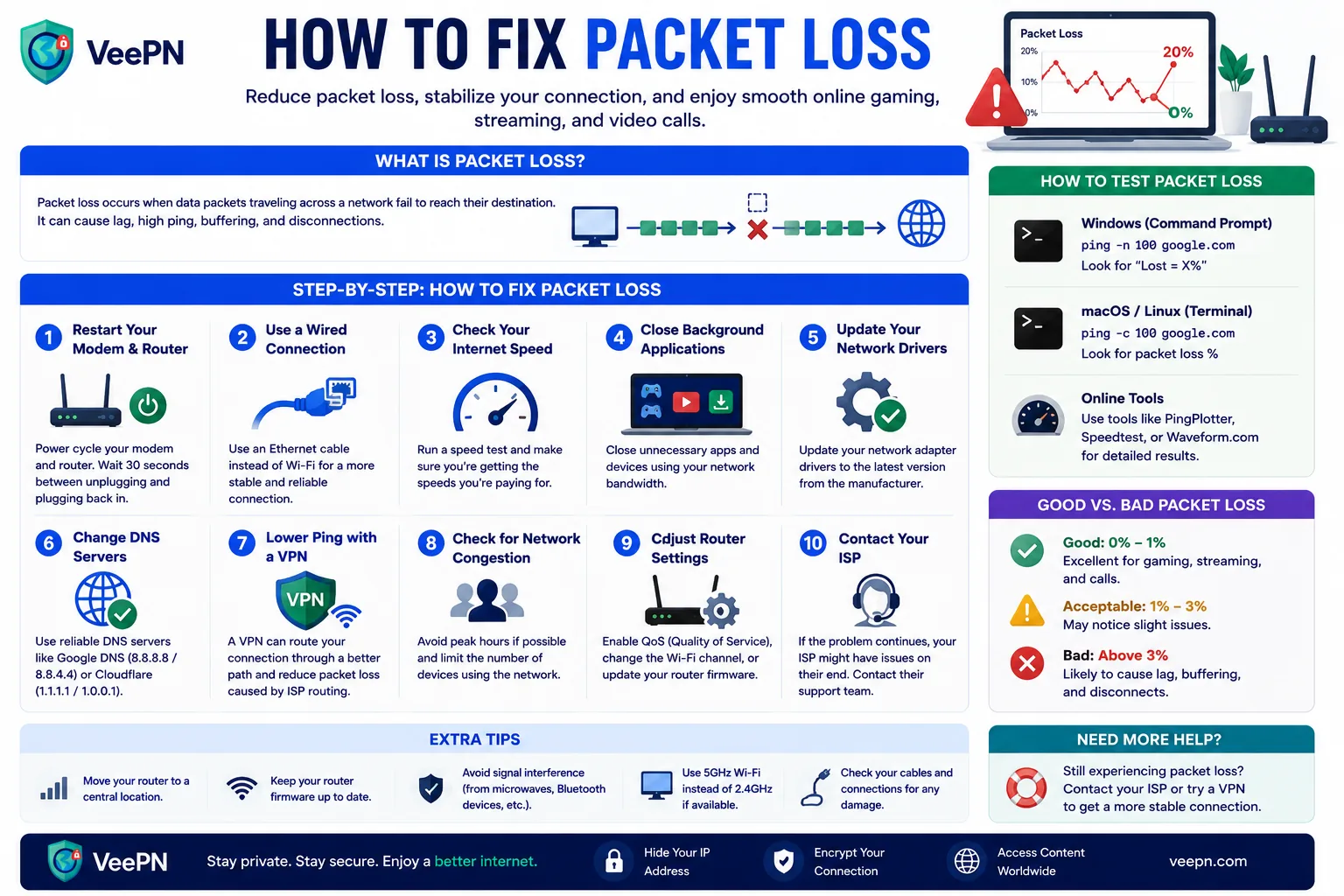
Packet loss occurs when some of the data sent across a network never reaches its destination. Even a small amount of packet loss can cause noticeable problems during activities that rely on real-time communication, such as online gaming, video calls, live streaming, and VoIP calls.
The good news is that packet loss is usually a symptom of an underlying network issue rather than a problem by itself. Once you identify the cause, it’s often possible to improve or eliminate it.
 VeePN Research Lab


 Quick Navigation
What Is Packet Loss?
When you use the internet, information is split into small units called packets. These packets travel across networks and are reassembled when they arrive at their destination.
Packet loss happens when some of those packets are delayed for too long or never arrive at all.
Common symptoms include:
- Lag during online games
- Choppy audio in voice calls
- Frozen or pixelated video streams
- Slow-loading websites
- Frequent connection interruptions
Unlike low bandwidth, packet loss can occur even on a fast internet connection.
What Causes Packet Loss?
Several issues can lead to packet loss, including:
Network Congestion
When too much traffic passes through a network at the same time, routers and switches may begin dropping packets. This is common during peak usage hours or when multiple devices are heavily using the same connection.
Weak Wi-Fi Signals
Distance from the router, physical obstacles, and wireless interference can all affect signal quality and increase packet loss.
Faulty Hardware
Damaged Ethernet cables, failing routers, aging modems, or malfunctioning network adapters can interrupt packet delivery.
Outdated Software or Firmware
Old network drivers and router firmware may contain bugs or compatibility issues that affect network performance.
ISP Routing Problems
Sometimes the issue exists outside your home network. Poor routing between your ISP and the destination server can introduce packet loss even when your local connection appears healthy.
Malware or Excessive Background Traffic
Malware, cloud backup software, large downloads, or other bandwidth-intensive applications can overload a connection and contribute to packet loss.
How to Check for Packet Loss
Before changing settings or replacing hardware, it’s worth confirming that packet loss is actually occurring.
On Windows
Open Command Prompt and run:
ping 8.8.8.8 -n 50
If you see lost packets in the results, packet loss is present somewhere between your device and the destination.
You can also use:
tracert 8.8.8.8
This helps identify where delays or routing problems may be occurring.
Network Testing Tools
Tools such as PingPlotter or packet loss testing websites can provide a more detailed view of packet loss, latency, and route quality over time.
How to Fix Packet Loss
1. Restart Your Router and Modem
It sounds simple, but a restart can resolve temporary software issues, memory leaks, or stalled connections.
Unplug both devices for about 30 seconds before powering them back on.
2. Switch to a Wired Connection
Wi-Fi is convenient, but it is also more vulnerable to interference.
If packet loss affects gaming, video conferencing, or other real-time applications, test the connection using Ethernet. If the issue disappears, Wi-Fi is likely the source of the problem.
3. Improve Your Wi-Fi Environment
If a wired connection isn’t practical:
- Move closer to the router
- Reposition the router in a more open location
- Reduce interference from nearby electronics
- Use the 5 GHz band when available
- Consider a mesh Wi-Fi system for larger homes
4. Update Network Drivers and Router Firmware
Check for:
- Router firmware updates
- Operating system updates
- Network adapter driver updates
Manufacturers regularly release fixes that improve stability and compatibility.
5. Reduce Network Congestion
If multiple devices are streaming, downloading large files, or syncing data simultaneously, packet loss can increase.
Try:
- Pausing large downloads
- Limiting cloud backups during peak use
- Disconnecting unused devices
- Enabling Quality of Service (QoS) settings if your router supports them
6. Scan for Malware
Malicious software can consume bandwidth, generate abnormal traffic, or interfere with network performance.
Run a full system scan using reputable security software and remove any detected threats.
7. Test Alternative DNS Servers
DNS problems don’t directly cause packet loss, but they can create symptoms that resemble connectivity issues.
Testing public DNS services such as:
- Google DNS (8.8.8.8)
- Cloudflare DNS (1.1.1.1)
may help improve overall connection reliability.
8. Contact Your ISP
If packet loss persists after testing your equipment and local network, contact your internet provider.
Ask them to check for:
- Line quality issues
- Local network congestion
- Routing problems
- Signal strength problems on the connection
In many cases, the issue can only be resolved by the provider.
Can a VPN Help with Packet Loss?
A VPN cannot repair faulty hardware, weak Wi-Fi signals, or damaged cables.
However, it can occasionally help when packet loss is caused by inefficient routing between your ISP and the destination service. By routing traffic through a different path, a VPN may provide a more stable connection in some situations.
Results vary depending on the cause of the problem. If packet loss originates within your home network, a VPN is unlikely to make a meaningful difference.
Advanced Diagnostic Tools
If basic troubleshooting doesn’t identify the problem, these tools can provide additional insight:
| Tool | What It Helps Identify |
|---|---|
| PingPlotter | Packet loss and latency across network hops |
| Traceroute | Where delays occur between source and destination |
| Wireshark | Detailed packet-level network analysis |
| Router diagnostics | Signal quality and local network issues |
| Task Manager / Activity Monitor | Applications consuming excessive bandwidth |
Packet Loss Troubleshooting Checklist
| Symptom | Likely Cause | Recommended Fix |
|---|---|---|
| Lag during online games or video calls | Wi-Fi interference or network congestion | Switch to Ethernet, move closer to the router, or pause heavy background traffic. |
| Packet loss happens only on Wi-Fi | Weak signal, distance from router, or wireless interference | Reposition the router, use the 5 GHz band, reduce obstacles, or consider mesh Wi-Fi. |
| Packet loss affects every device | Router, modem, cabling, or ISP-side issue | Restart your equipment, check Ethernet/coax cables, then contact your ISP if the issue continues. |
| Packet loss started after an update | Network driver, router firmware, or OS compatibility issue | Update the network adapter driver and router firmware, or roll back the recent update if needed. |
| Connection gets worse during downloads or streaming | Bandwidth saturation | Pause large downloads, limit cloud backups, disconnect unused devices, or enable QoS on the router. |
| Packet loss appears only with one app, game, or service | Routing problem, overloaded server, or service-side issue | Test another server or region, check the service status, or try a VPN only if routing seems to be the problem. |
For deeper background, Cloudflare’s explainer on what causes packet loss is a solid reference, and you can confirm your line quality with a tool like Speedtest. A VPN will not fix faulty hardware, but on congested or throttled routes a nearby server can give a steadier path — see VeePN’s streaming setup, VPN for router for whole-home coverage, and Kill Switch to prevent leaks if the tunnel drops.
Final Thoughts
Packet loss is usually caused by network congestion, Wi-Fi interference, hardware issues, software problems, or ISP routing faults. Identifying the source is often more important than applying random fixes.
Start with the basics: restart your equipment, test a wired connection, update firmware, and check for excessive network usage. If the issue persists, diagnostic tools and assistance from your ISP can help pinpoint the cause.
In some cases, a VPN may improve connectivity by avoiding problematic routes, but it should be viewed as a potential workaround for routing issues rather than a universal fix.


VeePN is freedom
Download VeePN Client for All Platforms
Enjoy a smooth VPN experience anywhere, anytime. No matter the device you have — phone or laptop, tablet or router — VeePN’s next-gen data protection and ultra-fast speeds will cover all of them.
Download for PC Download for Mac IOS and Android App
Want secure browsing while reading this?
See the difference for yourself - Try VeePN PRO for 3-days for $1, no risk, no pressure.
Start My $1 TrialThen VeePN PRO 1-year plan