Deutsch
  Español
  Français
  العربية
  Indonesia
  Italiano
  한국어
한국어  Nederlands
  Polski
  Português
  Türkçe
  简体中文
简体中文  ไทย
ไทย  Tiếng Việt
  Čeština
  فارسی
فارسی  Română
  Filipino
  日本語
日本語 


Can Chromebooks Get Viruses? Real Risks and Clean Fixes
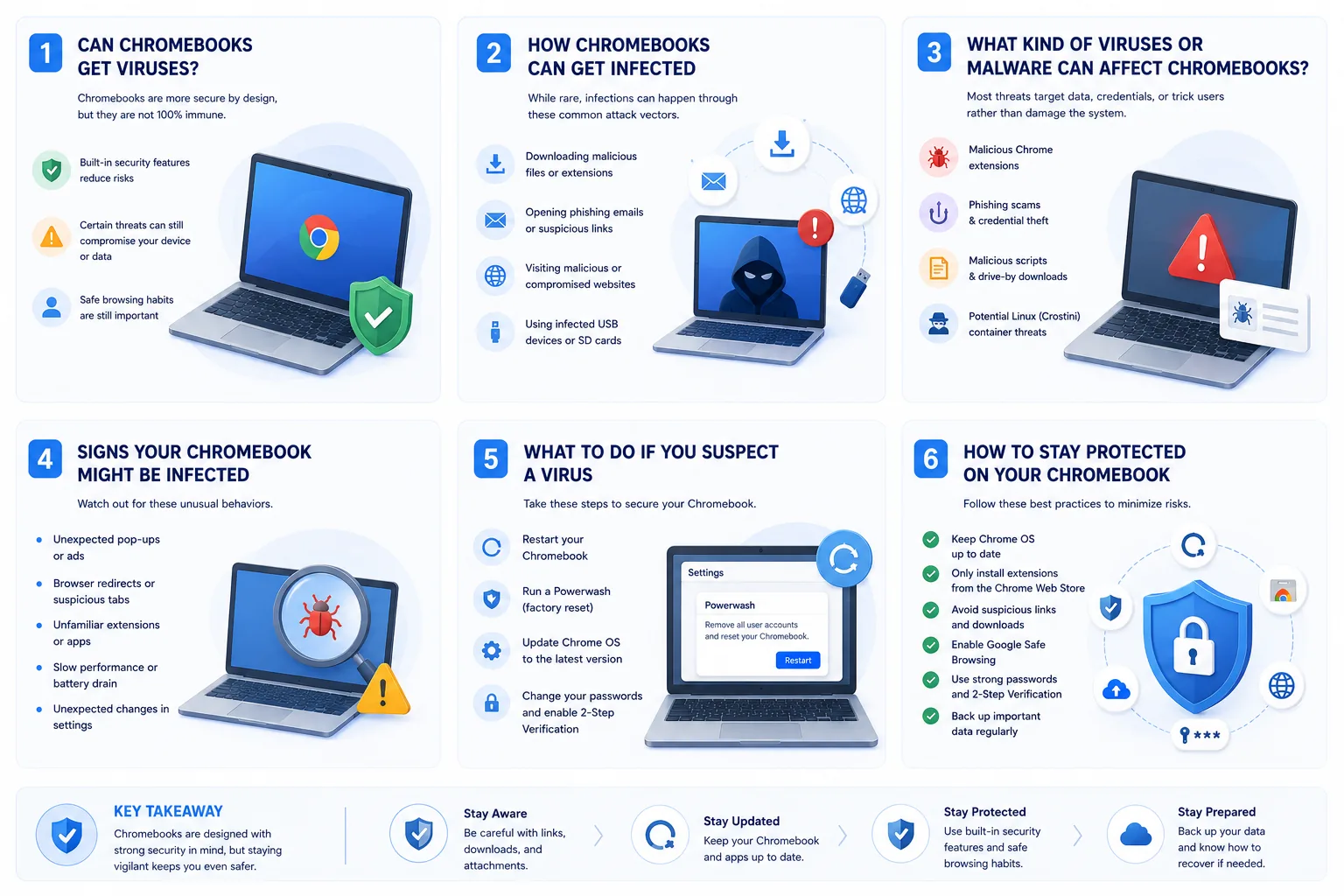
Many users choose a Chromebook because they want something light, simple, and safer than many other laptops. That part is fair. Chrome OS really is built with stronger protection than many traditional operating systems. It uses sandboxing, Verified Boot, data encryption, and automatic updates to make system-level infections much harder to pull off. Google also uses Play Protect for apps and Safe Browsing for dangerous pages and downloads.
Yet it does not mean that nothing can go wrong about it. Yes, Chromebooks become infected with viruses in a broad sense. Normally those are not the old-school type people might imagine when they think of traditional viruses. These devices can still get malicious software, install dangerous browser extensions, and visit phishing sites. So, Chromebooks are safer, but not untouchable.
In this guide, we’ll explain where the real risk comes from, what signs to look for, how to clean things up, and why VeePN can still be useful even when a Chromebook already has plenty of built-in security.
 VeePN Research Lab

 Quick Navigation
2. What Can Still Go Wrong
3. Signs Your Chromebook Needs Cleanup
4. How To Clean a Chromebook
5. Do Chromebooks Need Antivirus?
6. Where VeePN Fits
7. A More Useful Way To Think About Chromebook Risk
8. Check the Google Account, Not Just the Laptop
9. Extension Permissions Deserve More Attention
10. Android Apps on Chromebooks: Good Feature, Different Risk
11. School and Work Chromebooks Are Different
12. Practical Settings Worth Reviewing Monthly
13. Three Common Chromebook Scenarios
14. What Not To Do
15. Related VeePN tools and guides
16. When To Use Recovery Mode
FAQ
Chromebooks are hard to infect at the system level, but they are not immune to online threats. Most real Chromebook problems come from phishing, risky Android apps, malicious Chrome extensions, browser notification abuse, and stolen Google accounts rather than classic Windows-style viruses.
This guide is for Chromebook owners who want a practical answer: what can actually go wrong, how to clean it up, and when extra protection is worth using.
Why Chromebooks Are Safer by Design
ChromeOS uses several protections that make deep infections harder. Apps and browser tabs are sandboxed. Verified Boot checks the operating system at startup. Updates install automatically. User data is encrypted on the device.
That design matters. A Chromebook is usually less exposed to traditional executable malware than a typical unmanaged Windows laptop. But the safer default does not protect every decision a user makes in the browser.
The most common weak point is still the account. If a fake login page steals your Google password, the attacker may not need malware on the device at all.
What Can Still Go Wrong
| Risk | What it looks like | Why it matters | First fix |
|---|---|---|---|
| Phishing | Fake Google, school, bank, or delivery page | Steals passwords and 2FA prompts | Change password from a trusted device |
| Bad extension | New search engine, redirects, ad injection | Can read or change browser data if permissions allow | Remove the extension |
| Risky Android app | Excessive permissions or app from outside Play | Can abuse notifications, tracking, or account access | Uninstall and review permissions |
| Scam notifications | Fake virus alerts from websites | Pushes users to tech-support scams or malware | Remove site notification permission |
| Developer Mode misuse | Sideloading unknown tools | Disables some safe defaults | Turn it off unless truly needed |
The pattern is not dramatic. A Chromebook usually does not “catch a virus” in the old sense. It gets nudged into unsafe behavior: a bad extension, a fake prompt, a page that asks for notification access, or an app with permissions it never needed.
Signs Your Chromebook Needs Cleanup
Watch for redirects to unknown search pages, new extensions you do not remember installing, pop-ups on normal websites, fake security warnings, unexpected notification spam, battery drain, or Android apps that keep requesting permissions.
A restart is a good first step because Verified Boot runs during startup. If the behavior returns, keep going.
How To Clean a Chromebook
- Open Chrome and go to
chrome://extensions. Remove anything you do not recognize or no longer use. - Review site notifications:
Settings > Privacy and security > Site settings > Notifications. Block suspicious sites. - Check Android apps:
Settings > Apps > Manage your apps. Uninstall anything suspicious. - Run Play Protect from the Google Play Store app.
- Reset Chrome settings if the browser still redirects:
Settings > Reset settings > Restore settings to their original defaults. - If the device still behaves badly, use Powerwash:
Settings > System preferences > Reset > Powerwash.
Back up local files before Powerwash. Most Chromebook data lives in Google Drive, but files in Downloads can disappear.
Do Chromebooks Need Antivirus?
Many users do fine with ChromeOS defaults, Google Play Protect, Safe Browsing, and careful extension choices. Extra protection makes more sense if you install many Android apps, use public Wi-Fi often, manage school or work accounts, or share the device with less technical family members.
Where VeePN Fits
A VPN does not fix a malicious Chrome extension or undo a phishing login. VeePN is more useful around the risks that happen while browsing.
The VPN tunnel helps protect traffic on public Wi-Fi. VeePN Antivirus can add file and malware scanning on supported devices. Data Breach Alert can warn if an email or password appears in a known breach, which matters because Google account takeover is often more damaging than local Chromebook malware.
Use those tools as extra layers. Keep the built-in Chromebook protections on.
A More Useful Way To Think About Chromebook Risk
The right question is not only “Can a Chromebook get a virus?” It is “What can affect the data and accounts I use on this Chromebook?” That broader question is more helpful because a Chromebook can be clean while the user’s Google account is compromised, or the operating system can be intact while a browser extension watches traffic inside Chrome.
Google’s own Chromebook security overview focuses on layers: sandboxing, verified boot, encryption, recovery mode, and automatic updates. Those layers are excellent at reducing system-level compromise. They do not remove the need to review what you install, where you sign in, and which sites you allow to send notifications.
Here is the practical split:
| Problem type | Device infected? | Account at risk? | Best next move |
|---|---|---|---|
| Fake Google login page | No | Yes | Change password, review account sessions |
| Scam browser notifications | No | Maybe | Remove site permission, close tabs |
| Bad Chrome extension | Maybe, inside browser | Yes | Remove extension, check permissions |
| Risky Android app | App-level issue | Maybe | Uninstall app, review Google Play Protect |
| Developer Mode sideloading | Possible | Maybe | Disable Developer Mode unless needed |
| Lost or stolen Chromebook | No malware needed | Yes | Use Google account device controls |
That table is also why heavy “virus removal” language can mislead Chromebook users. The cleanup work is usually in Chrome, Google account security, app permissions, and site permissions.
Check the Google Account, Not Just the Laptop
If a Chromebook behaves strangely after you entered a password on a suspicious page, treat the Google account as the main incident. Open your Google account from a trusted device and review Security > Your devices, Security > Recent security activity, and Security > Third-party apps and services. Remove sessions and apps you do not recognize.
Change the password if there is any chance you entered it on a fake page. Then turn on 2-Step Verification. If you already use 2-Step Verification, check whether backup codes, passkeys, recovery phone numbers, or recovery email addresses have changed.
This matters because a stolen Google account can expose Gmail, Drive, Photos, saved passwords, app data, YouTube, and recovery access for other services. A factory reset on the Chromebook will not undo that.
Extension Permissions Deserve More Attention
Extensions are convenient because they sit inside the browser. That also makes them sensitive. Some can read and change data on every website you visit. Others can manage downloads, copy clipboard content, change your search provider, or inject content into pages.
When reviewing chrome://extensions, click Details on anything you plan to keep. Look at “Site access” and permissions. A coupon extension that can read every page, including banking and work apps, deserves suspicion. A PDF tool that wants clipboard access and all-site access may not be worth the trade-off.
Google’s Chrome Web Store policies restrict abusive behavior, but extensions can still be sold, abandoned, compromised, or changed after installation. The best personal rule is simple: fewer extensions, fewer surprises.
Android Apps on Chromebooks: Good Feature, Different Risk
Android app support makes Chromebooks more flexible. It also means Chromebook users inherit some mobile-app risk: overbroad permissions, ad SDKs, trackers, notification spam, and apps copied from outside official sources.
Use Google Play Protect, but do not treat it as a reason to install anything. Read permissions before granting them. A calculator does not need contacts. A wallpaper app does not need microphone access. A simple document scanner may need camera access while in use, but it should not need always-on location.
If an app asks for accessibility access, slow down. Accessibility permissions are powerful because they can read screen content and interact with apps. Some legitimate tools need them. Many shady apps ask for them because they are useful for abuse.
School and Work Chromebooks Are Different
Managed Chromebooks can have stricter policies than personal devices. A school or employer may control extensions, apps, Safe Browsing settings, guest mode, USB behavior, and update channels. That can be good for security, but it also means the right cleanup path is different.
If the device is managed, do not Powerwash it before checking policy. The issue may be a pushed extension, a network profile, a certificate, or an organization-controlled setting. Report the symptom to the administrator with specifics: the URL that redirects, the extension name, the app name, the time it started, and whether it happens in Guest mode.
For personal devices, Guest mode is a useful diagnostic step. If the problem disappears in Guest mode, the cause is probably tied to your profile, extension list, cookies, or site permissions.
Practical Settings Worth Reviewing Monthly
Set a recurring reminder and check these five places:
chrome://extensionsfor unknown or unused extensions.Settings > Privacy and security > Site settings > Notificationsfor spammy sites.Settings > Privacy and security > Securityto confirm Safe Browsing is on.Settings > Apps > Manage your appsfor Android apps you no longer use.- Google Account
Securitypage for unfamiliar devices and third-party access.
This review takes five minutes. It catches most of the problems that people later describe as a Chromebook virus.
For broader browsing hygiene, VeePN’s guides on phishing sites and checking suspicious links are natural companion resources. They are more relevant to Chromebook safety than old advice about traditional PC viruses.
Three Common Chromebook Scenarios
Scenario one: the browser keeps opening a strange search page. That usually points to an extension, search setting, or site permission. Start with chrome://extensions, then check Settings > Search engine, then review notification permissions. Do not Powerwash first. You may solve the issue in two minutes.
Scenario two: a child installed several Android games and now the device is noisy with alerts. Check app permissions and notification settings before assuming infection. Remove apps that came from outside Google Play or ask for permissions that do not match the game. Then run Play Protect and restart.
Scenario three: a user entered a Google password into a fake school or bank page. This is no longer a Chromebook cleanup problem. It is an account-recovery problem. Change the password, review devices, remove unknown third-party access, and turn on stronger sign-in protection.
Those examples show why there is no universal fix. The right cleanup path depends on whether the issue lives in Chrome, Android apps, site permissions, or the Google account.
What Not To Do
Do not install random “Chromebook cleaner” tools from search ads. ChromeOS does not need the same cleanup utilities that Windows users may recognize. A shady cleaner can become the problem.
Do not ignore browser warnings because the device is a Chromebook. Safe Browsing warnings exist because the web page, download, or extension may be dangerous regardless of operating system.
Do not leave unused extensions installed “just in case.” Every extension is another piece of code with its own update path and permissions.
Do not share the main Google account with several people. If a family member needs the device, create a separate profile. Shared profiles make it harder to know who installed what and which account was exposed.
Related VeePN tools and guides
For safer browsing on a Chromebook, these resources are more useful than traditional PC antivirus advice: VeePN Antivirus, Data Breach Alert, the guide to phishing sites, the Link Checker, and the Chrome VPN extension. They map to the real risk surface: browser safety, suspicious links, and account exposure.
When To Use Recovery Mode
Powerwash resets the user profile and local data. Recovery mode reinstalls ChromeOS. Most users should try cleanup and Powerwash before full recovery. Use recovery when the operating system is corrupted, updates fail repeatedly, or the device shows persistent system problems after a reset.
That distinction helps avoid overkill. A spammy notification does not need OS recovery. A broken system image might.
Clean the browser first, secure the account second, and reset the device only when the symptom survives simpler checks.
That order is less dramatic than “virus removal,” but it matches how Chromebook problems usually show up in real life.
FAQ
Can a Chromebook get a Windows virus?
Not in the usual way. Windows executable malware generally will not run natively on ChromeOS. The realistic risks are browser-based scams, Android app abuse, extensions, and stolen accounts.
Is Powerwash enough to remove malware?
For many Chromebook problems, yes. Powerwash resets the device. It will not protect a compromised Google account, so change your password and review account activity too.
Should I enable Developer Mode?
Most users should leave it off. Developer Mode is useful for testing and advanced workflows, but it reduces some of the safety that makes Chromebooks attractive.


VeePN is freedom
Download VeePN Client for All Platforms
Enjoy a smooth VPN experience anywhere, anytime. No matter the device you have — phone or laptop, tablet or router — VeePN’s next-gen data protection and ultra-fast speeds will cover all of them.
Download for PC Download for Mac IOS and Android App
Want secure browsing while reading this?
See the difference for yourself - Try VeePN PRO for 3-days for $1, no risk, no pressure.
Start My $1 TrialThen VeePN PRO 1-year plan